1.2.4 Branches and Collaboration
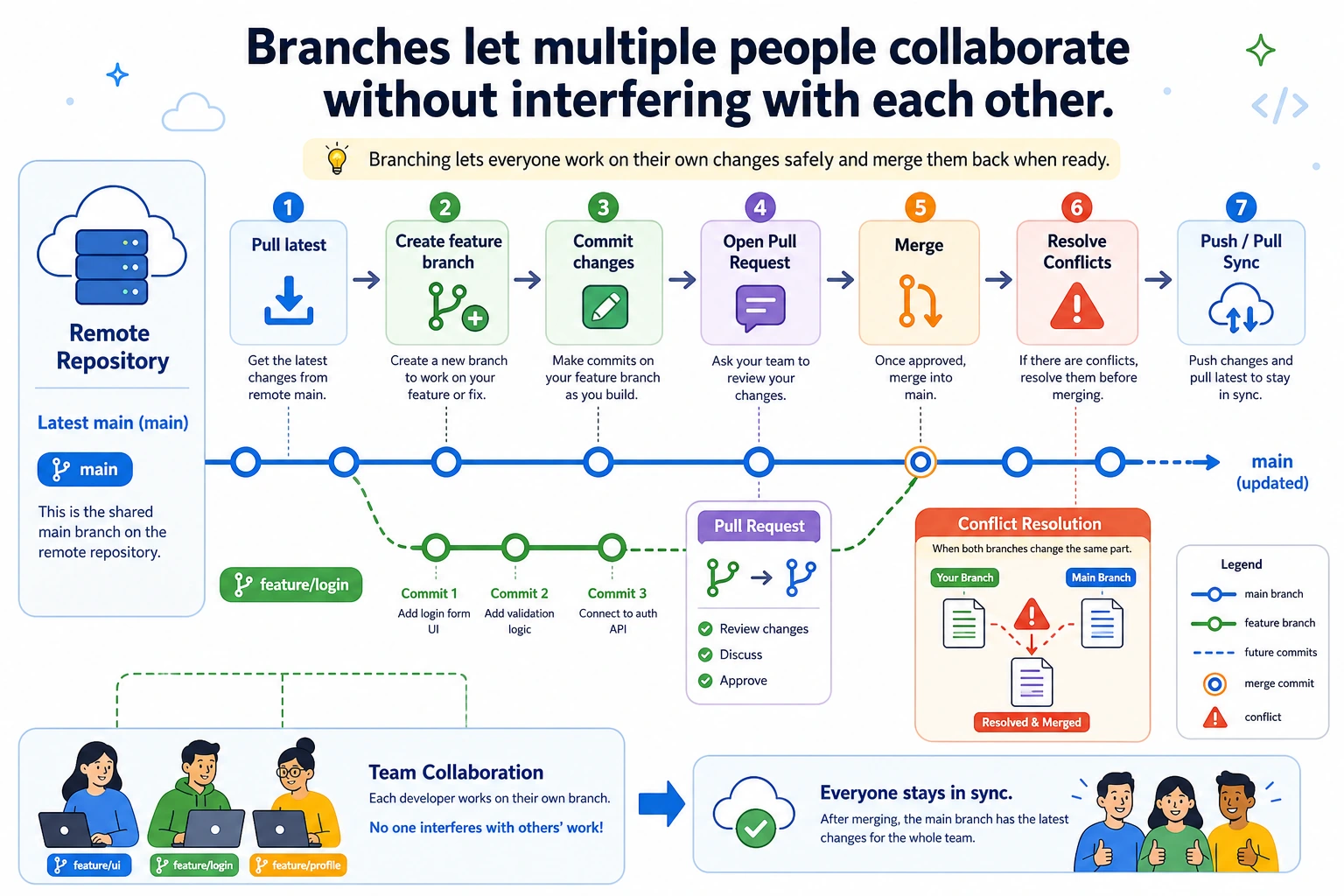
Where This Lesson Fits
This lesson explains why Git supports safe collaboration. You’ll understand how branches let you try new ideas without breaking the main codebase, and you’ll get a first look at Pull Requests and merge conflicts, preparing you for team projects and open-source contributions later.
Learning Objectives
- Understand the concept of branches and when to use them
- Master creating, switching, and merging branches
- Learn the collaboration workflow of Pull Requests
- Learn how to resolve simple merge conflicts
What Is a Branch?
An Analogy: Renovating an Apartment
Imagine you live in an apartment (main branch = the home you are currently living in). You want to try a new interior design style, but you’re not sure whether it will turn out well.
You have two choices:
- Make changes directly in your home — if you mess it up, you can’t really live there anymore
- Rent an identical apartment first (a new branch) and try things there — if it looks good, move the changes back; if not, just end the lease
A branch is option 2. You can make changes freely on a new branch. If it works, merge it back into main. If it doesn’t, delete the branch, and main stays completely unaffected.
Real-World Scenarios in Code
You are working on an AI image classification project, and the code on the main branch is running normally.

Now you want to try:
  - Replacing the model from CNN to Vision Transformer
  - You’re not sure whether the result will be better
  - The changes are large and may take several days

If you change main directly:
  ❌ If you’re halfway done, the code may stop running
  ❌ A teammate suddenly asks you to fix a bug, but main is already messed up by your changes
  ❌ In the end, you realize ViT is not good, but you have already changed 50 files

If you use a branch:
  ✅ Work slowly on the feature/vit branch
  ✅ A bug fix comes in? Switch back to main, fix it, push it, then switch back and continue
  ✅ Find out ViT is not working? Delete the branch, and main remains untouched
Basic Branch Operations
View Branches
# View local branches (the current branch has a * in front)
git branch
# Output:
# * main

# View all branches (including remote branches)
git branch -a
Create and Switch Branches
# Create a new branch
git branch feature/data-augmentation

# Switch to the new branch
git checkout feature/data-augmentation

# Or do it in one step: create and switch (more common)
git checkout -b feature/data-augmentation
Common naming patterns:
feature/xxx— new feature (for examplefeature/add-resnet)fix/xxx— bug fix (for examplefix/training-crash)experiment/xxx— experimental attempt (for exampleexperiment/try-vit)
Example: Developing a New Feature on a Branch
Let’s do a real example. Continue using the previous ai-image-classifier project:
cd ai-image-classifier

# Confirm that we are on the main branch
git branch
# * main

# Create and switch to a new branch: add data augmentation
git checkout -b feature/data-augmentation
Now you are on the new branch. Start writing code:
# Create the data augmentation module
cat > src/augmentation.py << 'EOF'
import torchvision.transforms as T

def get_train_transforms():
    """Augmentation strategy for training data"""
    return T.Compose([
        T.RandomHorizontalFlip(p=0.5),        # 50% chance of horizontal flip
        T.RandomRotation(degrees=15),          # Random rotation of ±15 degrees
        T.ColorJitter(                         # Color jitter
            brightness=0.2,
            contrast=0.2,
            saturation=0.2
        ),
        T.ToTensor(),
        T.Normalize(
            mean=[0.485, 0.456, 0.406],
            std=[0.229, 0.224, 0.225]
        ),
    ])

def get_test_transforms():
    """Test data only gets normalized, no augmentation"""
    return T.Compose([
        T.ToTensor(),
        T.Normalize(
            mean=[0.485, 0.456, 0.406],
            std=[0.229, 0.224, 0.225]
        ),
    ])
EOF

# Update train.py to use data augmentation
cat >> src/train.py << 'EOF'

# Added: use data augmentation
from augmentation import get_train_transforms, get_test_transforms
train_transform = get_train_transforms()
test_transform = get_test_transforms()
print("Data augmentation strategy loaded")
EOF

# Commit to the current branch
git add .
git commit -m "feat: add data augmentation module (random flip, rotation, color jitter)"
Now check the status of the two branches:
# View the history of the current branch
git log --oneline -3
# Output:
# aaa1111 feat: add data augmentation module (random flip, rotation, color jitter)
# bbb2222 Improve README: add project overview and usage
# ccc3333 Add .gitignore

# Switch back to main and take a look
git checkout main

# main does not have augmentation.py!
ls src/
# model.py  train.py  utils.py  (no augmentation.py)

# Switch back to the feature branch
git checkout feature/data-augmentation
ls src/
# augmentation.py  model.py  train.py  utils.py  (it’s there!)
That’s the power of branches—two timelines that do not affect each other.
Merging Branches
When the feature on your branch is finished and passes tests, you can merge it back into main.
# Step 1: switch back to the main branch
git checkout main

# Step 2: merge the feature branch into main
git merge feature/data-augmentation
Output:
Updating bbb2222..aaa1111
Fast-forward
 src/augmentation.py | 25 +++++++++++++++++++++++++
 src/train.py        |  5 +++++
 2 files changed, 30 insertions(+)
 create mode 100644 src/augmentation.py
Now the main branch also has the data augmentation code:
ls src/
# augmentation.py  model.py  train.py  utils.py  ✅
Cleaning Up After the Merge
# The feature branch has been merged, so you can delete it (to keep the repo tidy)
git branch -d feature/data-augmentation

# View branches — only main remains
git branch
# * main
Merge Conflicts
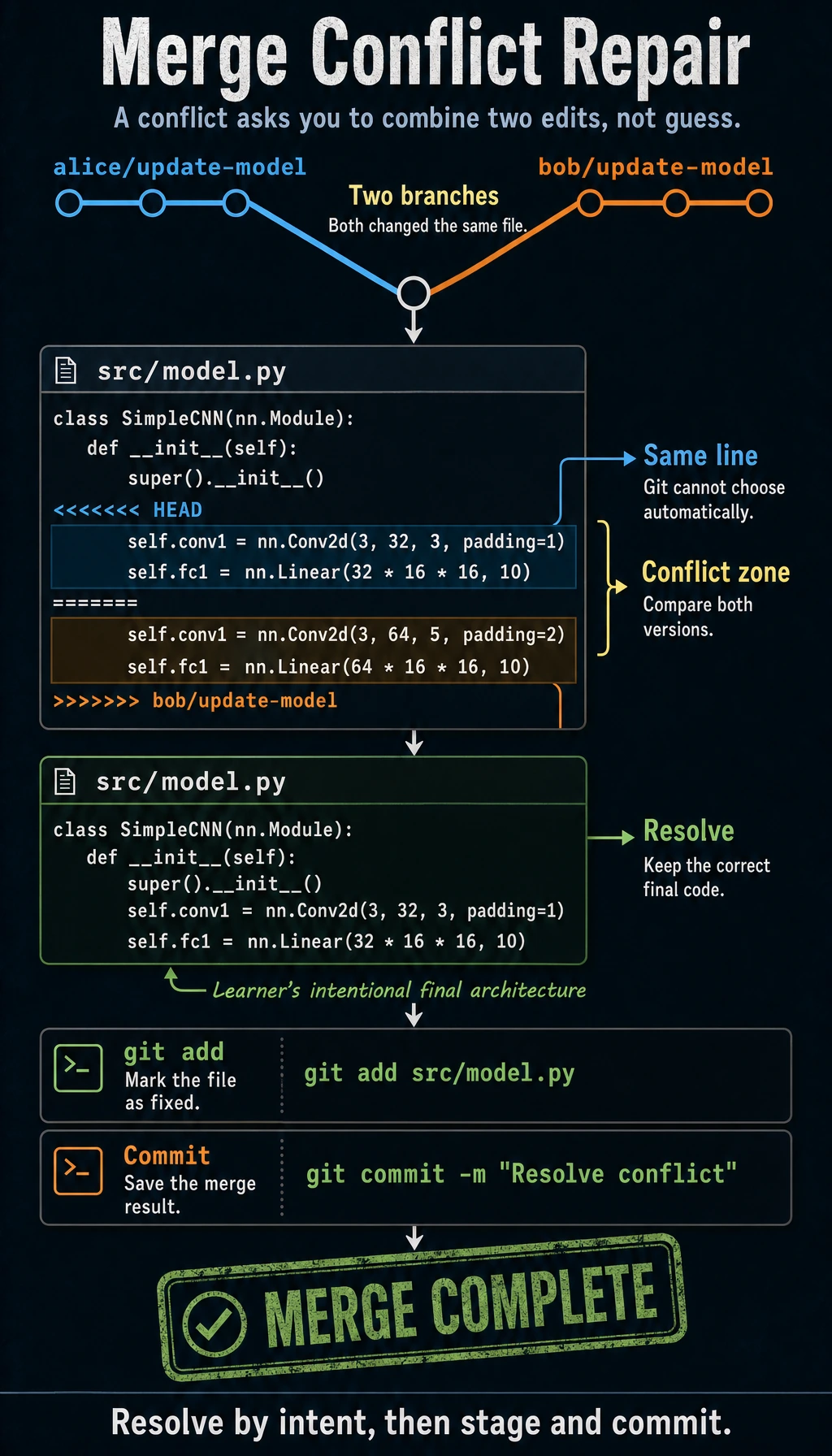
When Do Conflicts Happen?
When two branches modify the same location in the same file, Git does not know which version to keep, so a conflict occurs.
Example: Create a Conflict and Resolve It
# Create two branches from main to simulate two people working at the same time
git checkout -b alice/update-model
cat > src/model.py << 'EOF'
import torch
import torch.nn as nn

class SimpleCNN(nn.Module):
    def __init__(self):
        super().__init__()
        self.conv1 = nn.Conv2d(3, 32, 3, padding=1)  # Alice: change to 32 filters
        self.pool = nn.MaxPool2d(2, 2)
        self.fc1 = nn.Linear(32 * 16 * 16, 10)

    def forward(self, x):
        x = self.pool(torch.relu(self.conv1(x)))
        x = x.view(-1, 32 * 16 * 16)
        return self.fc1(x)
EOF
git add . && git commit -m "alice: increase filter count to 32"

# Switch back to main and create Bob's branch
git checkout main
git checkout -b bob/update-model
cat > src/model.py << 'EOF'
import torch
import torch.nn as nn

class SimpleCNN(nn.Module):
    def __init__(self):
        super().__init__()
        self.conv1 = nn.Conv2d(3, 64, 5, padding=2)  # Bob: change to 64 filters, 5x5 kernel
        self.pool = nn.MaxPool2d(2, 2)
        self.fc1 = nn.Linear(64 * 16 * 16, 10)

    def forward(self, x):
        x = self.pool(torch.relu(self.conv1(x)))
        x = x.view(-1, 64 * 16 * 16)
        return self.fc1(x)
EOF
git add . && git commit -m "bob: switch to 64 filters and a 5x5 kernel"
Now merge Alice’s changes:
git checkout main
git merge alice/update-model    # ✅ Success, no conflict
Then merge Bob’s changes:
git merge bob/update-model
# Output:
# CONFLICT (content): Merge conflict in src/model.py
# Automatic merge failed; fix conflicts and then commit the result.
A conflict occurred! Because Alice and Bob both modified the same line in model.py.
Resolving the Conflict
Open src/model.py, and you will see Git marking the conflict like this:
import torch
import torch.nn as nn

class SimpleCNN(nn.Module):
    def __init__(self):
        super().__init__()
CONFLICT_MARKER_START HEAD
        self.conv1 = nn.Conv2d(3, 32, 3, padding=1)  # Alice: change to 32 filters
        self.pool = nn.MaxPool2d(2, 2)
        self.fc1 = nn.Linear(32 * 16 * 16, 10)
CONFLICT_MARKER_SEPARATOR
        self.conv1 = nn.Conv2d(3, 64, 5, padding=2)  # Bob: change to 64 filters, 5x5 kernel
        self.pool = nn.MaxPool2d(2, 2)
        self.fc1 = nn.Linear(64 * 16 * 16, 10)
CONFLICT_MARKER_END bob/update-model
- In a real conflict, Git shows
<<<<<<< HEAD, then the current branch version, then=======, then the incoming branch version, and finally>>>>>>> branch-name. - The example above uses
CONFLICT_MARKER_*placeholders so repository checks do not mistake this teaching sample for an unresolved merge conflict.
You need to manually decide what to keep. For example, let’s choose Bob’s version:
import torch
import torch.nn as nn

class SimpleCNN(nn.Module):
    def __init__(self):
        super().__init__()
        self.conv1 = nn.Conv2d(3, 64, 5, padding=2)  # Use Bob's version
        self.pool = nn.MaxPool2d(2, 2)
        self.fc1 = nn.Linear(64 * 16 * 16, 10)

    def forward(self, x):
        x = self.pool(torch.relu(self.conv1(x)))
        x = x.view(-1, 64 * 16 * 16)
        return self.fc1(x)
Delete all the <<<<<<<, =======, and >>>>>>> markers, and keep only the code you want. Then:
git add src/model.py
git commit -m "merge: merge Alice and Bob's changes, using Bob's 64-filter design"
The conflict is resolved.
When VS Code encounters a conflict, it highlights the conflict and gives you several buttons:
- Accept Current Change (keep the current branch version)
- Accept Incoming Change (keep the version from the branch being merged in)
- Accept Both Changes (keep both)
Just click one — it’s much easier than editing manually.
# Clean up branches
git branch -d alice/update-model
git branch -d bob/update-model
Pull Request (Good to Know)
In team collaboration, you usually do not merge directly into main. Instead, you use a Pull Request (PR) so someone else can review your code first and merge it only after confirming it looks good.
Pull Request Workflow
1. You create a feature branch and write code
2. Push it to GitHub
3. Create a Pull Request on GitHub
4. A teammate reviews your code and gives feedback
5. You make changes based on the feedback and push new commits
6. The teammate clicks "Approve"
7. The code gets merged into the main branch
Practical Steps
# 1. Create a branch and write code
git checkout -b feature/add-evaluation
echo "def evaluate(model, dataloader): pass" > src/evaluate.py
git add . && git commit -m "Add model evaluation module"

# 2. Push the branch to GitHub
git push -u origin feature/add-evaluation
Then open GitHub, and you’ll see a prompt:
feature/add-evaluation had recent pushes — Compare & pull request
Click that button, fill in the PR title and description, and click Create pull request to finish.
For a personal project, you can review it yourself and then click Merge pull request on the GitHub page to merge it directly.
Chapter Self-Check
Complete the following checks to confirm you understand Git basics:
- Can create a Git repository from scratch
- Can use
add→committo save code changes - Can use
git diffto see what changed - Know how to write a
.gitignorefile - Can push code to GitHub
- Can use
git cloneto download someone else’s project - Understand branches, and can create and merge them
- Stay calm when merge conflicts happen, and know how to solve them
Congratulations, you’ve finished learning Git! These skills will stay with you throughout your entire AI learning journey. Next, we’ll set up a Python development environment.