
1 Developer Tools Fundamentals
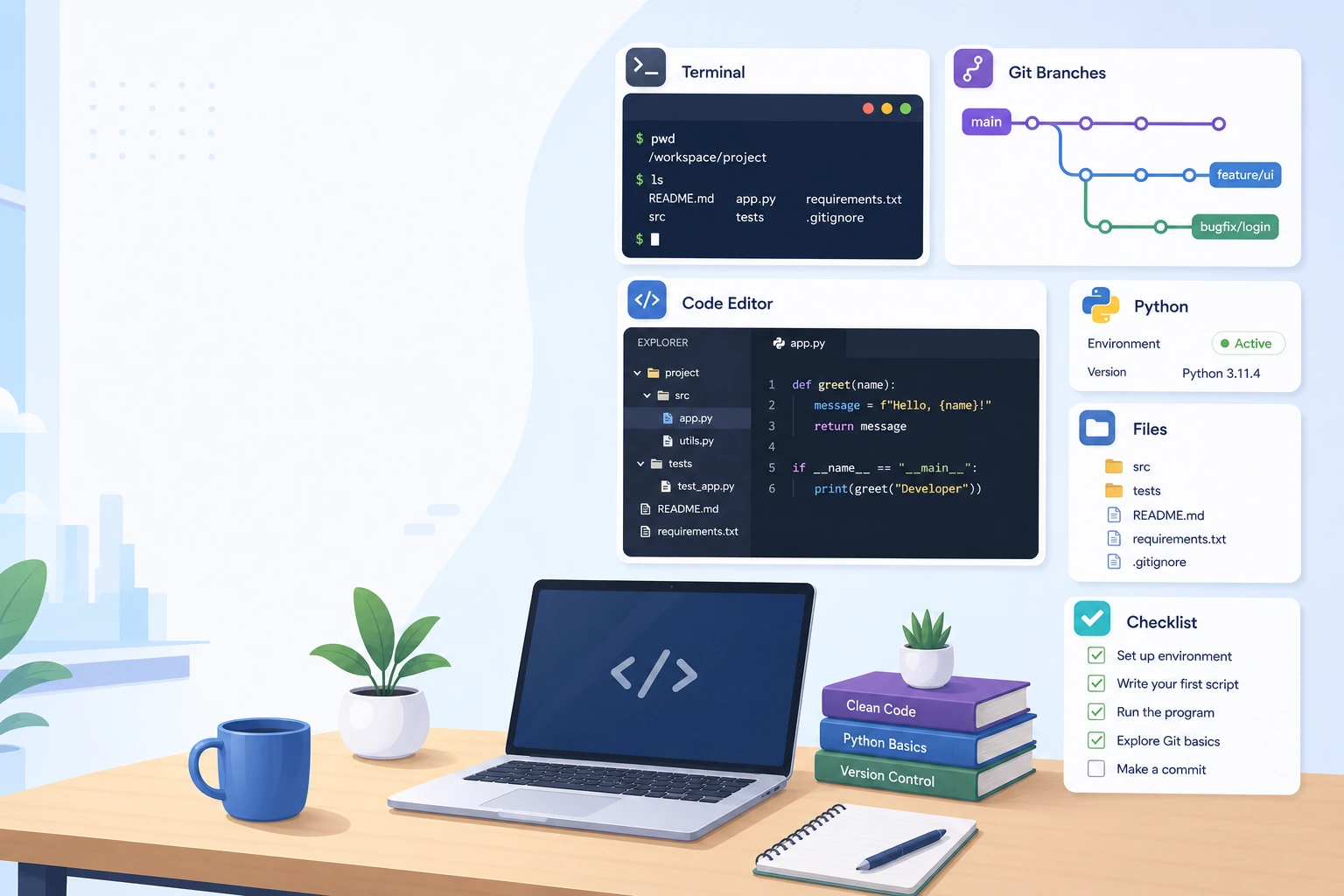
Chapter 1 has one job: make sure you can create code, run code, save code, and explain how to rerun it.
See The Workstation
Section titled “See The Workstation”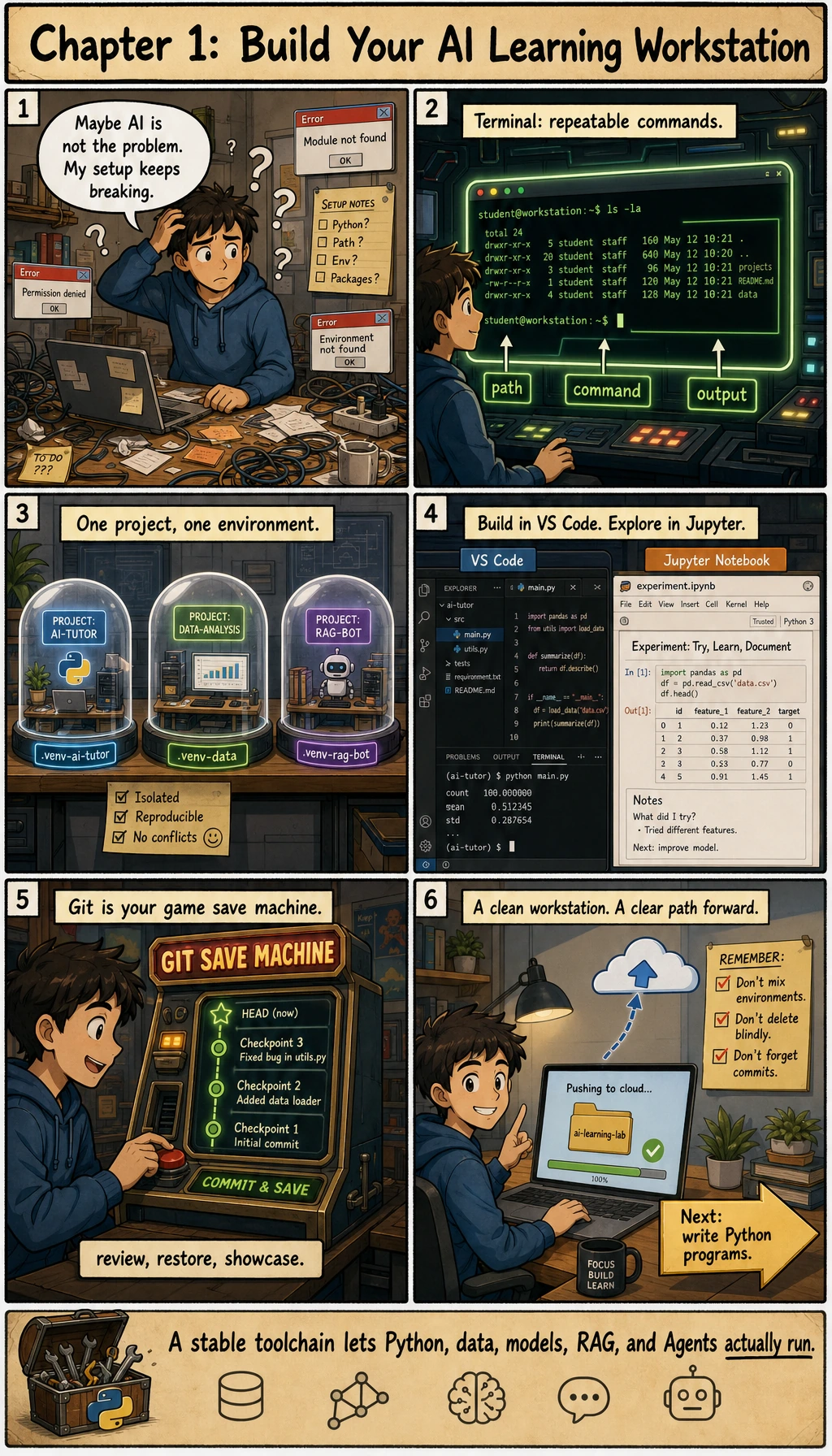
Read the picture first. The whole chapter is this loop:
Do not try to master every tool now. Build one stable workstation, then reuse it in later AI projects.
Learning Order And Task List
Section titled “Learning Order And Task List”Use this sequence as both the guide and the task list.
- 1.1.1 Terminal and command line: run
pwd,ls, andcd; keep a short command log. - 1.1.2 Basic terminal operations: create, move, inspect, and remove files; keep a folder screenshot or terminal output.
- 1.1.3 Package managers: check how your system installs tools; keep tool version notes.
- 1.2.1 Git basics and 1.2.2 Git core operations: save a first local project snapshot; keep one clean Git commit.
- 1.3.1 Python environment, 1.3.2 VS Code, and 1.3.3 Jupyter: run Python in the right environment, edit code, and restart-run a notebook.
- 1.4.1 Follow-along workshop: combine terminal, Python, editor, notebook, and Git into a reproducible
ai-learning-labREADME. - 1.4.2 AI Coding Agent Workflow: turn a coding request into scope, permission, test, evidence, and review gates before letting an Agent edit.
The workshops stay at the end because they are integration steps: learn the pieces first, then connect them with reproducible evidence.
First Runnable Loop
Section titled “First Runnable Loop”Run this in a practice folder. It creates a tiny project, runs it, documents it, and commits it.
mkdir ai-learning-labcd ai-learning-labpython -m venv .venv. .venv/bin/activatepython -c "import sys; print(sys.executable)"printf '.venv/\n__pycache__/\n' > .gitignoreprintf 'print("AI learning lab is ready")\n' > hello_ai.pyprintf '# AI Learning Lab\n\nActivate env: . .venv/bin/activate\nRun with: python hello_ai.py\n' > README.mdpython hello_ai.pygit initgit add .gitignore README.md hello_ai.pygit commit -m "init learning lab"Expected output:
AI learning lab is readyIf the command fails, do not erase the error. Save the command, full output, operating system, Python version, and current directory. That record is useful project evidence.
On Windows PowerShell, use .venv\Scripts\Activate.ps1 instead of . .venv/bin/activate. If your system uses python3, replace python with python3 consistently in the commands and README.
How to read this output
Section titled “How to read this output”AI learning lab is readyproves the script ran inside the project folder.python -c "import sys; print(sys.executable)"proves which interpreter is actually running.- The Git commit proves the project can be saved and reviewed later.
- If any command fails, the command plus the full error output is evidence, not noise.
Depth Ladder
Section titled “Depth Ladder”| Level | What you can prove |
|---|---|
| Minimum pass | You can create a folder, run a script, and identify the current directory and Python interpreter. |
| Project-ready | A fresh terminal can follow your README, .venv/ is ignored, and git status only shows intentional changes. |
| Deeper check | You can explain why PATH, working directory, shell, and interpreter choice change results across machines. |
Evidence to Keep
Section titled “Evidence to Keep”Keep this page’s proof of learning as a small evidence card:
- Workspace
- terminal, Git repo, editor, Python environment, and notebook all verified
- Artifact
- small command log, commit history, script output, or notebook cell result
- Debug Note
- one setup problem and how you diagnosed it
- Failure Check
- path confusion, environment mismatch, Git state, or missing dependency
- Expected Output
- a ready-to-learn workstation evidence pack
Common Failures
Section titled “Common Failures”| Symptom | First thing to check | Usual fix |
|---|---|---|
| Command not found | Is the tool installed and available in PATH? | Reopen the terminal or reinstall the tool |
| Python import fails | Are python and pip from the same environment? | Install with python -m pip install ... |
| File not found | Are you in the correct directory? | Run pwd and ls, then move to the project folder |
| Git commit fails | Is Git initialized, staged, and configured? | Run git status and set username/email if needed |
| README command fails | Did the README include every required step? | Test from a fresh terminal and update the README |
Pass Check
Section titled “Pass Check”Move to Chapter 2 when you can answer these five questions:
- Which directory is the terminal using?
- Which Python interpreter is running your script?
- What changed since the last Git commit?
- What command reruns the project from a fresh terminal?
- Where did you record your first error and fix?
Check reasoning and explanation
- The terminal directory is the folder shown by
pwd; it should be the project root or the folder named in your command. - The Python interpreter is the path returned by
which pythonorpython -c "import sys; print(sys.executable)"; it should match your course environment. - Git changes are checked with
git status --shortand explained withgit diffbefore commit. - A fresh rerun command should include environment activation, an install/check step if needed, and the exact script command.
- The error record is acceptable when it includes symptom, command, likely cause, and fix. A screenshot alone is not enough.
The goal is not tool perfection. The goal is a workstation stable enough for the rest of the course.