1.3.1 Python Environment Management
What this section covers
This section solves the most common problems in AI learning: “environment mess” and “dependency conflicts.” You will understand why every project should have its own isolated environment, and learn how to create, switch, export, and restore Python environments with Miniconda.
Learning objectives
- Understand why virtual environments are needed (through a real-world failure case)
- Install and configure Miniconda
- Learn how to create, activate, switch, and delete virtual environments
- Understand the difference between conda and pip, and know when to use each
- Learn how to export and import environment configurations
- Be able to troubleshoot common environment issues on your own
Why do we need virtual environments?
A real-world failure scenario
Xiaoming is working on two AI projects:
- Project A (image classification): needs
torch==1.13because it uses an old library that only works with 1.13 - Project B (LLM application): needs
torch==2.1because it uses the latest Flash Attention
If he installs both projects’ dependencies into the same Python environment:
pip install torch==1.13    # Project A works
pip install torch==2.1     # Project B works, but torch is upgraded to 2.1
# Then when going back to Project A — it fails! Because torch is now 2.1
This is called a package version conflict — one Python environment can only hold one version of a package with the same name.
How do virtual environments solve this problem?
A virtual environment is an independent, isolated Python installation. Each project gets its own environment, and they do not interfere with each other:
Project A environment: Python 3.10 + torch 1.13 + ...
Project B environment: Python 3.11 + torch 2.1 + ...
When you switch projects, just switch environments. The two sides won’t affect each other.
Analogy
Think of a virtual environment like multiple users/workspaces on a phone. Each user has their own independently installed apps, and they don’t interfere with each other. You can install DingTalk in your “work” user and games in your “personal” user, and they remain completely isolated.
The mental model you should keep
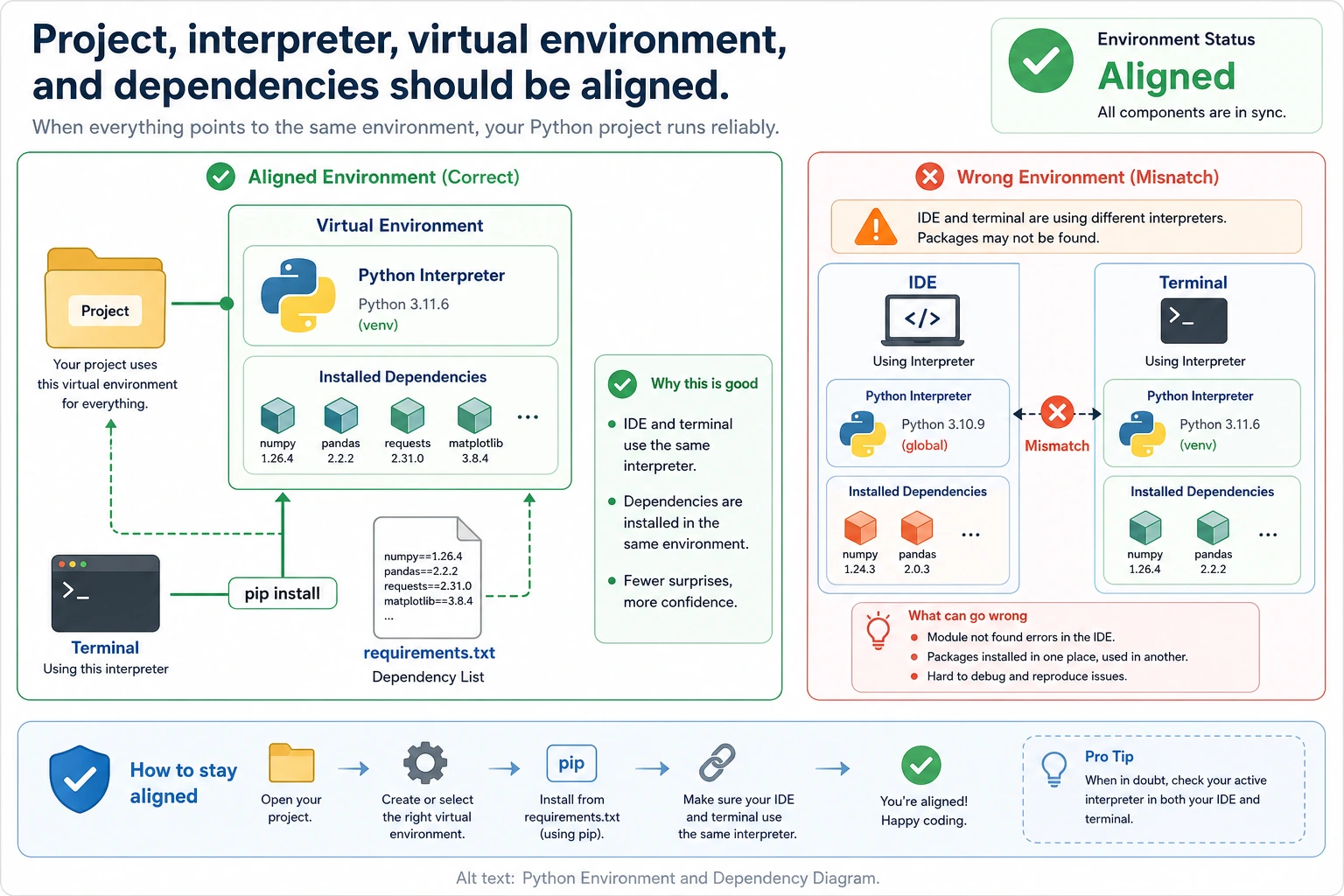
When a Python project fails, do not immediately reinstall everything. First check whether these four things point to the same project:
| What to check | Command or place to look | What you want to see |
|---|---|---|
| Current folder | pwd | You are inside the project folder |
| Current Python | which python | The path points to the intended environment |
| pip target | python -m pip --version | pip belongs to the same environment as Python |
| VS Code interpreter | Python: Select Interpreter | It selects the same environment |
| Jupyter kernel | Notebook kernel selector | It uses the same environment as the project |
Most “I installed it but cannot import it” errors are caused by one of these links pointing somewhere else.
Install Miniconda
Why choose Miniconda?
| Tool | Description | Recommendation |
|---|---|---|
| Miniconda | Lightweight, installs only the core components, and lets you install other packages as needed | ⭐⭐⭐⭐⭐ |
| Anaconda | A full bundle, preinstalled with 250+ packages, uses 3GB+ | ⭐⭐⭐ |
| venv + pip | Built into Python, lightweight but with fewer features | ⭐⭐⭐ |
Miniconda is the best choice: it is lightweight enough, can manage Python versions, can create virtual environments, and is widely used in the AI community.
macOS installation
# Download the installation script (Apple Silicon / M1/M2/M3)
curl -O https://repo.anaconda.com/miniconda/Miniconda3-latest-MacOSX-arm64.sh

# For Intel Mac, use this
# curl -O https://repo.anaconda.com/miniconda/Miniconda3-latest-MacOSX-x86_64.sh

# Run the installer
bash Miniconda3-latest-MacOSX-arm64.sh
During installation:
- Read the license: press
qto skip, typeyesto agree - Installation path: press Enter to use the default path
- Initialize conda: type
yes
After installation, close the terminal and reopen it.
Ubuntu/Linux installation
# Download
curl -O https://repo.anaconda.com/miniconda/Miniconda3-latest-Linux-x86_64.sh

# Install
bash Miniconda3-latest-Linux-x86_64.sh

# Follow the prompts, and choose yes to initialize at the end
Close the terminal and reopen it.
Windows installation
- Download the installer: Miniconda Windows Installer
- Double-click to run it, then keep clicking Next
- Check "Add Miniconda3 to my PATH environment variable" (so it is convenient to use in PowerShell)
- After installation, restart PowerShell
Verify installation
conda --version
# Output similar to: conda 24.x.x

python --version
# Output similar to: Python 3.12.x
If you see version numbers, the installation was successful.
Configure a domestic mirror for faster downloads (strongly recommended for users in China)
The default conda channels are overseas, so downloads can be slow. Configure the Tsinghua mirror:
# Add Tsinghua mirrors
conda config --add channels https://mirrors.tuna.tsinghua.edu.cn/anaconda/pkgs/main
conda config --add channels https://mirrors.tuna.tsinghua.edu.cn/anaconda/pkgs/free
conda config --add channels https://mirrors.tuna.tsinghua.edu.cn/anaconda/cloud/pytorch
conda config --set show_channel_urls yes
Also configure the Tsinghua mirror for pip (if you have not done so before):
pip config set global.index-url https://pypi.tuna.tsinghua.edu.cn/simple
Virtual environment operations
Create an environment
# Create an environment named ai-basic with Python 3.11
conda create -n ai-basic python=3.11

# conda will list the packages to be installed; type y to confirm
-n ai-basic is the environment name. You can name it however you like, but it is recommended to use the project name or purpose.
Activate an environment
conda activate ai-basic
After activation, the environment name appears at the front of your terminal prompt:
(ai-basic) zhangsan@MacBook ~ $
This means you are now inside the ai-basic environment. Any packages installed in this environment belong only to this environment.
Install packages in the environment
# Check the current environment
conda info --envs
# The one with * is the currently active environment

# Install packages with pip (recommended in most cases)
pip install numpy pandas matplotlib

# Install packages with conda (some special packages are better installed with conda)
conda install scipy

# View which packages are installed in the current environment
pip list
# or
conda list
Example: create different environments for different projects
# Project A: traditional machine learning
conda create -n ml-project python=3.11
conda activate ml-project
pip install numpy pandas scikit-learn matplotlib seaborn jupyter

# Project B: deep learning
conda create -n dl-project python=3.11
conda activate dl-project
pip install torch torchvision numpy matplotlib tensorboard

# Project C: LLM application
conda create -n llm-project python=3.11
conda activate llm-project
pip install openai langchain chromadb fastapi
Three projects, three separate environments, no interference.
Switch environments
# Switch to the ml-project environment
conda activate ml-project

# Switch to the dl-project environment
conda activate dl-project

# Exit the current environment (return to the base environment)
conda deactivate
View all environments
conda env list
# or
conda info --envs
Output:
# conda environments:
#
base                     /Users/zhangsan/miniconda3
ai-basic                 /Users/zhangsan/miniconda3/envs/ai-basic
ml-project            *  /Users/zhangsan/miniconda3/envs/ml-project
dl-project               /Users/zhangsan/miniconda3/envs/dl-project
llm-project              /Users/zhangsan/miniconda3/envs/llm-project
The * indicates the currently active environment.
Delete an environment
# Delete an environment you no longer need
conda env remove -n ai-basic

# Confirm it has been deleted
conda env list
conda install vs pip install
This is one of the most common questions beginners ask. A simple rule of thumb:
| Situation | Use | Reason |
|---|---|---|
| Most Python packages | pip install | pip has the widest package coverage and the fastest updates |
| CUDA-related packages | conda install | conda can automatically handle CUDA dependencies |
| System-level libraries (such as MKL) | conda install | pip cannot install system-level libraries |
| Not sure which one to use | Try pip install first | pip is more general-purpose |
In the same environment, try not to mix conda install and pip install for the same package. If you installed numpy with pip, do not install numpy again with conda. Mixing them may cause version confusion.
Recommended practice: in a conda environment, prioritize pip for installing all Python packages.
Exporting and importing environments
Scenario: share your project environment
After finishing a project, you may want your teammates (or your future self) to quickly recreate the same environment.
Method 1: pip freeze (most common)
# Export all packages in the current environment to requirements.txt
pip freeze > requirements.txt
requirements.txt looks like this:
numpy==1.26.4
pandas==2.2.0
scikit-learn==1.4.0
matplotlib==3.8.2
torch==2.1.2
Anyone who gets it can restore the environment with one command:
# Create a new environment
conda create -n restored-env python=3.11
conda activate restored-env

# Install all dependencies
pip install -r requirements.txt
Method 2: conda env export
# Export the full environment (including packages installed by conda and pip)
conda env export > environment.yml
Restore:
conda env create -f environment.yml
Which one should you use?
| File | Suitable for | Advantages | Disadvantages |
|---|---|---|---|
requirements.txt | Most projects | Simple, universal, cross-platform | Does not include Python version information |
environment.yml | Projects with conda-specific packages | Complete, includes Python version | May vary across platforms |
Recommendation: Put a requirements.txt file in every project. This is the standard practice in the Python community.
Common troubleshooting
Problem 1: conda activate does not work
CommandNotFoundError: Your shell has not been properly configured to use 'conda activate'.
Solution:
# Initialize conda (choose according to your shell)
conda init zsh     # macOS default
conda init bash    # Linux default

# Then restart the terminal
Problem 2: command not found: python
You installed Miniconda, but typing python says it cannot be found.
# Check whether the conda environment is activated
conda activate base

# If it still does not work, check PATH
which python
echo $PATH
Problem 3: Package installation times out
pip install torch
# Stuck for a long time or reports timeout
Solution: make sure you have configured a domestic mirror, or specify one manually:
pip install torch -i https://pypi.tuna.tsinghua.edu.cn/simple
Problem 4: Version conflicts
ERROR: pip's dependency resolver found conflicts
Suggested approach:
# Option 1: Create a brand-new environment and install packages one by one
conda create -n fresh python=3.11
conda activate fresh
pip install PackageA
pip install PackageB  # If there is a conflict, it will tell you where it is

# Option 2: Downgrade the conflicting package to a compatible version
pip install "PackageA>=1.0,<2.0"
Problem 5: Package installed, but import fails
import torch
# ModuleNotFoundError: No module named 'torch'
The most common reason is that the environment where you installed the package is not the same as the one where you are running the code.
# Check the current environment
conda info --envs   # See which one has *

# Check which environment has the package installed
conda activate the_environment_you_think_has_torch
pip list | grep torch

# Confirm the Python path
which python
# It should point to your conda environment directory
Hands-on exercise: build your first learning environment
# 1. Create an environment dedicated to this course
conda create -n ai-course python=3.11
conda activate ai-course

# 2. Install the basic packages needed for Station 1
pip install requests beautifulsoup4 fastapi uvicorn

# 3. Install the data analysis packages needed for Station 2
pip install numpy pandas matplotlib seaborn jupyter

# 4. Verify installation
python -c "
import numpy as np
import pandas as pd
print(f'NumPy version: {np.__version__}')
print(f'Pandas version: {pd.__version__}')
print('✅ Environment setup successful!')
"

# 5. Export environment configuration
pip freeze > requirements.txt
cat requirements.txt

# 6. View the environment list
conda env list
If you see ✅ Environment setup successful! at the end, your Python environment is ready.
Command quick reference
| Command | Purpose |
|---|---|
conda create -n name python=3.11 | Create a new environment |
conda activate name | Activate an environment |
conda deactivate | Exit the current environment |
conda env list | List all environments |
conda env remove -n name | Delete an environment |
pip install package_name | Install a Python package |
pip list | View installed packages |
pip freeze > requirements.txt | Export dependency list |
pip install -r requirements.txt | Install dependencies from a file |