1.2.3 Remote Repositories
Where this lesson fits
In this lesson, you will connect your local Git repository to GitHub. You will understand why remote repositories serve three purposes at the same time—backup, collaboration, and portfolio display—and learn how to sync code to the cloud with push, pull, and clone.
Learning objectives
- Create a repository on GitHub
- Configure SSH connections (no more password prompts)
- Master
git push,git pull, andgit clone - Write a good README.md
Why do we need a remote repository?
So far, your Git history has only existed on your own computer. If the hard drive fails, all your code and history will be gone.
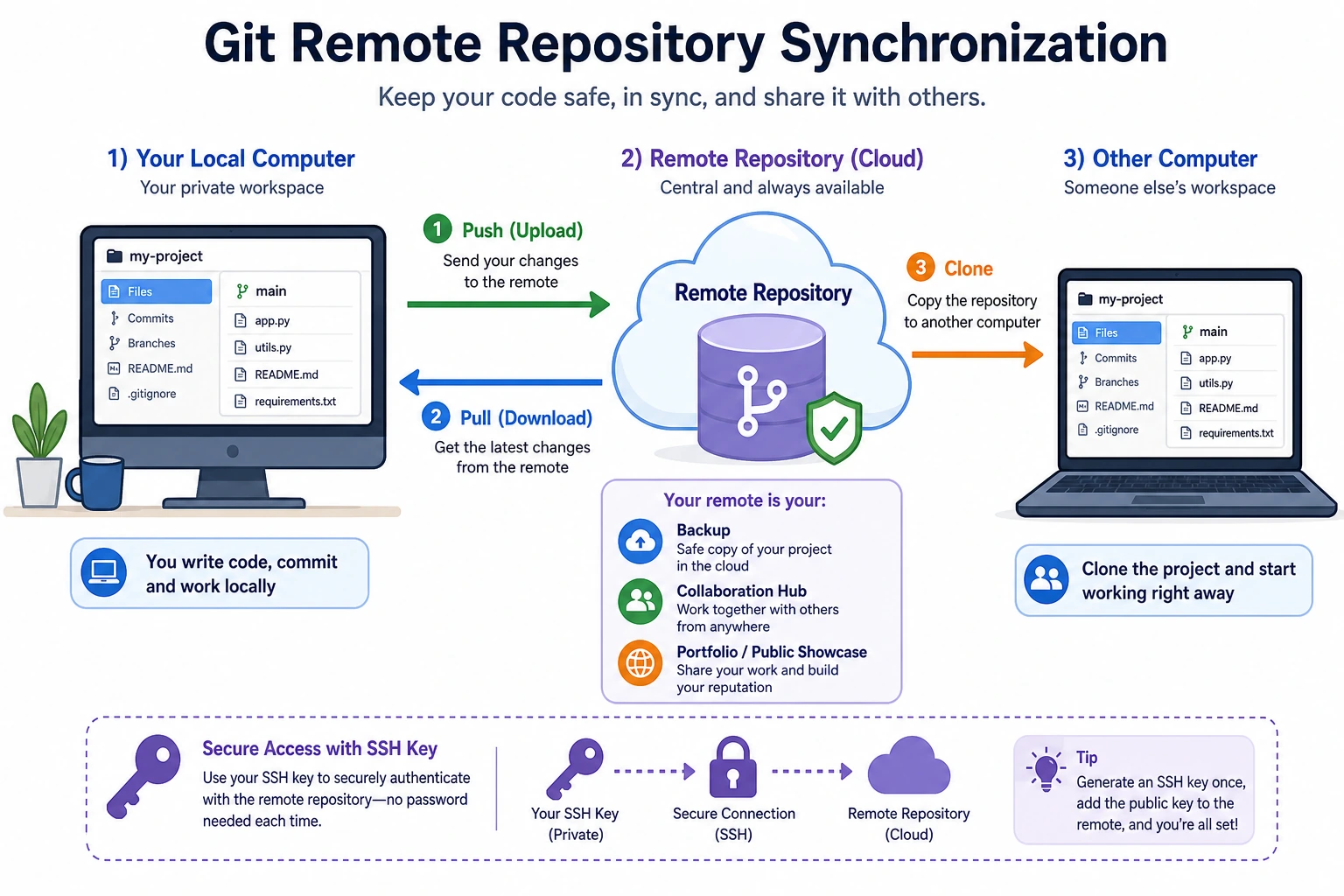
A remote repository is a copy of your code stored in the cloud, usually on GitHub. It has three core benefits:
- Backup — if your computer breaks, your code is still in the cloud
- Collaboration — multiple people can push code to the same repository
- Showcase — your GitHub profile is your code portfolio, and employers will look at it during interviews
Sign up for GitHub
- Open github.com
- Click Sign up and register with your email
- It is recommended to use an English username that is short and easy to remember (for example,
zhangsan-dev), because it will appear in your project links
If GitHub is slow to access, you can also register a Gitee account as a backup. The workflow is almost the same. But GitHub should still be your main platform—it is the world’s largest open-source platform and is more valuable for job hunting.
Configure SSH connections
Every time you push code to GitHub, you need to verify your identity. SSH is the most convenient method—configure it once, and you will no longer need to enter a password.
Step 1: Generate an SSH key
ssh-keygen -t ed25519 -C "[email protected]"
You will be asked a few questions. Just press Enter for all of them (use the default values):
Enter file in which to save the key (/Users/your-username/.ssh/id_ed25519): [Enter]
Enter passphrase (empty for no passphrase): [Enter]
Enter same passphrase again: [Enter]
Step 2: Copy the public key
# macOS
cat ~/.ssh/id_ed25519.pub | pbcopy

# Linux
cat ~/.ssh/id_ed25519.pub
# Then manually copy the output

# Windows PowerShell
Get-Content ~/.ssh/id_ed25519.pub | Set-Clipboard
The output will look like this (this is the public key and can be safely shared):
ssh-ed25519 AAAAC3NzaC1lZDI1NTE5AAAAI... [email protected]
Step 3: Add it to GitHub
- Open github.com/settings/keys
- Click New SSH key
- Fill in
My Laptopin the Title field (or any name that helps you recognize which computer it is) - Paste the public key you just copied into the Key field
- Click Add SSH key
Step 4: Verify the connection
ssh -T [email protected]
If you see:
Hi zhangsan! You've successfully authenticated, but GitHub does not provide shell access.
then the setup was successful!
An SSH key is a pair of "keys":
- The private key (
id_ed25519) stays on your computer and must never be shared with anyone - The public key (
id_ed25519.pub) is stored on GitHub
Every time you push code, GitHub uses the public key to verify that "this person really has the matching private key." If the verification passes, the operation is allowed. This is both safer and more convenient than entering a password.
Create a remote repository and push code
Example: Push our earlier AI project to GitHub
Method 1: Create the repository on GitHub first, then connect your local project
Step 1: Create a repository on GitHub
- Open github.com/new
- Set the Repository name to
ai-image-classifier - Set the Description to "A simple image classification project using CNN"
- Choose Public (so others can see your work)
- Do not check "Add a README file" (we already have one locally)
- Click Create repository
Step 2: Connect the local repository to GitHub
GitHub will show you a set of commands. We need the section for "push an existing repository":
cd ai-image-classifier

# Connect the remote repository (replace zhangsan with your GitHub username)
git remote add origin [email protected]:zhangsan/ai-image-classifier.git

# Push the local code to GitHub
git push -u origin main
git remote add origin means: give the remote repository the name origin (this is the conventional name), and use the URL that comes after it.
-u origin main means: associate the local main branch with the remote main branch. After that, you only need to run git push; you no longer need to type the full command.
Step 3: Verify
Refresh the GitHub page, and you should see your code, commit history, and README there.
Method 2: Clone an empty repository first, then add files to it
If you do not have local code yet, you can do the reverse:
# Clone an empty repository from GitHub (or someone else's project)
git clone [email protected]:zhangsan/my-new-project.git
cd my-new-project

# Write code inside it...
echo "print('hello')" > main.py

# Commit and push
git add .
git commit -m "Add main program"
git push
Daily push and pull workflow
After you connect the remote repository, daily work becomes very simple:
git push: push new local commits to the remote
# Write some new code
echo "new feature" >> src/utils.py
git add .
git commit -m "Add data preprocessing function"

# Push to GitHub
git push
git pull: pull remote updates to your local machine
# Suppose you made changes on another computer (or a teammate did) and pushed them to GitHub
# You need to pull the latest code down
git pull
The rhythm in real work
# Before starting work each day: pull the latest code
git pull

# Write code and make changes...

# After finishing a feature: commit and push
git add .
git commit -m "Complete the data augmentation module"
git push

# Keep writing code...

# Finish another feature
git add .
git commit -m "Add training log recording"
git push
git clone: download someone else's project
This may be the first Git operation you use: downloading an open-source project from GitHub:
# Clone an AI-related open-source project
git clone [email protected]:ultralytics/yolov5.git
cd yolov5
ls
git clone does three things:
- Creates a folder with the same name as the project
- Downloads all the code and the full commit history
- Automatically configures the remote repository connection
Common actions after cloning
# View the commit history of this project
git log --oneline -10    # View the latest 10 entries

# See which branches exist
git branch -a

# View the remote repository URL
git remote -v
Write a good README.md
The homepage of every GitHub project automatically displays the contents of README.md. A good README is the front door of your portfolio.
README template for AI projects
# Project Name
A one-sentence introduction to what this project does.
## 📋 Project Overview
Use 2–3 sentences to describe the project background, the problem it solves, and the method it uses.
## ✨ Key Features
- Feature 1: XXX
- Feature 2: XXX
- Feature 3: XXX
## 🛠️ Tech Stack
- Python 3.11
- PyTorch 2.0
- Other libraries used
## 🚀 Quick Start
### Environment setup
```bash
git clone [email protected]:yourname/project.git
cd project
pip install -r requirements.txt
```
### Run
```bash
python src/train.py
```
## 📊 Experimental results
| Model | Accuracy | Training time |
|------|:-----:|:------:|
| SimpleCNN | 85.2% | 10 min |
| ResNet18 | 92.7% | 30 min |
## 📁 Project structure
```
project/
├── data/ # Data files
├── models/ # Trained models
├── src/
│ ├── model.py # Model definition
│ ├── train.py # Training script
│ └── utils.py # Utility functions
├── requirements.txt
└── README.md
```
## 📄 License
MIT
Example: Update the README for our project
# Write a README using the template above (simplified version)
cat > README.md << 'READMEEOF'
# AI Image Classifier

An introductory project that uses CNN to classify images on the CIFAR-10 dataset.

## Tech Stack

- Python 3.11
- PyTorch 2.0

## Quick Start

```bash
git clone [email protected]:zhangsan/ai-image-classifier.git
cd ai-image-classifier
pip install -r requirements.txt
python src/train.py
Project Structure
ai-image-classifier/
├── data/              # Data files (ignored by git)
├── models/            # Model weights (ignored by git)
├── src/
│   ├── model.py       # CNN model definition
│   ├── train.py       # Training script
│   └── utils.py       # Utility functions
├── .gitignore
├── requirements.txt
└── README.md
READMEEOF
git add README.md git commit -m "Improve README: add project description and usage" git push
---

## Common issues

### Push rejected
! [rejected] main -> main (fetch first)
This means the remote repository has commits that you do not have locally (maybe you changed them on another computer, or a teammate pushed new code). The solution is:

```bash
git pull          # First pull the remote updates
git push          # Then push again
Clone is very slow
Cloning GitHub projects can be slow in some regions. Here are a few solutions:
# Option 1: Clone only the latest version (do not download full history), which is much faster
git clone --depth 1 [email protected]:xxx/yyy.git

# Option 2: Use a mirror for acceleration
# Replace github.com with a mirror site (please search for the latest available mirror URL)
Pushed to the wrong repository
# Check the currently connected remote repository
git remote -v

# Change the remote repository URL
git remote set-url origin [email protected]:correct-username/correct-repository-name.git
Summary
| Command | Purpose | When to use |
|---|---|---|
git remote add origin URL | Connect a remote repository | Before the first push for a new project |
git push | Push local commits to the remote | After finishing a feature |
git pull | Pull remote updates to local | Before starting work |
git clone URL | Download a remote repository to local | When you get a project for the first time |
Daily workflow: pull → write code → add → commit → push. It’s that simple.