1.1.1 Why Learn the Command Line
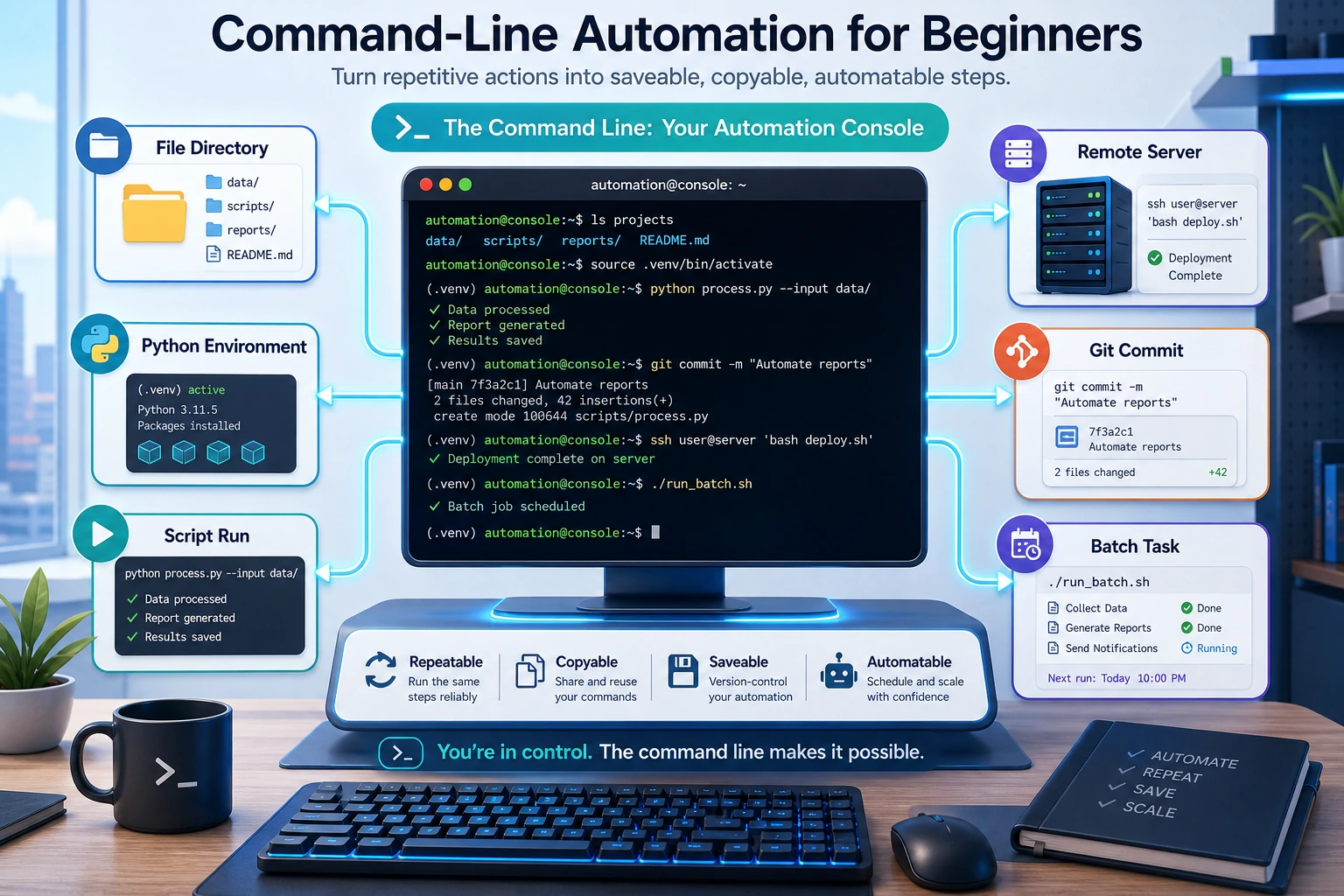
The command line is where you give the computer precise text instructions. In AI projects, you will use it to enter a project folder, run Python, install packages, save Git commits, connect to servers, and start services.
Do not memorize commands first. First make one small loop work:
go to a folder -> run a command -> read the output -> fix the next step
Command Line vs Graphical Interface
| Need | GUI | CLI |
|---|---|---|
| One-time action | Easy to click | Also possible |
| Repeat the same action | Easy to forget a click | Copy and rerun the same command |
| Batch work | Slow | Fast |
| Server work | Often unavailable | Standard method |
| Debugging evidence | Hard to record | Command and output can be saved |
The key idea is not that the terminal looks professional. The key idea is that commands are repeatable evidence.
Run This First
Open a terminal in a practice folder and run:
pwd
mkdir ai-cli-practice
cd ai-cli-practice
python -c "from pathlib import Path; Path('hello_terminal.py').write_text('print(\"hello from terminal\")\\n', encoding='utf-8')"
python hello_terminal.py
ls
Expected signal:
hello from terminal
hello_terminal.py
If python does not work on Windows, try:
py hello_terminal.py
You have now completed the smallest terminal loop: see the current folder, create a folder, create a script, run it, and inspect the result.
Where AI Projects Use It
| AI task | Example command |
|---|---|
| Install packages | python -m pip install pandas |
| Run a script | python train.py |
| Save code | git add . and git commit -m "message" |
| Start an API | uvicorn main:app --reload |
| Connect to a server | ssh user@server |
| Build a deployable app | docker build -t my-ai-app . |
You do not need all of these today. Just recognize that many later AI workflows start from the terminal.
Ten Commands to Recognize First
| Command | Meaning |
|---|---|
pwd | Show the current folder |
ls | List files |
cd | Change folder |
mkdir | Create a folder |
cp | Copy |
mv | Move or rename |
rm | Remove |
python | Run Python |
git | Save and inspect code history |
pip / conda | Install packages and manage environments |
If It Fails
| Symptom | First check |
|---|---|
command not found | Is the tool installed? Did you reopen the terminal after installing it? |
python opens the wrong version | Run python --version and check the active environment |
| File not found | Run pwd and ls; you may be in the wrong folder |
| Permission denied | Check whether the file or folder belongs to another user |
| Command is too long to retype | Press the Up Arrow to bring back command history |
Pass this page when you can explain what pwd, cd, ls, and python hello_terminal.py did in your own folder. The next page teaches the basic file operations more slowly.