1.3.3 Jupyter Notebook
What This Section Covers
This section introduces the interactive environment most commonly used for data analysis and AI experiments. You will learn why Notebook is great for exploration, experimentation, and presentation, why .py files are better for production project code, and how to create Cells, run code, write Markdown, and make plots.
Learning Objectives
- Understand what Jupyter Notebook is and what it is used for
- Install and start Jupyter Notebook
- Master Cell types and basic operations
- Get familiar with the most commonly used shortcuts
- Learn how to use magic commands
- Understand the difference between Notebook and
.pyfiles
What Is Jupyter Notebook?
Jupyter Notebook is an interactive programming environment — you can write a piece of code, run it immediately, see the result, and then write the next piece. Code, output, charts, and text explanations are all mixed together in one file.
What Does It Look Like?
Imagine a notebook where each page (called a Cell) can be:
- A piece of runnable code
- A piece of Markdown text (titles, explanations, formulas)
- The output after running code (numbers, tables, charts)
They are arranged in order to form a "runnable document."
What Scenarios Is Jupyter Best For?
| Scenario | Use Jupyter | Use .py files |
|---|---|---|
| Exploratory Data Analysis (EDA) | ✅ Best | ❌ |
| Plotting and visualization | ✅ Charts appear directly below | ❌ Requires a pop-up window |
| Learning and experimentation | ✅ Run step by step and learn as you go | ❌ |
| Presenting results (to your boss) | ✅ Code + charts + text in one place | ❌ |
| Production project code | ❌ | ✅ Easier to maintain |
| Debugging complex programs | ❌ | ✅ |
| Team collaboration | ❌ More merge conflicts | ✅ |
In one sentence: Use Jupyter for learning and experiments, and use .py files for production code. We will use Jupyter a lot in the early stages of this course.
Installation and Launch
Install
Make sure you are in the correct conda environment:
conda activate ai-course

# Install Jupyter Notebook
pip install jupyter

# (Optional) Install JupyterLab — an enhanced version of Jupyter with a more modern interface
pip install jupyterlab
Launch
# Start Jupyter Notebook (classic version)
jupyter notebook

# Or start JupyterLab (recommended)
jupyter lab
After running this, the terminal will output something like:
[I 10:00:00 NotebookApp] Serving notebooks from local directory: /Users/zhangsan
[I 10:00:00 NotebookApp] http://localhost:8888/?token=abc123...
The browser will open automatically, and you will see the Jupyter interface.
If you have installed the Jupyter extension for VS Code, you can create and run .ipynb files directly in VS Code without launching the browser version. Just create a new .ipynb file. Both approaches can be used later in the course.
Create a New Notebook
In the Jupyter interface:
- Click New → Python 3 in the top-right corner (classic version)
- Or click the + icon on the left and choose Python 3 Notebook (JupyterLab)
A new blank Notebook is now created.
Cell Basics
A Notebook is made up of one Cell after another. Each Cell has two types:
Code Cell
Used to write and run Python code:
# Cell 1: define variables
name = "AI Full-Stack Learning"
year = 2026
Press Shift + Enter to run it.
# Cell 2: use the variables defined above
print(f"Welcome to the {name} course! It is now {year}.")
Output:
Welcome to the AI Full-Stack Learning tutorial! It is now 2026.
Important feature: Cells share variables. The name you define in Cell 1 can be used directly in Cell 2.
Markdown Cell
Used for text explanations, headings, lists, formulas, and more. To switch:
- Select the Cell and press
Mto switch to Markdown - Press
Yto switch back to Code
You can write this in a Markdown Cell:
## Step 1: Load the data

We use the **Iris dataset** for exploratory analysis.

- 150 samples
- 4 features
- 3 classes

Mathematical formula: $y = wx + b$
After running, it will be rendered as nicely formatted text.
Example: A Typical Data Analysis Notebook Structure
[Markdown]  # Exploratory Analysis of the Iris Dataset
[Markdown]  ## 1. Import Libraries
[Code]      import numpy as np
            import pandas as pd
            import matplotlib.pyplot as plt

[Markdown]  ## 2. Load Data
[Code]      from sklearn.datasets import load_iris
            iris = load_iris()
            df = pd.DataFrame(iris.data, columns=iris.feature_names)
            df['species'] = iris.target
            df.head()

[Output]    (a table is displayed)

[Markdown]  ## 3. Data Overview
[Code]      df.describe()

[Output]    (a statistical summary table is displayed)

[Markdown]  ## 4. Visualization
[Code]      plt.figure(figsize=(10, 6))
            plt.scatter(df.iloc[:, 0], df.iloc[:, 1], c=df['species'])
            plt.xlabel('sepal length')
            plt.ylabel('sepal width')
            plt.title('Iris Dataset')
            plt.show()

[Output]    (a scatter plot is displayed directly)

[Markdown]  ## 5. Conclusion
            Petal length and petal width are the most effective features for distinguishing the three species.
Code, charts, and text explanations are all in one file. That is the charm of Jupyter.
Kernel State: The Hidden Source of Notebook Bugs
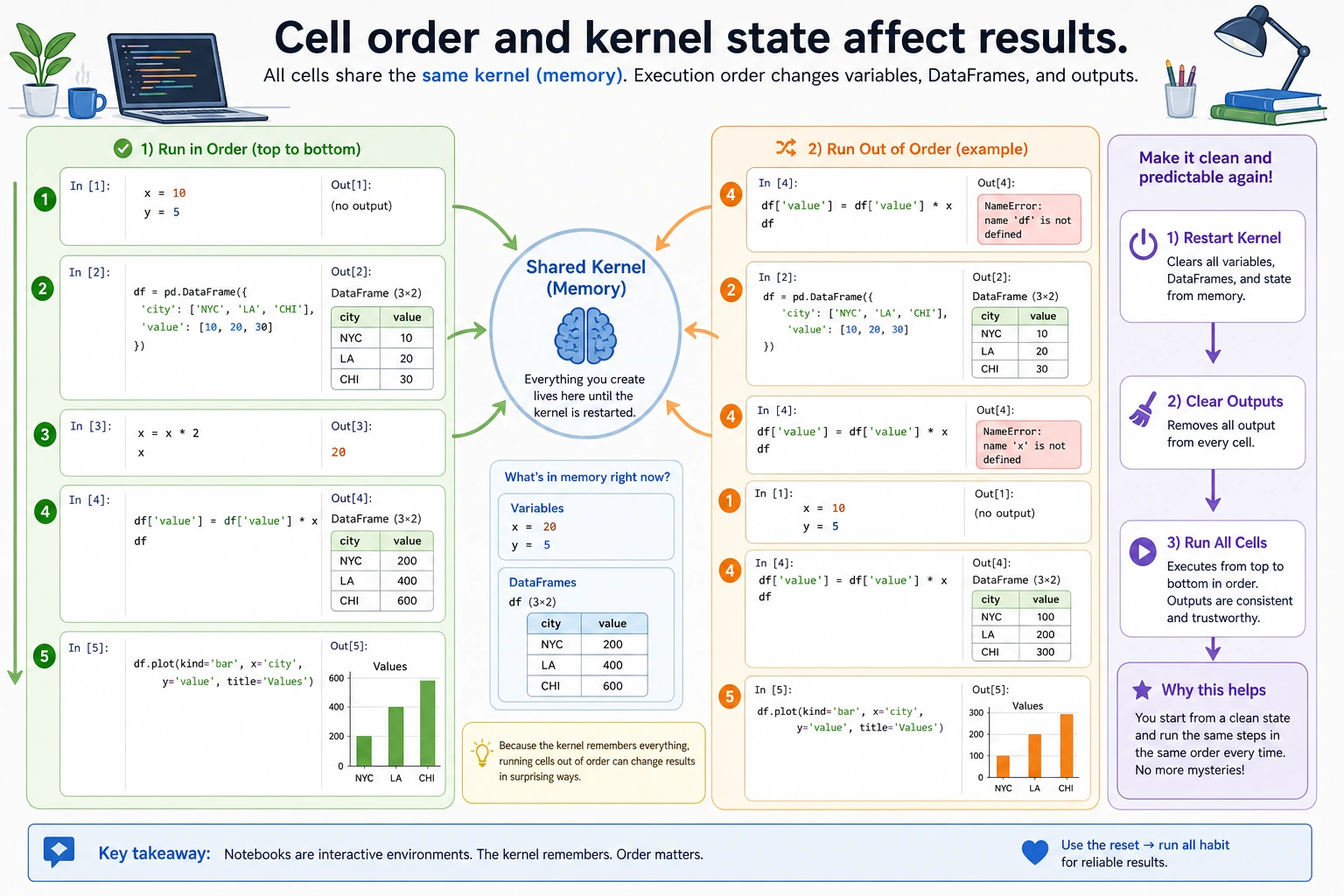
A Notebook looks like a document, but it behaves more like a small running program. The kernel is the Python process behind the Notebook. It remembers variables you created earlier, even if the Cell that created them is now above, below, or already deleted.
This is powerful, but it creates a common beginner trap: the Notebook may work because you ran Cells in a special order, not because the file is complete from top to bottom.
The reliable Notebook rule
Before you trust a Notebook, share it, or turn it into a tutorial, run this check:
- Save the file.
- Choose Restart Kernel and Run All Cells.
- If anything fails, fix the Notebook until it can run from the first Cell to the last Cell without manual intervention.
Put imports, configuration, and data-loading code near the top. Put experiments and charts after that. Treat this as the Notebook version of "does the project still build?"
Shortcuts
Jupyter has two modes:
- Command mode (the Cell border is blue): press
Escto enter, used for managing Cells - Edit mode (the Cell border is green): press
Enterto enter, used for editing content
Command Mode Shortcuts (use after pressing Esc)
| Shortcut | Action |
|---|---|
Shift + Enter | Run the current Cell and move to the next one (the most commonly used shortcut) |
Ctrl + Enter | Run the current Cell without moving on |
A | Insert a new Cell above |
B | Insert a new Cell below |
DD (press D twice) | Delete the current Cell |
M | Change the current Cell to Markdown |
Y | Change the current Cell to Code |
Z | Undo Cell deletion |
↑ / ↓ | Move between Cells |
Edit Mode Shortcuts (use after pressing Enter)
| Shortcut | Action |
|---|---|
Shift + Enter | Run and move to the next one |
Tab | Code completion |
Shift + Tab | Show function documentation |
Ctrl + / | Comment / uncomment |
Ctrl + Z | Undo |
Hands-On: Practice the Shortcuts
Create a new Notebook, then:
- In the first Cell, type
print("Cell 1")and pressShift + Enterto run it - Press
Bto create a new Cell below - Type
print("Cell 2")and pressCtrl + Enterto run it (note that the cursor will not move) - Press
Escto return to command mode - Press
Ato insert a Cell above - Press
Mto switch to Markdown, type# My Title, and pressShift + Enterto render it - Select a Cell you do not need and press
DDto delete it
Practice a few times, and muscle memory will come quickly.
Magic Commands
Jupyter provides special commands that start with % or !, called "magic commands." They can do things that ordinary Python code cannot.
! Commands: Run Terminal Commands in a Cell
# Install a package (no need to switch to the terminal)
!pip install seaborn

# Check the current directory
!ls

# Check the Python version
!python --version

# Download a file
!wget https://example.com/data.csv
%timeit: Measure Code Execution Time
import numpy as np

# Measure the execution time of one line of code
%timeit np.random.rand(1000, 1000)
# Output: 5.23 ms ± 128 µs per loop
%%timeit
# Measure the execution time of the entire Cell (note the two % signs)
data = np.random.rand(1000, 1000)
result = np.dot(data, data.T)
# Output: 15.6 ms ± 1.2 ms per loop
%matplotlib inline: Display Charts Inside the Notebook
%matplotlib inline
import matplotlib.pyplot as plt
import numpy as np

x = np.linspace(0, 10, 100)
plt.plot(x, np.sin(x))
plt.title("Sine Function")
plt.show()
# The chart is displayed directly below the Cell
In newer versions of Jupyter, %matplotlib inline is usually the default behavior and can be omitted. But keeping it there is also fine.
%who: View the Variables Currently Defined
name = "Zhang San"
age = 25
scores = [90, 85, 92]

%who
# Output: age   name   scores

%whos
# Output detailed information about variables (type, value)
Quick Reference for Common Magic Commands
| Command | Purpose |
|---|---|
!command | Run a terminal command |
%timeit | Measure the execution time of one line of code |
%%timeit | Measure the execution time of the entire Cell |
%matplotlib inline | Display charts inline |
%who / %whos | View current variables |
%reset | Clear all variables (start over) |
%pwd | Show the current directory |
%history | Show input history |
Notebook vs .py Files
When Should You Use Notebook?
- Data analysis, EDA
- Learning new libraries and doing experiments
- Plotting and visualization
- Presenting to others (such as Kaggle Notebooks)
- Writing tutorials
When Should You Use .py Files?
- Production project code (model definitions, training scripts, API services)
- Modules that need to be imported by other files
- Scripts that need to be run with command-line arguments
- Code used for team collaboration
A Typical AI Project Uses Both Together
my-ai-project/
├── notebooks/
│   ├── 01_eda.ipynb          # Explore data (Notebook)
│   ├── 02_experiment.ipynb   # Try different models (Notebook)
│   └── 03_analysis.ipynb     # Analyze results (Notebook)
├── src/
│   ├── model.py              # Model definition (.py)
│   ├── train.py              # Training script (.py)
│   ├── evaluate.py           # Evaluation script (.py)
│   └── utils.py              # Utility functions (.py)
├── data/
├── models/
├── requirements.txt
└── README.md
First do experiments in a Notebook, then organize the code into .py files after the plan is finalized — this is the standard workflow of an AI engineer.
Calling .py Code Inside a Notebook
# Import your own modules in a Notebook
import sys
sys.path.append('../src')  # Add the src directory to the path

from model import SimpleCNN
from utils import accuracy

model = SimpleCNN()
print(f"Number of model parameters: {sum(p.numel() for p in model.parameters())}")
Hands-On Practice
Create a Notebook and complete the following exercises:
Cell 1 (Markdown):
# My First Jupyter Notebook
Today's date: 2026 X month X day
Cell 2 (Code):
# Basic calculations
import math
print(f"Pi: {math.pi:.10f}")
print(f"Euler's number: {math.e:.10f}")
print(f"10! = {math.factorial(10)}")
Cell 3 (Code):
# List operations
fruits = ["apple", "banana", "orange", "grape", "watermelon"]
for i, fruit in enumerate(fruits, 1):
    print(f"Fruit {i}: {fruit}")
Cell 4 (Code):
# Simple visualization
%matplotlib inline
import matplotlib.pyplot as plt
import numpy as np

x = np.linspace(0, 2 * np.pi, 100)
fig, axes = plt.subplots(1, 2, figsize=(12, 4))

axes[0].plot(x, np.sin(x), color='blue')
axes[0].set_title('sin(x)')

axes[1].plot(x, np.cos(x), color='red')
axes[1].set_title('cos(x)')

plt.tight_layout()
plt.show()
Cell 5 (Code):
# Measure performance
%timeit sum(range(100000))
%timeit np.sum(np.arange(100000))
# Compare the speed difference between Python's built-in sum and NumPy sum
Cell 6 (Markdown):
## Summary
- Learned how to create and run Cells
- Learned how to plot inside a Notebook
- Found that NumPy is much faster than native Python (this is why you will learn NumPy in data analysis and visualization!)
1 Developer Tools Basic Self-Check
Congratulations on completing the entire Developer Tools Basics section! Let’s review what you have learned:
- Terminal: Can use the command line to navigate, manipulate files, and use pipes and redirection
- Git: Can create repositories, commit code, push to GitHub, and use branches
- Python environment: Can use Miniconda to create and manage virtual environments
- VS Code: Can write code, debug, and use shortcuts in VS Code
- Jupyter: Can create Notebooks, run code, plot charts, and write documentation
You now have a professional AI development environment. These tools will stay with you throughout your learning journey. Next, let’s officially start learning Python programming!