1.3.2 VS Code Configuration
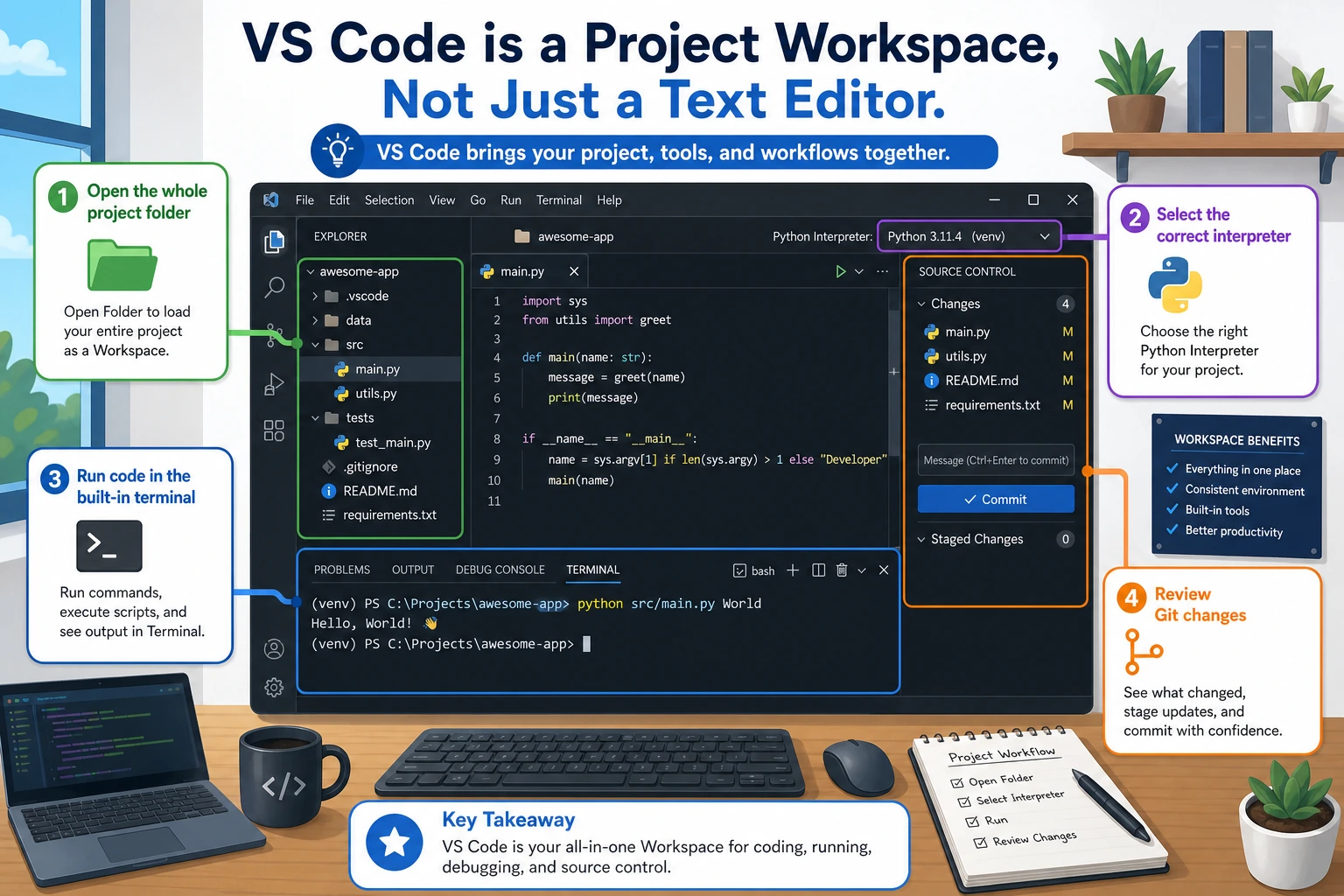
What this section is about
In this section, we’ll configure VS Code into a development tool that works well for Python and AI learning. You’ll finish editor installation, extension setup, the built-in terminal, and common shortcut settings, so your later coding practice has a stable and convenient workspace.
Learning objectives
- Install VS Code and choose the interface language you prefer
- Install essential extensions for Python development
- Learn to use the built-in terminal in VS Code
- Master 10 of the most commonly used shortcuts
- Understand AI-assisted programming tools
Why choose VS Code?
| Editor | Pros | Cons |
|---|---|---|
| VS Code | Free, lightweight, rich extensions, great AI support | For large projects, it may be less intelligent than PyCharm |
| PyCharm | Strongest Python support, convenient refactoring | Community Edition is free but limited; Professional Edition costs money |
| Vim/NeoVim | Extremely fast, geeky | Steep learning curve |
VS Code is currently the most widely used code editor in the world, and it has excellent support for Python and AI development. For beginners, it is the best choice.
Install VS Code
macOS
# Install with Homebrew (recommended)
brew install --cask visual-studio-code

# Or download from the official website: https://code.visualstudio.com
After installation, configure command-line launch:
- Open VS Code
- Press
Cmd + Shift + Pand type "shell command" - Select Shell Command: Install 'code' command in PATH
After that, you can use the code command in the terminal to open files and folders:
code .                  # Open the current folder with VS Code
code ~/projects         # Open a specific folder
code hello.py           # Open a specific file
Windows
# Install with winget
winget install Microsoft.VisualStudioCode

# Or download from the official website: https://code.visualstudio.com
During installation, check "Add to PATH" so you can use the code command in the terminal.
Ubuntu
# Method 1: use snap (recommended)
sudo snap install code --classic

# Method 2: use apt
sudo apt install software-properties-common apt-transport-https wget
wget -q https://packages.microsoft.com/keys/microsoft.asc -O- | sudo apt-key add -
sudo add-apt-repository "deb [arch=amd64] https://packages.microsoft.com/repos/vscode stable main"
sudo apt update
sudo apt install code
Interface Language (Optional)
- Open VS Code
- Press
Ctrl + Shift + X(Cmd + Shift + Xon macOS) to open the Extensions panel - Search for the language pack you prefer, such as English Language Pack, Chinese (Simplified), or Japanese Language Pack
- Click Install
- Restart VS Code, and the interface will switch to that language
Install essential extensions
Open the Extensions panel (the square icon on the left sidebar, or press Ctrl/Cmd + Shift + X), then search for and install the following extensions:
Must-have extensions
| Extension | Purpose | Search keyword |
|---|---|---|
| Python | Python syntax support, debugging, running | ms-python.python |
| Pylance | Python intelligent suggestions, type checking | ms-python.vscode-pylance |
| Jupyter | Run notebooks in VS Code | ms-toolsai.jupyter |
| GitLens | Enhanced Git features, see who changed which line | eamodio.gitlens |
| Black Formatter | Format Python code consistently | ms-python.black-formatter |
Recommended extensions
| Extension | Purpose |
|---|---|
| autoDocstring | Automatically generate Python function docstrings |
| Ruff | Fast linting and import cleanup for Python |
| indent-rainbow | Use colors to distinguish indentation levels |
| Error Lens | Show error messages directly at the end of code lines |
| Material Icon Theme | More attractive file icons |
Configure the Python interpreter
After installing the Python extension, you need to tell VS Code which Python environment to use:
- Press
Ctrl/Cmd + Shift + Pto open the Command Palette - Type Python: Select Interpreter
- Select the conda environment you created earlier (for example,
ai-course)
You should see a list of options like this:
Python 3.11.7 ('ai-course')    ~/miniconda3/envs/ai-course/bin/python
Python 3.12.1 ('base')         ~/miniconda3/bin/python
Choose the ai-course one.
The Python extension in VS Code will automatically detect all Python environments on your system, including conda and venv environments. If you can’t see the environment you want, try activating that environment in the terminal first with conda activate, then open VS Code by typing code . in the terminal.
Use the built-in terminal
VS Code comes with a built-in terminal, so you don’t need to open a separate terminal window.
Open the terminal
Shortcut: Ctrl + ` (the key in the upper-left corner of the keyboard, below ESC)
Or from the menu: Terminal → New Terminal
Example: complete the full development workflow in VS Code
# 1. Activate the environment in the terminal
conda activate ai-course

# 2. Create a project folder
mkdir my-first-project
cd my-first-project

# 3. Open this folder with VS Code (it will open in a new window)
code .
Then in VS Code:
- In the file explorer on the left, click the New File icon and create
hello.py - Write the code:
name = input("What is your name?")
print(f"Hello, {name}! Welcome to the AI world 🤖")
- Click the ▶ Run button in the upper-right corner (or press
Ctrl/Cmd + Shift + P→ "Run Python File") - Check the output in the terminal
Terminal tips
- Multiple terminals: click the
+button in the top-right of the terminal panel to open more terminals - Split view: you can split the editor and terminal side by side, so you can write code while watching the terminal
- Terminal type: you can choose different shells such as bash, zsh, and PowerShell
Most commonly used shortcuts
You don’t need to memorize everything. First remember the top 5, and look up the rest when you need them.
Basic operations
| Action | Windows/Linux | macOS |
|---|---|---|
| Command Palette (most important!) | Ctrl + Shift + P | Cmd + Shift + P |
| Quick Open File | Ctrl + P | Cmd + P |
| Open/Close Terminal | Ctrl + ` | Ctrl + ` |
| Save | Ctrl + S | Cmd + S |
| Undo | Ctrl + Z | Cmd + Z |
Edit code
| Action | Windows/Linux | macOS |
|---|---|---|
| Duplicate current line | Shift + Alt + ↓ | Shift + Option + ↓ |
| Move current line | Alt + ↑/↓ | Option + ↑/↓ |
| Delete current line | Ctrl + Shift + K | Cmd + Shift + K |
| Multi-cursor editing | Alt + Click | Option + Click |
| Comment code | Ctrl + / | Cmd + / |
| Format code | Shift + Alt + F | Shift + Option + F |
Search and navigation
| Action | Windows/Linux | macOS |
|---|---|---|
| Global search | Ctrl + Shift + F | Cmd + Shift + F |
| Search within file | Ctrl + F | Cmd + F |
| Find and replace | Ctrl + H | Cmd + Option + F |
| Go to line | Ctrl + G | Ctrl + G |
Example: the power of multi-cursor editing
Suppose you need to rename 5 variable names from data1, data2... to dataset1, dataset2...:
data1 = load("file1.csv")
data2 = load("file2.csv")
data3 = load("file3.csv")
data4 = load("file4.csv")
data5 = load("file5.csv")
Steps:
- Select the first
data - Press
Ctrl/Cmd + Dfive times to select alldataoccurrences one by one - Type
dataset
All 5 places are changed at the same time, and it’s done in 2 seconds.
AI-assisted programming tools
There are now many AI tools that can help you write code in VS Code. As a learner in an AI course, it’s worth knowing about them:
GitHub Copilot
- Automatically completes code as you type
- Press
Tabto accept suggestions - Students can use it for free through GitHub Student Pack
- Extension search:
GitHub.copilot
Codeium
- Free AI code completion tool
- Similar to Copilot, completely free for individual users
- Extension search:
Codeium.codeium
Usage advice
During the learning stage, do not rely too much on AI code completion. It is like a calculator—if you start using a calculator before you’ve learned mental arithmetic, you’ll never learn math well.
Recommendations:
- For the first two stages (Python basics): turn off AI completion and write code yourself
- After the 4th stop: you can turn on AI completion, but make sure to understand every line of code it generates
- When building projects: feel free to use it to improve efficiency
Recommended VS Code settings
Press Ctrl/Cmd + , to open Settings, then search for and change the following options:
| Setting | Recommended value | Reason |
|---|---|---|
| Auto Save | afterDelay | Auto-save so you never have to worry about forgetting Ctrl+S |
| Font Size | 14 or 15 | Slightly larger code font, easier on the eyes |
| Tab Size | 4 | Standard Python indentation |
| Word Wrap | on | Automatically wrap long lines |
| Minimap | off | Turn off the small map on the right to save screen space |
Or edit settings.json directly (Ctrl/Cmd + Shift + P → "Open Settings JSON"):
{
    "files.autoSave": "afterDelay",
    "editor.fontSize": 14,
    "editor.tabSize": 4,
    "editor.wordWrap": "on",
    "editor.minimap.enabled": false,
    "python.terminal.activateEnvironment": true,
    "editor.formatOnSave": true,
    "[python]": {
        "editor.defaultFormatter": "ms-python.black-formatter"
    },
    "python.analysis.typeCheckingMode": "basic"
}
Older tutorials often show "python.formatting.provider": "black". Newer VS Code Python tooling uses formatter extensions instead. If format-on-save does not work, first check that Black Formatter is installed and that the selected interpreter is your project environment.
Hands-on practice
- Install VS Code and the essential extensions (Python, Pylance, Jupyter, GitLens)
- Create a project and open it with VS Code:
mkdir vscode-practice && cd vscode-practice && code .
- Create
practice.pyand write the following code:
# Practice VS Code shortcuts
fruits = ["apple", "banana", "cherry", "date", "elderberry"]

for i, fruit in enumerate(fruits):
    print(f"{i + 1}. {fruit}")

# Calculate the average length of the fruit names
avg_len = sum(len(f) for f in fruits) / len(fruits)
print(f"\nAverage name length: {avg_len:.1f} characters")
- Run the code (click the ▶ button in the upper-right corner)
- Try these shortcuts:
- Use
Ctrl/Cmd + /to comment out the last two lines - Use
Alt + ↑/↓to move one line of code - Use
Ctrl/Cmd + Dto multi-select one word - Use
Ctrl/Cmd + Shift + Fto search globally for "fruit"
- Use