3.3.3 Data Read and Write
When many beginners first learn read_csv(), they may think:
- Isn't this just reading a file into memory?
But in real analysis, many problems actually start with this “read it in” step:
- The encoding is wrong
- The delimiter is wrong
- The header was recognized incorrectly
- Dates were not parsed as dates
So the most important thing in this section is not memorizing parameters, but first building this judgment:
Reading data is not mechanical import; it is checking whether “this table was correctly read into the shape you expected.”
Learning Objectives
- Master reading and writing CSV files
- Understand reading and writing Excel, JSON, and other formats
- Learn commonly used parameter settings
- Understand chunked reading techniques for large files
First, Build a Map
Data read/write is easier to understand as “first read it in, then confirm whether it was read correctly”:
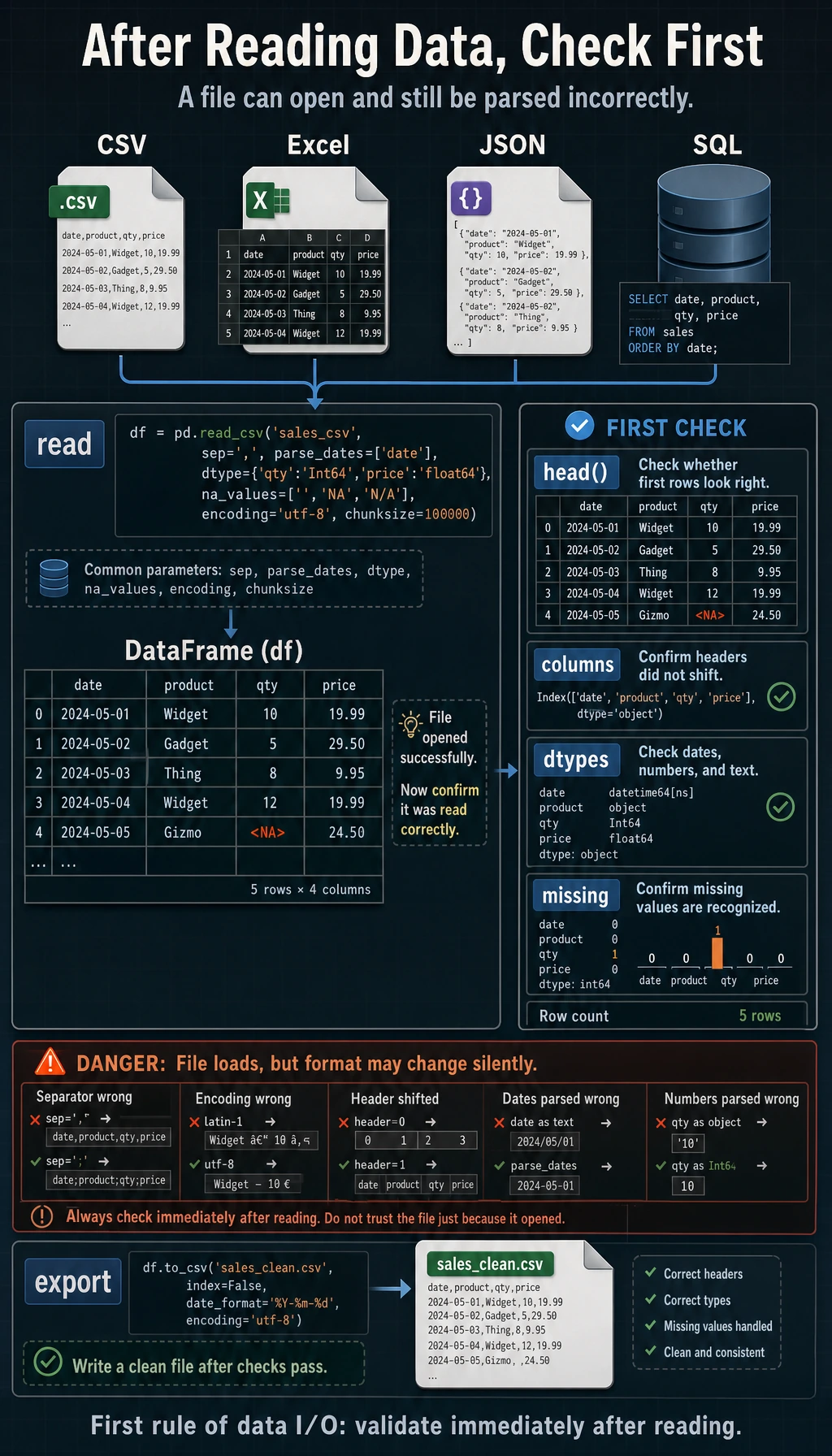
So what this section really aims to solve is:
- How data comes in
- What to check right away after reading it in
Reading CSV Files
CSV (Comma-Separated Values) is the most commonly used file format in data analysis.
A More Beginner-Friendly Analogy
You can think of data read/write as:
- Moving an external file into your analysis workstation
What you should fear most is not “it won’t move in,” but:
- It moved in, but the format has already changed
For example:
- Dates are still just strings
- Chinese text becomes garbled
- The first row was not actually the header, but it was treated as the header
Basic Reading
import pandas as pd

# Read a CSV file
df = pd.read_csv("titanic_sample.csv")
print(df.head())       # View the first 5 rows
print(df.shape)        # Number of rows and columns
print(df.info())       # Column information
With just this one line, Pandas automatically completes:
- Recognizing the header (the first row becomes the column names)
- Inferring the data type of each column
- Creating a row index (0, 1, 2, ...)
Common Parameters
# Specify the delimiter (some files use tab or semicolon separators)
df = pd.read_csv("data.tsv", sep="\t")         # tab-separated
df = pd.read_csv("data.csv", sep=";")          # semicolon-separated

# Specify encoding (a common issue for Chinese files)
df = pd.read_csv("chinese_data.csv", encoding="utf-8")
df = pd.read_csv("chinese_data.csv", encoding="gbk")     # Files exported by some Windows tools

# Files without a header
df = pd.read_csv("no_header.csv", header=None)
df = pd.read_csv("no_header.csv", header=None, names=["col1", "col2", "col3"])

# Set a column as the index
df = pd.read_csv("data.csv", index_col="id")
df = pd.read_csv("data.csv", index_col=0)      # Use the first column as the index

# Read only selected columns
df = pd.read_csv("data.csv", usecols=["Name", "Age", "Fare"])

# Read only the first 100 rows
df = pd.read_csv("data.csv", nrows=100)

# Specify missing-value markers
df = pd.read_csv("data.csv", na_values=["NA", "N/A", "missing", "-"])

# Specify data types
df = pd.read_csv("data.csv", dtype={"Age": float, "Pclass": str})
Parameter Quick Reference
| Parameter | Purpose | Example |
|---|---|---|
sep | Delimiter | sep="\t" |
encoding | Encoding | encoding="utf-8" |
header | Header row number | header=None |
names | Custom column names | names=["a","b"] |
index_col | Index column | index_col="id" |
usecols | Read selected columns | usecols=["Name","Age"] |
nrows | Number of rows to read | nrows=100 |
skiprows | Number of rows to skip | skiprows=5 |
na_values | Missing-value markers | na_values=["NA","-"] |
dtype | Specify data type | dtype={"Age": float} |
parse_dates | Parse date columns | parse_dates=["date"] |
The Safest Default Order When Reading a New File for the First Time
A more reliable sequence is usually:
- Read it in directly first
- Check
shapefirst - Then check
head() - Then check
info() - If something looks wrong, go back and add parameters
This makes it easier to spot problems than trying to write all parameters up front from the beginning.
Writing CSV Files
# Basic writing
df.to_csv("output.csv")

# Do not save the index (usually recommended)
df.to_csv("output.csv", index=False)

# Specify encoding
df.to_csv("output.csv", index=False, encoding="utf-8-sig")  # UTF-8 friendly for Excel

# Specify delimiter
df.to_csv("output.tsv", index=False, sep="\t")
When saving, use encoding="utf-8-sig" (UTF-8 with a BOM header), and Excel will display Chinese correctly.
Reading and Writing Excel Files
# Read Excel (requires the openpyxl library: python -m pip install --upgrade openpyxl)
df = pd.read_excel("data.xlsx")

# Read a specific worksheet
df = pd.read_excel("data.xlsx", sheet_name="Sheet2")
df = pd.read_excel("data.xlsx", sheet_name=1)      # By index

# Read all worksheets (returns a dictionary)
all_sheets = pd.read_excel("data.xlsx", sheet_name=None)
for name, sheet_df in all_sheets.items():
    print(f"Worksheet {name}: {sheet_df.shape}")

# Write Excel
df.to_excel("output.xlsx", index=False)

# Write multiple worksheets
with pd.ExcelWriter("output.xlsx") as writer:
    df1.to_excel(writer, sheet_name="Sales Data", index=False)
    df2.to_excel(writer, sheet_name="User Data", index=False)
Reading and Writing JSON Files
# Read JSON
df = pd.read_json("data.json")

# Different JSON formats
# records format: [{"name": "Zhang San", "age": 22}, {...}]
df = pd.read_json("data.json", orient="records")

# Write JSON
df.to_json("output.json", orient="records", force_ascii=False, indent=2)
# force_ascii=False: keep Chinese characters unescaped
# indent=2: pretty-print the output
Handling Large Files: Chunked Reading
When a file is too large to load into memory all at once, you can read it in chunks:
# Chunked reading: read 1000 rows at a time
chunks = pd.read_csv("huge_file.csv", chunksize=1000)

# Process chunk by chunk
results = []
for chunk in chunks:
    # Process each chunk
    filtered = chunk[chunk["Age"] > 30]
    results.append(filtered)

# Merge all chunks
df_final = pd.concat(results, ignore_index=True)
print(f"Total records filtered: {len(df_final)}")
# Another common use case: count the total number of rows in a large file
total_rows = sum(len(chunk) for chunk in pd.read_csv("huge_file.csv", chunksize=10000))
print(f"Total rows: {total_rows}")
A Beginner-Friendly Table to Remember First
| Phenomenon | What to think of first |
|---|---|
| File opens with garbled text | encoding |
| One column is crammed together | sep |
| Dates cannot be used directly for time analysis | parse_dates |
| Memory is not enough | chunksize |
| The first row was read incorrectly | header / names |
This table is helpful for beginners because it breaks “file read errors or distorted reads” into several of the most common entry points.
Other Formats
# Read HTML tables (requires lxml or html5lib)
# tables = pd.read_html("https://example.com/data.html")

# Read clipboard (after copying from Excel)
# df = pd.read_clipboard()

# Read Parquet (an efficient columnar storage format, commonly used for big data)
# df = pd.read_parquet("data.parquet")

# Read from an SQL database (covered in detail in Chapter 4)
# import sqlite3
# conn = sqlite3.connect("database.db")
# df = pd.read_sql("SELECT * FROM users", conn)
Practice: Read and Preview Data
import pandas as pd

# Suppose we have a sales dataset
# If you don't have a file, create a sample dataset first
data = {
    "Date": ["2024-01-15", "2024-01-16", "2024-01-17", "2024-01-18", "2024-01-19"],
    "Product": ["Apple", "Milk", "Bread", "Apple", "Milk"],
    "Quantity": [50, 30, 45, 60, 25],
    "Unit Price": [5.5, 8.0, 3.5, 5.5, 8.0],
    "Sales": [275.0, 240.0, 157.5, 330.0, 200.0]
}
df = pd.DataFrame(data)

# Save as CSV
df.to_csv("sales.csv", index=False)

# Read it again
df = pd.read_csv("sales.csv")

# Standard "first look" workflow
print("=== Data Shape ===")
print(df.shape)

print("\n=== First Few Rows ===")
print(df.head())

print("\n=== Data Info ===")
print(df.info())

print("\n=== Statistical Summary ===")
print(df.describe())
What Is the Most Worthwhile Thing to Learn from This Small Practice?
The most important thing is not a specific read_* function name,
but the most reliable three steps when you receive new data:
- Check
shape - Check
head() - Check
info()
If these three steps go smoothly, you will be much more confident when reading CSV, Excel, and JSON files later.
Summary
| Operation | Read | Write |
|---|---|---|
| CSV | pd.read_csv() | df.to_csv() |
| Excel | pd.read_excel() | df.to_excel() |
| JSON | pd.read_json() | df.to_json() |
| SQL | pd.read_sql() | df.to_sql() |
| Parquet | pd.read_parquet() | df.to_parquet() |
Always run these three lines first:
print(df.shape)
df.info()
df.head()
What Should You Take Away from This Section?
- Data read/write is not just “importing a file,” but confirming whether the data was read in correctly
- When you first get a file, check
shape / head / infofirst - Many file-reading problems are essentially parameter issues involving
encoding / sep / header / parse_dates / chunksize
Hands-on Exercises
Exercise 1: Create and Read/Write CSV
# 1. Create a DataFrame containing information for 10 students (name, age, score)
# 2. Save it as a CSV file (without the index)
# 3. Read the CSV file again
# 4. Verify that the data is the same before and after reading
Exercise 2: Read Real Data
Go to Kaggle and download a small dataset you are interested in (CSV format). Use pd.read_csv() to read it and complete the "first look" workflow.
Exercise 3: Handle Encoding Issues
# Create a dataset containing Chinese text, save it separately using utf-8 and gbk encodings
# Then try reading it with different encodings and observe the garbled text