
2.2.3 ファイル操作とシリアライズ
このページを終えたら、この evidence card を残します。
- パターン
- class、exception、file IO、functional pipeline、generator、またはtype hint
- コード成果物
- 最小限の実行可能な例と、現実的なユースケース 1 つ
- 出力
- 印字されたオブジェクト状態、捕捉したエラー、保存したファイル、yieldされた値、または型チェックのメモ
- 失敗確認
- 隠れた変更、副作用を飲み込む例外、ファイルパスの問題、lazy iterator の混同、または誤解を招く注釈
- 期待される成果
- デバッグメモを含む小さな高度Python例
この節の位置づけ
Section titled “この節の位置づけ”この節では、プログラムのデータを保存して、あとで読み戻せるようにします。ファイルの読み書き、CSV、JSON、そしてシリアライズは、データセット処理、学習ログ、設定ファイル、モデル結果の保存の基礎です。メモリ上の一時的なコードから実際のプロジェクトへ進むための、大事な一歩でもあります。
- ファイルの読み書き操作(
open、read、write)を身につける with文の役割と利点を理解する- CSV、JSON などのよく使うデータ形式を扱えるようになる
- シリアライズとデシリアライズの概念を理解する
なぜファイル操作が必要なの?
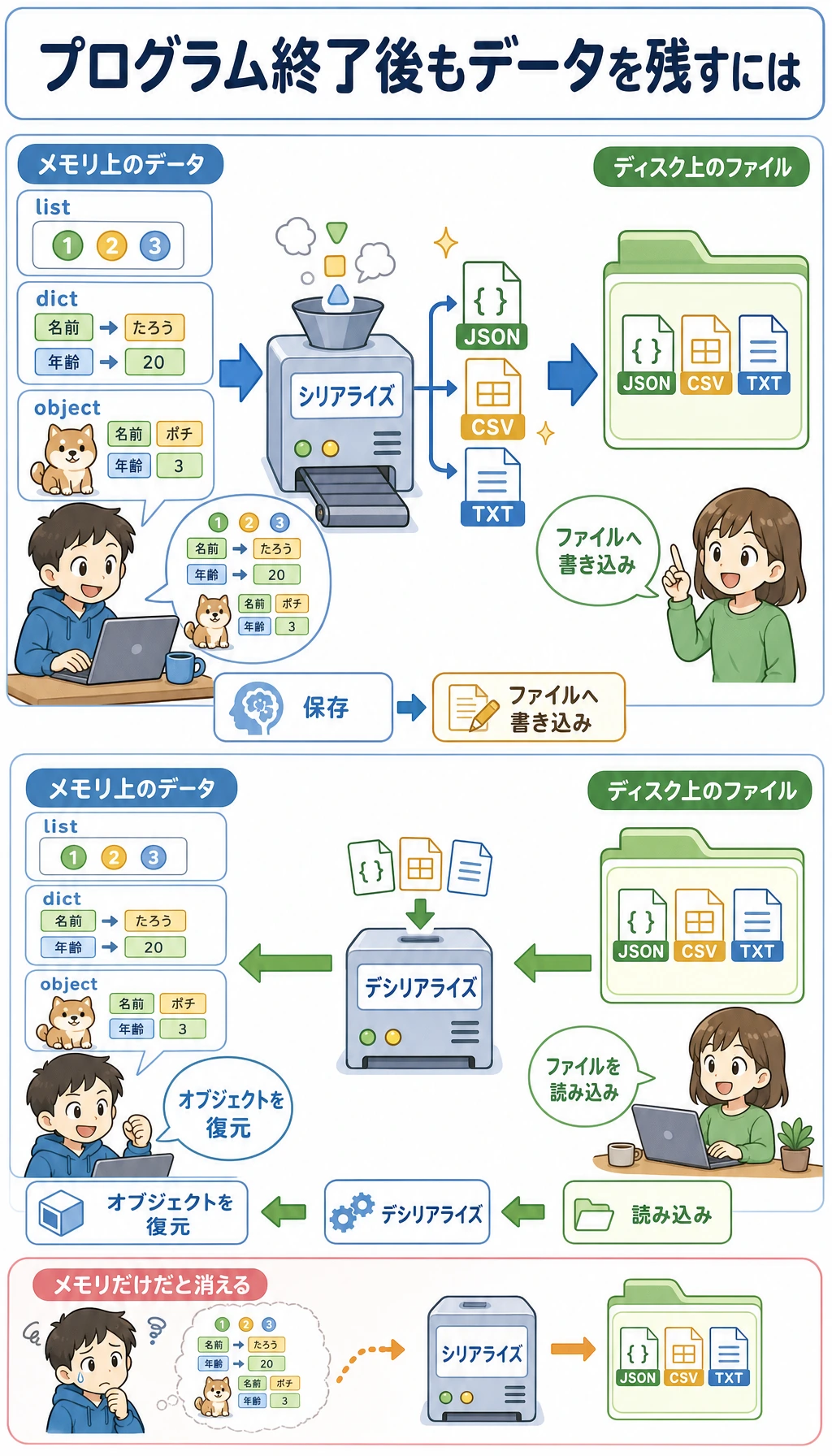
Section titled “なぜファイル操作が必要なの?”ここまで、プログラムのデータはすべてメモリの中にありました。つまり、プログラムを終了するとデータは消えてしまいます。でも実際の場面では、次のようなことがあります。
- 学習済みの AI モデルをファイルに保存して、次回すぐ読み込む
- データセットが CSV ファイルにあり、プログラムで読み込む必要がある
- 学習ログをファイルに書き出して、あとで分析する
- 設定パラメータが JSON ファイルにあり、起動時に読み込む
ファイル操作は、プログラムでデータを永続的に保存できるようにするためのものです。
ファイルの読み書きの基本
Section titled “ファイルの読み書きの基本”ファイルを開く: open()
Section titled “ファイルを開く: open()”# 基本構文file = open("ファイルパス", "モード", encoding="エンコーディング")よく使うモード:
| モード | 意味 | ファイルが存在しない場合 |
|---|---|---|
"r" | 読み込み(デフォルト) | エラー |
"w" | 書き込み(上書き) | 自動作成 |
"a" | 追記(末尾に追加) | 自動作成 |
"x" | 新規作成(すでにあるとエラー) | 自動作成 |
"rb" | バイナリファイルを読み込む | エラー |
"wb" | バイナリファイルに書き込む | 自動作成 |
ファイルに書き込む
Section titled “ファイルに書き込む”# 方法 1: 手動で開いて閉じる(おすすめしない)file = open("hello.txt", "w", encoding="utf-8")file.write("こんにちは、世界!\n")file.write("Python のファイル操作を学習中です。\n")file.close() # ファイルを閉じるのを忘れないでください!
# 方法 2: with 文を使う(おすすめ!)with open("hello.txt", "w", encoding="utf-8") as file: file.write("こんにちは、世界!\n") file.write("Python のファイル操作を学習中です。\n")# with ブロックを抜けると、ファイルは自動で閉じられます。close() は不要です。ファイルを読む
Section titled “ファイルを読む”# 全内容を読むwith open("hello.txt", "r", encoding="utf-8") as file: content = file.read() print(content)
# 1行ずつ読むwith open("hello.txt", "r", encoding="utf-8") as file: for line in file: print(line.strip()) # strip() は行末の改行を取り除く
# すべての行をリストとして読むwith open("hello.txt", "r", encoding="utf-8") as file: lines = file.readlines() print(lines) # ['こんにちは、世界!\n', 'Python のファイル操作を学習中です。\n']内容を追記する
Section titled “内容を追記する”# "a" モード: ファイル末尾に追記し、元の内容は上書きしないwith open("log.txt", "a", encoding="utf-8") as file: file.write("2026-02-09: 学習開始\n") file.write("2026-02-09: 第1章完了\n")複数行を書き込む
Section titled “複数行を書き込む”lines = ["1行目\n", "2行目\n", "3行目\n"]
with open("output.txt", "w", encoding="utf-8") as file: file.writelines(lines) # 文字列のリストを書き込む
# あるいは print でファイルに書き込むwith open("output.txt", "w", encoding="utf-8") as file: print("1行目", file=file) # print は出力先をファイルに指定できる print("2行目", file=file) print("3行目", file=file)実践例: さまざまなファイル形式を扱う
Section titled “実践例: さまざまなファイル形式を扱う”CSV ファイル
Section titled “CSV ファイル”CSV(Comma-Separated Values)は、最もよく使われるデータファイル形式の1つです。
import csv
# CSV に書き込むtasks = [    ["機能", "担当者", "時間"],    ["ログイン API", "Mina", 8],    ["RAG デモ", "Kai", 12],    ["グラフビュー", "Noah", 5],]
with open("tasks.csv", "w", newline="", encoding="utf-8") as file:    writer = csv.writer(file)    writer.writerows(tasks)
# CSV を読み込むwith open("tasks.csv", "r", encoding="utf-8") as file:    reader = csv.reader(file)    header = next(reader)  # 見出しを読む    print(f"列名: {header}")
    for row in reader:        feature, owner, hours = row        print(f"{feature}, 担当者: {owner}, 見積もり: {hours} 時間")
# 辞書として読み込む(より便利)with open("tasks.csv", "r", encoding="utf-8") as file:    reader = csv.DictReader(file)    for row in reader:        print(f"{row['機能']} は {row['担当者']} が担当します")
JSON ファイル
Section titled “JSON ファイル”JSON は Web 開発や API で最もよく使われるデータ形式です。
import json
# JSON に書き込むconfig = {    "model": "ResNet-50",    "learning_rate": 0.001,    "epochs": 100,    "batch_size": 32,    "classes": ["猫", "犬", "鳥"],    "use_gpu": True}
with open("config.json", "w", encoding="utf-8") as file:    json.dump(config, file, ensure_ascii=False, indent=2)
# JSON を読み込むwith open("config.json", "r", encoding="utf-8") as file:    loaded_config = json.load(file)
print(f"モデル: {loaded_config['model']}")print(f"学習率: {loaded_config['learning_rate']}")print(f"クラス: {loaded_config['classes']}")
生成された config.json の内容:
{ "model": "ResNet-50", "learning_rate": 0.001, "epochs": 100, "batch_size": 32, "classes": ["猫", "犬", "鳥"], "use_gpu": true}テキストログファイル
Section titled “テキストログファイル”from datetime import datetime
def log(message, filename="app.log"): """ログを書き込む""" timestamp = datetime.now().strftime("%Y-%m-%d %H:%M:%S") with open(filename, "a", encoding="utf-8") as file: file.write(f"[{timestamp}] {message}\n")
# 使い方log("プログラムを起動しました")log("データセットを読み込みました: train.csv")log("モデルの学習を開始しました")log("学習完了、正解率: 92.5%")生成されたログファイル:
[2026-02-09 14:30:01] プログラムを起動しました[2026-02-09 14:30:02] データセットを読み込みました: train.csv[2026-02-09 14:30:03] モデルの学習を開始しました[2026-02-09 14:35:15] 学習完了、正解率: 92.5%パスの扱い: pathlib
Section titled “パスの扱い: pathlib”pathlib は Python 3 で推奨されるパス操作の方法です。os.path よりも現代的で、使いやすいです。
from pathlib import Path
# パスオブジェクトを作るdata_dir = Path("data")train_file = data_dir / "train" / "data.csv"  # / でパスをつなげる!print(train_file)  # data/train/data.csv
# パスを確認するprint(train_file.exists())    # ファイルが存在するかprint(train_file.is_file())   # ファイルかどうかprint(data_dir.is_dir())      # ディレクトリかどうか
# ファイル情報を取得するpath = Path("model.pth")print(path.name)       # model.pth(ファイル名)print(path.stem)       # model(拡張子なし)print(path.suffix)     # .pth(拡張子)print(path.parent)     # .(親ディレクトリ)
# ディレクトリを作成するPath("output/results").mkdir(parents=True, exist_ok=True)
# ディレクトリ内のファイルを一覧表示するfor file in Path(".").glob("*.py"):    print(file)
# すべての CSV ファイルを再帰的に探すfor csv_file in Path("data").rglob("*.csv"):    print(csv_file)
# ファイルを手軽に読み書きするPath("note.txt").write_text("Hello!", encoding="utf-8")content = Path("note.txt").read_text(encoding="utf-8")print(content)  # Hello!
シリアライズ: Python オブジェクトを保存する
Section titled “シリアライズ: Python オブジェクトを保存する”シリアライズとは?
Section titled “シリアライズとは?”シリアライズとは、Python オブジェクト(リスト、辞書、クラスのインスタンスなど)を、ファイルに保存できる形式に変換することです。デシリアライズはその逆で、ファイルから Python オブジェクトに戻すことです。
保存したい内容に合わせて形式を選びます。
| 目的 | おすすめの形式 |
|---|---|
| 設定、API 応答、小さな構造化データ | json モジュールで JSON |
| 表計算ソフトでも開きたい行と列のデータ | csv モジュールで CSV |
| Python 内だけで使う、完全に信頼できるオブジェクト | pickle モジュールで pickle |
ここで一番大事な判断は安全性です。JSON と CSV は読みやすく、通常の学習プロジェクトに向いています。pickle は高速で便利ですが、バイナリ形式で、他人から受け取ったファイルを読み込む用途には危険です。
pickle: さまざまな Python オブジェクトを保存する
Section titled “pickle: さまざまな Python オブジェクトを保存する”import pickle
# Python オブジェクトを保存するdata = { "hours": [2, 5, 1, 3], "features": ["ログイン API", "RAG デモ", "グラフビュー", "デプロイスクリプト"], "metadata": {"module": "portfolio backend", "year": 2026}}
with open("data.pkl", "wb") as file: # "wb"(バイナリ書き込み)に注意 pickle.dump(data, file)
# Python オブジェクトを読み込むwith open("data.pkl", "rb") as file: # "rb"(バイナリ読み込み)に注意 loaded_data = pickle.load(file)
print(loaded_data["features"]) # ['ログイン API', 'RAG デモ', 'グラフビュー', 'デプロイスクリプト']総合例: タスクログ永続化システム
Section titled “総合例: タスクログ永続化システム”import jsonfrom pathlib import Path
class TaskLog: """タスク作業ログ。ファイルへの永続保存をサポートする"""
def __init__(self, filename="task_log.json"): self.filename = Path(filename) self.tasks = {} self.load() # 起動時にデータを読み込む
def load(self): """ファイルからデータを読み込む""" if self.filename.exists(): with open(self.filename, "r", encoding="utf-8") as f: self.tasks = json.load(f) print(f"✅ {len(self.tasks)} 件のタスクデータを読み込みました") else: print("📝 新しいタスクログを作成します")
def save(self): """データをファイルに保存する""" with open(self.filename, "w", encoding="utf-8") as f: json.dump(self.tasks, f, ensure_ascii=False, indent=2)
def add_work(self, task_name, stage, hours): """作業時間を追加する""" if task_name not in self.tasks: self.tasks[task_name] = {} self.tasks[task_name][stage] = hours self.save() print(f"✅ {task_name} の {stage} 時間({hours} 時間)を保存しました")
def get_report(self, task_name): """タスクのレポートを取得する""" if task_name not in self.tasks: print(f"❌ タスクが見つかりません: {task_name}") return
stages = self.tasks[task_name] print(f"\n{'='*30}") print(f" {task_name} の作業レポート") print(f"{'='*30}") for stage, hours in stages.items(): print(f" {stage}: {hours} 時間") total = sum(stages.values()) print(f"{'─'*30}") print(f" 合計時間: {total:.1f}") print(f"{'='*30}")
def export_csv(self, filename="task_hours.csv"): """CSV としてエクスポートする""" import csv stages = set() for task_stages in self.tasks.values(): stages.update(task_stages.keys()) stages = sorted(stages)
with open(filename, "w", newline="", encoding="utf-8") as f: writer = csv.writer(f) writer.writerow(["タスク"] + stages) for task_name, task_stages in self.tasks.items(): row = [task_name] + [task_stages.get(s, "") for s in stages] writer.writerow(row) print(f"✅ {filename} にエクスポートしました")
# 使用例log = TaskLog()log.add_work("ログイン API", "設計", 2)log.add_work("ログイン API", "実装", 5)log.add_work("ログイン API", "テスト", 1)log.add_work("RAG デモ", "実装", 7)log.add_work("RAG デモ", "ドキュメント", 2)log.get_report("ログイン API")log.export_csv()ハンズオン練習
Section titled “ハンズオン練習”練習 1: ファイル統計ツール
Section titled “練習 1: ファイル統計ツール”from pathlib import Path
def file_stats(filename): """行数、文字数、単語数、最長行の情報を返す。""" path = Path(filename) lines = path.read_text(encoding="utf-8").splitlines() longest_index, longest_line = max( enumerate(lines, start=1), key=lambda item: len(item[1]), default=(0, ""), ) return { "lines": len(lines), "characters": sum(len(line) for line in lines), "words": sum(len(line.split()) for line in lines), "longest_line_number": longest_index, "longest_line": longest_line, }
Path("sample.txt").write_text("hello world\nthis is Python\n", encoding="utf-8")print(file_stats("sample.txt"))練習 2: 日記帳プログラム
Section titled “練習 2: 日記帳プログラム”次の機能を持つ、シンプルな日記帳プログラムを作りましょう。
- 新しい日記を書く(自動でタイムスタンプを付ける)
- すべての日記を見る
- 日記はテキストファイルに保存し、プログラムを閉じても消えない
練習 3: 設定ファイルマネージャー
Section titled “練習 3: 設定ファイルマネージャー”import jsonfrom pathlib import Path
DEFAULT_CONFIG = {"theme": "light", "language": "ja", "page_size": 20}
def load_config(filename="config.json"): """設定ファイルを読み込む。存在しない場合はデフォルト設定を作る。""" path = Path(filename) if not path.exists(): save_config(DEFAULT_CONFIG.copy(), filename) return json.loads(path.read_text(encoding="utf-8"))
def save_config(config, filename="config.json"): """設定をファイルに保存する。""" Path(filename).write_text(json.dumps(config, indent=2), encoding="utf-8")
def update_config(key, value, filename="config.json"): """特定の設定項目を更新する。""" config = load_config(filename) config[key] = value save_config(config, filename) return config
print(update_config("theme", "dark"))参考実装と解説
file_statsは行数、文字数、単語数、最長行の情報を返せれば合格です。max()にdefault=(0, "")を入れておくと、空ファイルでも例外で止まりません。- 日記帳プログラムは、タイムスタンプ付きの本文をテキストファイルへ追記し、あとから順番に読み返せる形にします。人が直接開いて確認できる単純な保存形式にしておくと、デバッグもしやすくなります。
- 設定ファイルマネージャーは JSON を読み込み、存在しない場合は既定値を作成し、指定されたキーだけを更新して保存します。
Pathを使うと、ファイルパス処理を環境に依存しにくくできます。
| 操作 | コード | 説明 |
|---|---|---|
| ファイルに書き込む | with open("f.txt", "w") as f: | "w" は上書き、"a" は追記 |
| ファイルを読む | with open("f.txt", "r") as f: | .read()、.readlines() |
| JSON に書き込む | json.dump(data, file) | 辞書 → JSON ファイル |
| JSON を読む | json.load(file) | JSON ファイル → 辞書 |
| CSV に書き込む | csv.writer(file).writerow() | リスト → CSV 行 |
| CSV を読む | csv.reader(file) | CSV 行 → リスト |
| パス操作 | Path("data") / "file.txt" | pathlib の使用がおすすめ |