
1.4.1 跟做工作坊:构建可复现的 AI 学习工作台
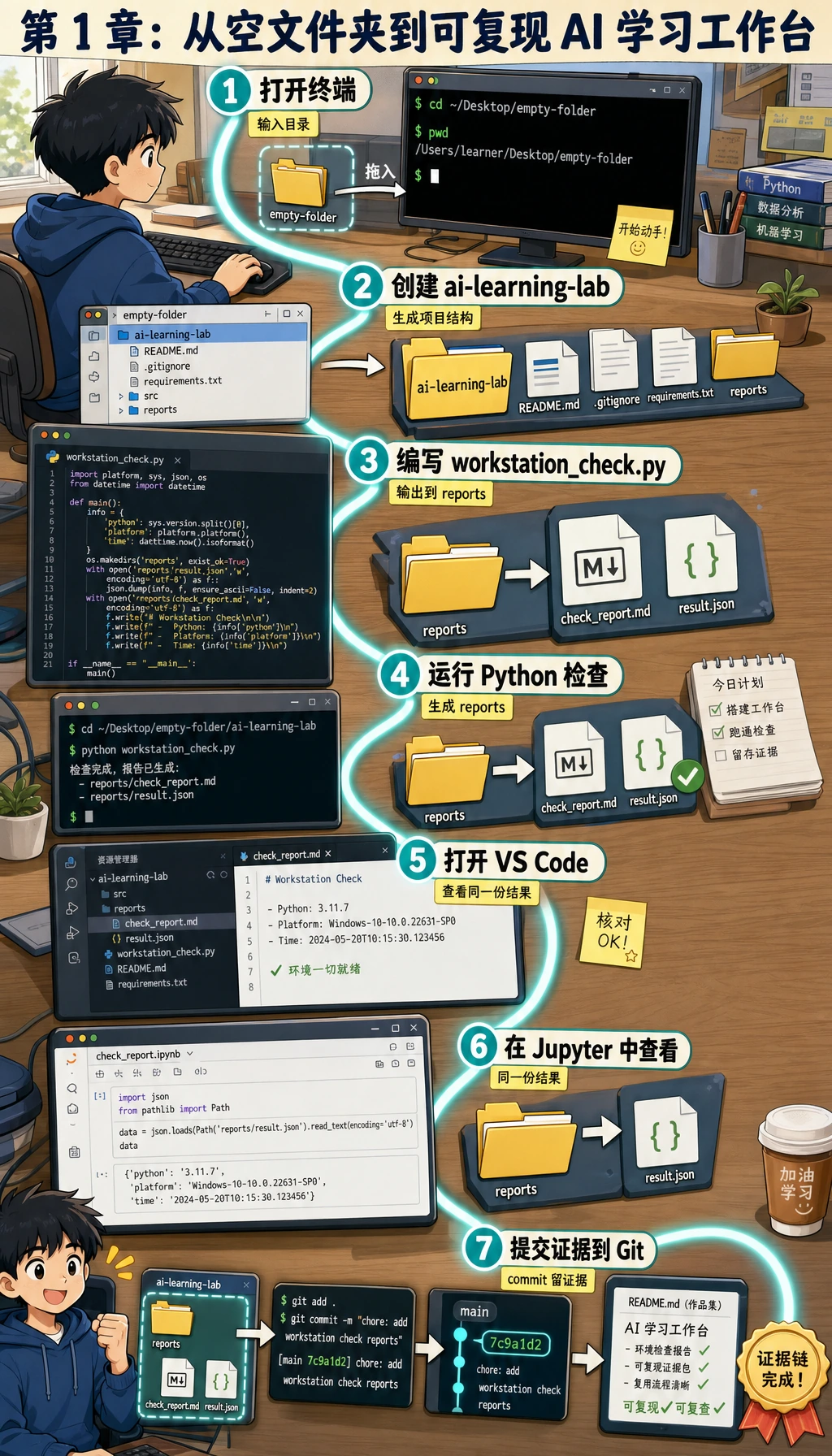
你将构建什么
Section titled “你将构建什么”你要创建一个本地项目,用它回答一个简单但重要的问题:“我能不能在这台电脑上创建、运行、检查、保存并解释一个项目?”
最终项目会包含:
| 文件或文件夹 | 用途 |
|---|---|
README.md | 说明项目目标、运行命令和预期输出 |
src/workstation_check.py | 可运行的 Python 脚本,用来检查当前工具链 |
notes/learning-log.md | 记录每天的命令、问题和排障过程 |
reports/workstation-check.json | 机器可读的环境报告 |
reports/workstation-report.md | 人能读懂的作品集证据 |
.gitignore | 避免缓存、密钥和本地环境被提交 |
本工作坊只使用 Python 标准库,不需要第三方 SDK、云账号或付费服务。
第 0 步:创建干净的练习文件夹
Section titled “第 0 步:创建干净的练习文件夹”打开终端并运行:
mkdir ai-learning-labcd ai-learning-labpwdpython3 --version预期输出类似:
/Users/zhangsan/ai-learning-labPython 3.12.3你的路径和 Python 版本可以不同。本工作坊使用 Python 3.10 或更新版本即可。
第 1 步:先看完整路线
Section titled “第 1 步:先看完整路线”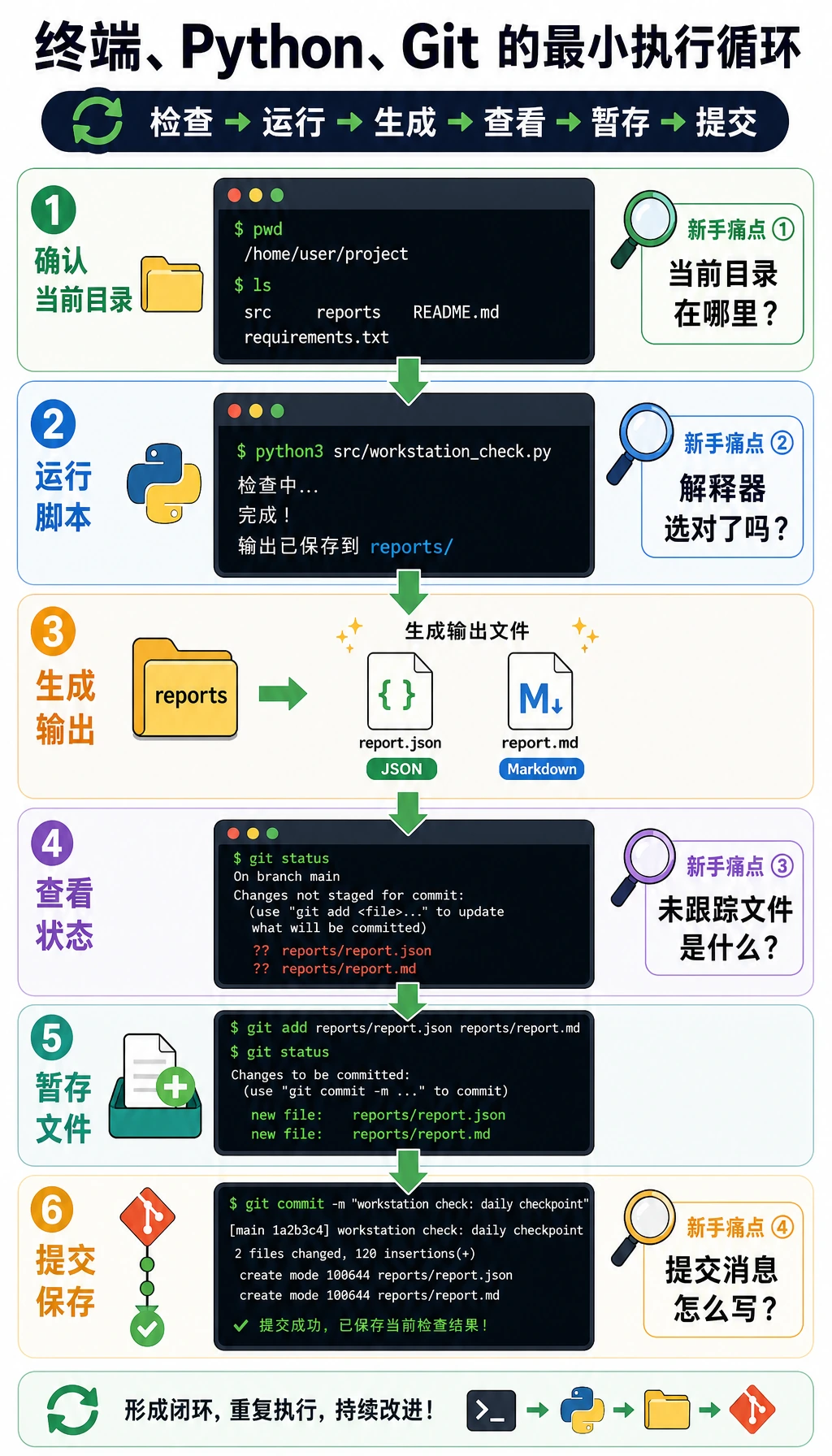
不要把这些工具看成互不相关的主题。在真实开发中,它们会组成一个闭环:
| 步骤 | 工具 | 你要做什么 |
|---|---|---|
| 1 | 终端 | 进入项目文件夹并运行命令 |
| 2 | Python | 运行检查脚本并生成证据 |
| 3 | 编辑器 | 阅读并改进文件 |
| 4 | Git | 把稳定状态保存成 commit |
| 5 | 报告 | 保留能证明项目可复现的输出 |
以后遇到问题,通常就是这些环节中的某一个断了:当前目录、Python 解释器、依赖安装位置、文件路径或 Git 状态。
第 2 步:创建项目骨架
Section titled “第 2 步:创建项目骨架”在 ai-learning-lab 里运行:
mkdir -p src notes reports notebooks screenshotstouch requirements.txt创建 .gitignore:
cat > .gitignore << 'EOF'__pycache__/*.pyc.venv/venv/.env.env.local.ipynb_checkpoints/.DS_StoreEOF创建第一版 README:
cat > README.md << 'EOF'# AI 学习实验室
这个仓库是我用于 AI 全栈课程的可复现学习工作区。
## 运行
```bashpython3 src/workstation_check.py```
## 预期输出
The script prints the current project root, Python executable, Git branch, and report file paths.EOF
创建第一份学习日志:
cat > notes/learning-log.md << 'EOF'# Learning Log
| Time | Command or action | Result | Note ||---|---|---|---|EOF
预期目录结构:
| 路径 | 用途 |
|---|---|
README.md | 重跑说明 |
requirements.txt | Python 依赖 |
src/ | 可复用 Python 脚本 |
notes/ | 学习日志和决策记录 |
reports/ | 值得复查的输出 |
notebooks/ | 探索性 Notebook |
screenshots/ | 环境搭建的视觉证据 |
如果你装了 tree,可以用 tree -a -L 2 检查;没有安装也没关系,用 find . -maxdepth 2 -type f 也能看文件。
第 3 步:加入可运行的环境检查脚本
Section titled “第 3 步:加入可运行的环境检查脚本”创建 src/workstation_check.py,粘贴下面完整代码。
from __future__ import annotations
import jsonimport platformimport subprocessimport sysfrom datetime import datetime, timezonefrom pathlib import Pathfrom typing import Any
PROJECT_ROOT = Path(__file__).resolve().parents[1]REPORTS_DIR = PROJECT_ROOT / "reports"NOTES_DIR = PROJECT_ROOT / "notes"JSON_REPORT = REPORTS_DIR / "workstation-check.json"MARKDOWN_REPORT = REPORTS_DIR / "workstation-report.md"LEARNING_LOG = NOTES_DIR / "learning-log.md"

def utc_now() -> str:    return datetime.now(timezone.utc).replace(microsecond=0).isoformat()

def run_command(command: list[str]) -> dict[str, Any]:    try:        completed = subprocess.run(            command,            cwd=PROJECT_ROOT,            text=True,            capture_output=True,            check=False,        )    except FileNotFoundError:        return {            "command": " ".join(command),            "returncode": 127,            "stdout": "",            "stderr": f"{command[0]} was not found",        }    return {        "command": " ".join(command),        "returncode": completed.returncode,        "stdout": completed.stdout.strip(),        "stderr": completed.stderr.strip(),    }

def visible_project_files() -> list[str]:    files: list[str] = []    for path in sorted(PROJECT_ROOT.rglob("*")):        if ".git" in path.parts or path.is_dir():            continue        files.append(str(path.relative_to(PROJECT_ROOT)))    return files

def ensure_workspace_files() -> None:    REPORTS_DIR.mkdir(exist_ok=True)    NOTES_DIR.mkdir(exist_ok=True)    if not LEARNING_LOG.exists():        LEARNING_LOG.write_text(            "# Learning Log\n\n| Time | Command or action | Result | Note |\n|---|---|---|---|\n",            encoding="utf-8",        )

def build_report() -> dict[str, Any]:    return {        "generated_at": utc_now(),        "project_root": str(PROJECT_ROOT),        "python_version": sys.version.split()[0],        "python_executable": sys.executable,        "platform": platform.platform(),        "git_branch": run_command(["git", "branch", "--show-current"]),        "git_status": run_command(["git", "status", "--short"]),        "project_files": visible_project_files(),    }

def write_reports(report: dict[str, Any]) -> None:    JSON_REPORT.write_text(json.dumps(report, ensure_ascii=False, indent=2), encoding="utf-8")
    branch = report["git_branch"]["stdout"] or "(no branch yet)"    status = report["git_status"]["stdout"] or "working tree clean"    lines = [        "# Workstation Report",        "",        f"- Generated at: {report['generated_at']}",        f"- Project root: `{report['project_root']}`",        f"- Python version: `{report['python_version']}`",        f"- Python executable: `{report['python_executable']}`",        f"- Git branch: `{branch}`",        "",        "## Git status",        "",        "```text",        status,        "```",        "",        "## Project files",        "",    ]    lines.extend(f"- `{file}`" for file in report["project_files"])    MARKDOWN_REPORT.write_text("\n".join(lines) + "\n", encoding="utf-8")

def append_learning_log(report: dict[str, Any]) -> None:    branch = report["git_branch"]["stdout"] or "no branch"    LEARNING_LOG.write_text(        LEARNING_LOG.read_text(encoding="utf-8")        + f"| {report['generated_at']} | python3 src/workstation_check.py | ok | branch: {branch} |\n",        encoding="utf-8",    )

def main() -> None:    ensure_workspace_files()    report = build_report()    write_reports(report)    append_learning_log(report)
    branch = report["git_branch"]["stdout"] or "(no branch yet)"    print(f"[ok] project root: {PROJECT_ROOT}")    print(f"[ok] python: {report['python_version']} at {report['python_executable']}")    print(f"[ok] git branch: {branch}")    print(f"[ok] wrote {JSON_REPORT.relative_to(PROJECT_ROOT)}")    print(f"[ok] wrote {MARKDOWN_REPORT.relative_to(PROJECT_ROOT)}")    print("[next] run git status, then commit the files when the output looks right")

if __name__ == "__main__":    main()
新人要特别看懂这一点:脚本用 Path(__file__).resolve().parents[1] 找到项目根目录。所以只要从项目目录运行 python3 src/workstation_check.py,它就知道报告应该写到哪里。
第 4 步:初始化 Git 并运行脚本
Section titled “第 4 步:初始化 Git 并运行脚本”运行下面命令:
git initgit branch -M maingit config user.name "AI Learner"python3 src/workstation_check.py预期输出:
[ok] project root: /Users/zhangsan/ai-learning-lab[ok] python: 3.12.3 at /usr/local/bin/python3[ok] git branch: main[ok] wrote reports/workstation-check.json[ok] wrote reports/workstation-report.md[next] run git status, then commit the files when the output looks right你的 Python 路径可以不同。关键是脚本能运行,并且两个报告文件都生成了。
检查生成的证据:
cat reports/workstation-report.mdgit status --short预期 git status --short 类似:
?? .gitignore?? README.md?? notes/?? reports/?? requirements.txt?? src/?? 表示 Git 已经看到这些文件,但还没有开始跟踪。
第 5 步:完成第一次干净提交
Section titled “第 5 步:完成第一次干净提交”git add .gitignore README.md requirements.txt src notes reportsgit status --shortgit commit -m "Initialize AI learning lab workstation"git log --oneline预期输出:
abc1234 Initialize AI learning lab workstation你现在已经给自己的工作台保存了第一个稳定检查点。
第 6 步:练习分支,但不破坏 main
Section titled “第 6 步:练习分支,但不破坏 main”创建一个小分支,添加一条学习记录,重新运行脚本,再合并回 main。
git checkout -b practice/add-daily-noteprintf "\n- Practiced terminal, Python, and Git together.\n" >> notes/learning-log.mdpython3 src/workstation_check.pygit diff -- notes/learning-log.mdgit add notes/learning-log.md reports/workstation-check.json reports/workstation-report.mdgit commit -m "Add daily tool practice note"git checkout maingit merge practice/add-daily-notegit log --oneline --graph --allPowerShell 用户可以把 printf 那一行替换成:
Add-Content notes/learning-log.md "- Practiced terminal, Python, and Git together."这个练习故意很小。目的不是马上掌握复杂分支模型,而是先感受到:main 是稳定线,练习分支是安全试错区。
第 7 步:把 VS Code 和 Jupyter 当成两块操作面板
Section titled “第 7 步:把 VS Code 和 Jupyter 当成两块操作面板”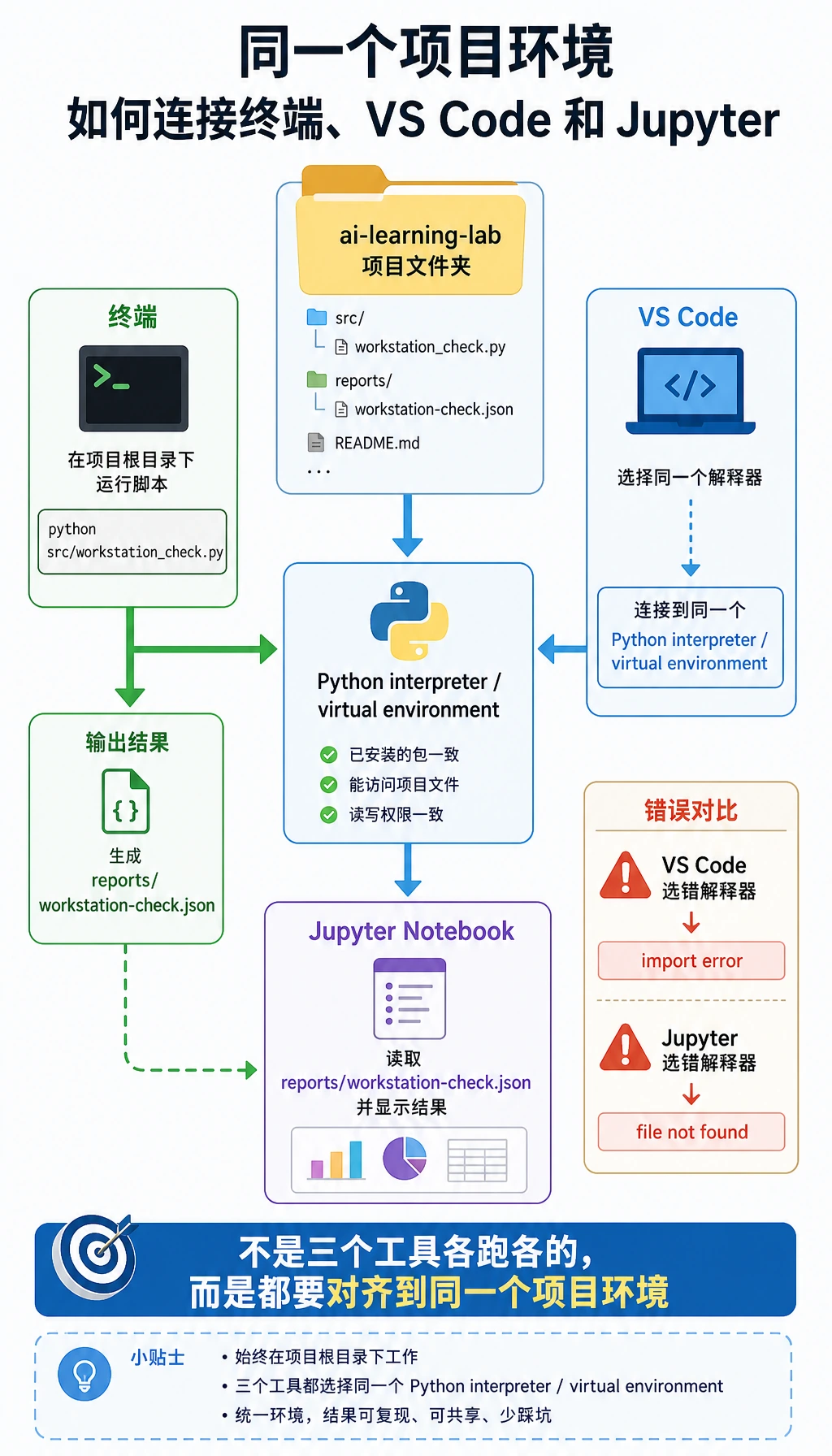
用 VS Code 打开项目:
code .然后检查:
| 检查项 | 去哪里看 |
|---|---|
文件夹名是 ai-learning-lab | VS Code Explorer |
| 选择的解释器是你期望的那个 | Command Palette -> Python: Select Interpreter |
| 脚本能运行 | VS Code 终端:python3 src/workstation_check.py |
| Git 修改能看到 | Source Control 面板 |
如果你使用 Jupyter,可以创建 notebooks/01-workstation-review.ipynb,运行下面这个 Cell:
import jsonfrom pathlib import Path
report = json.loads(Path("../reports/workstation-check.json").read_text(encoding="utf-8"))print(report["python_version"])print(report["git_branch"]["stdout"])print(len(report["project_files"]))
预期输出:
3.12.3main7文件数量可以不同。关键是 Notebook 读到了脚本生成的同一份报告。这样,探索记录(notebooks/)和项目证据(reports/)就连起来了。
第 8 步:按断点定位问题
Section titled “第 8 步:按断点定位问题”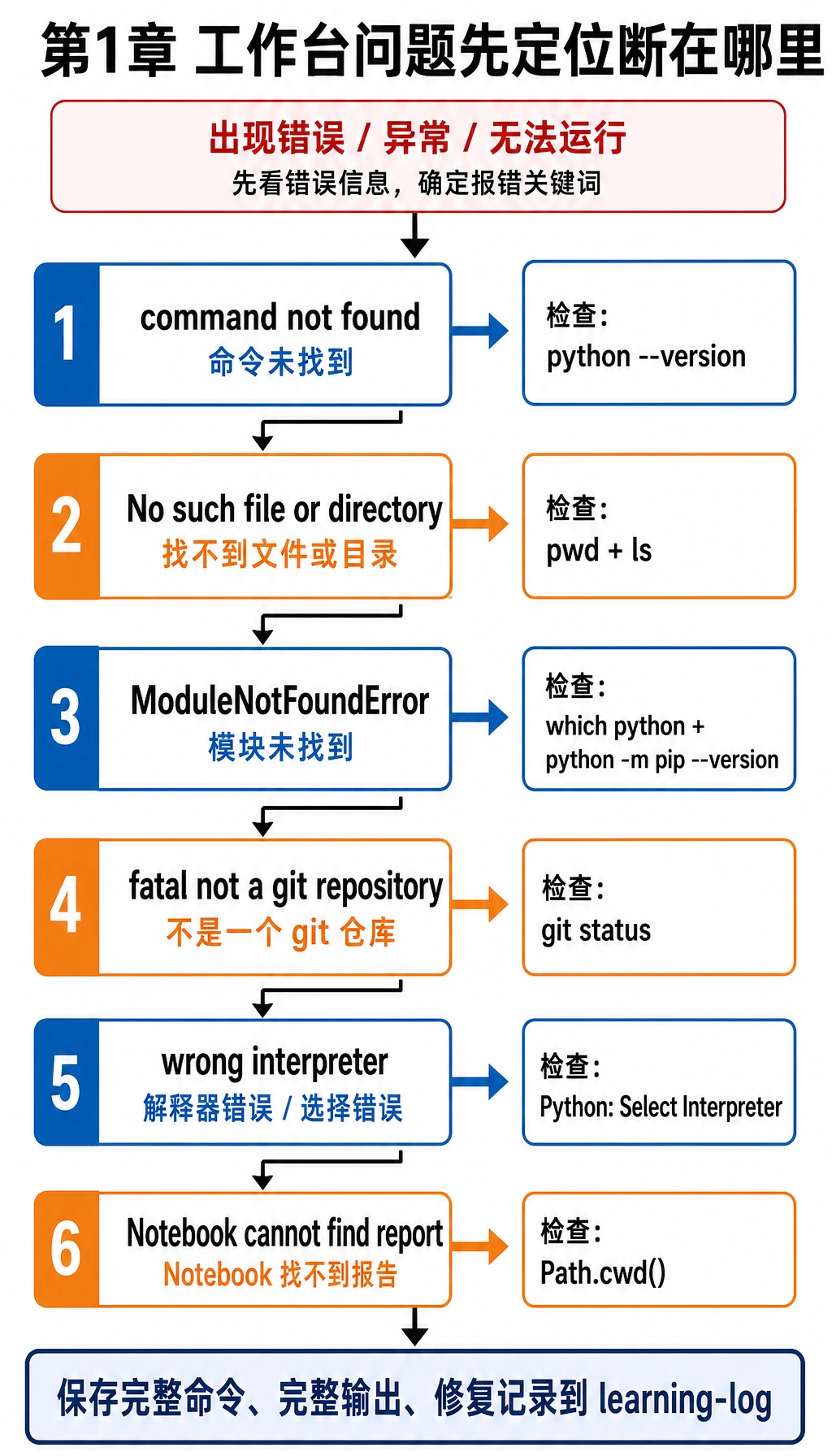
看到错误时,先放慢速度,判断是哪一环断了:
| 现象 | 第一条检查命令 | 可能原因 | 修复方向 |
|---|---|---|---|
python3: command not found | python --version | 系统使用 python 而不是 python3 | 固定使用 python,或配置 PATH |
No such file or directory | pwd 和 ls | 当前目录不对 | cd 进入 ai-learning-lab |
ModuleNotFoundError | which python 和 python -m pip --version | 包安装到了另一个环境 | 激活目标环境,再用 python -m pip install ... |
fatal: not a git repository | git status | 你不在仓库里,或忘了 git init | 进入项目目录,或运行 git init |
| VS Code 运行了另一个 Python | python3 -c "import sys; print(sys.executable)" | VS Code 解释器和终端解释器不同 | 使用 Python: Select Interpreter |
| Jupyter 找不到报告 | 在 Notebook Cell 里运行 Path.cwd() | Notebook 路径和项目根目录不同 | 用 ../reports/... 或移动 Notebook |
不要只复制最后一行报错。把完整命令、完整输出和下一步尝试写进 notes/learning-log.md。
第 9 步:整理作品集证据包
Section titled “第 9 步:整理作品集证据包”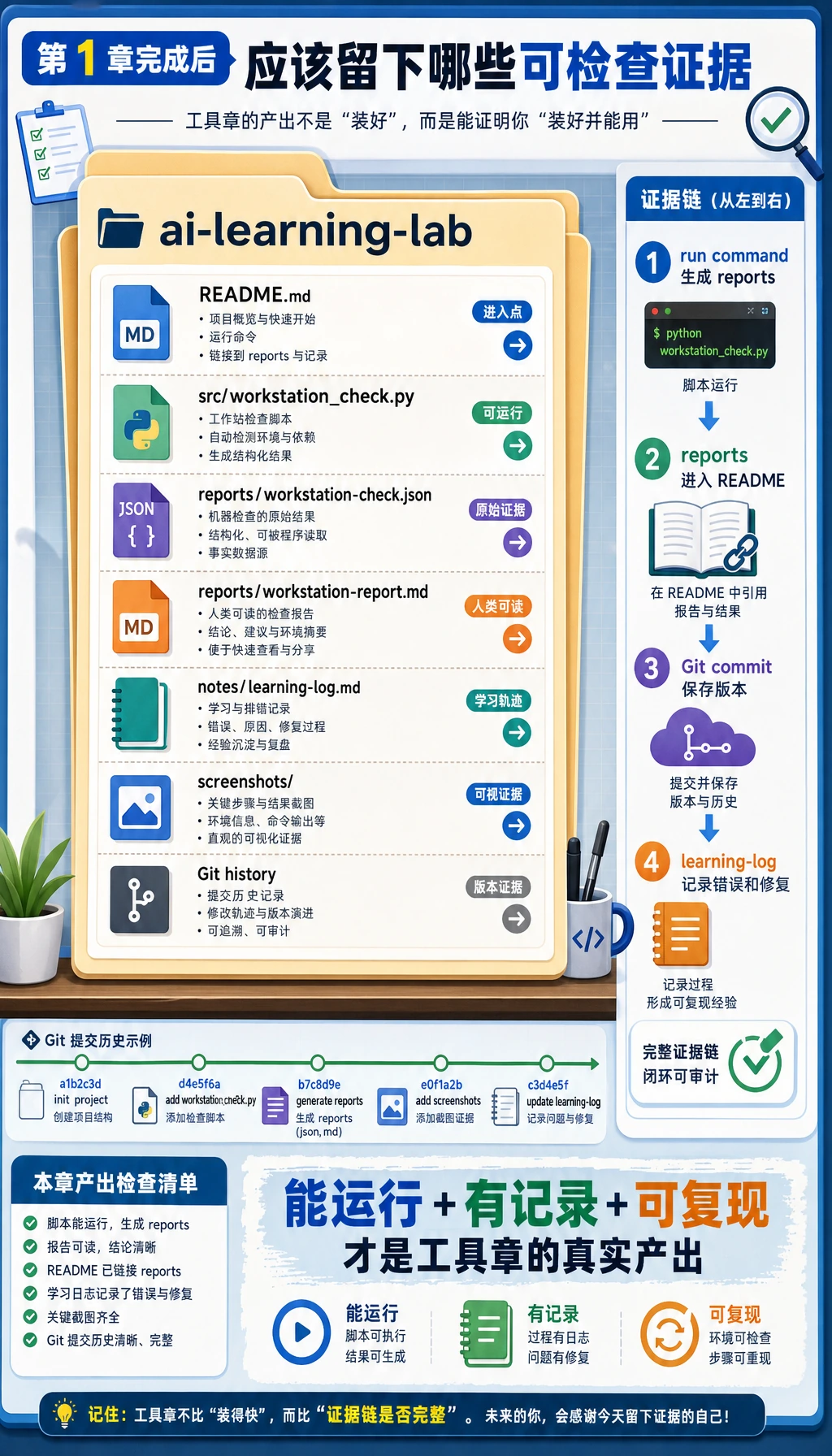
离开第 1 章前,你的证据包要同时展示结果和过程:
| 证据 | 最小可接受版本 | 更强作品集版本 |
|---|---|---|
| 运行命令 | python3 src/workstation_check.py | README 写清命令、输出和排障记录 |
| 环境证明 | 终端输出里有 Python 版本 | reports/workstation-check.json 记录解释器和平台 |
| Git 证明 | 1 次 commit | 多次小步提交,消息清楚 |
| 编辑器证明 | 项目能在 VS Code 打开 | 选对解释器,并记录运行输出 |
| Notebook 证明 | 可选 | Notebook 读取生成报告并解释结果 |
| 排障证明 | 1 条错误记录 | 一张“现象 -> 原因 -> 修复”表 |
- 新增
docs/commands.md,记录本章用过的 10 条命令,并用git commit -m "Add command practice notes"提交。 - 新增
reports/terminal-transcript.txt,粘贴一次成功运行输出和一次你修好的错误。 - 新增脚本
src/path_check.py,输出Path.cwd()和Path(__file__).resolve()。 - 创建分支
practice/readme-update,改进 README,再合并回main。
- 我能解释当前目录、项目根目录和 Python 文件路径的区别。
- 我能从终端和 VS Code 运行同一个脚本。
- 我能用
git status --short检查 Git 状态。 - 我能创建小分支、提交并合并回主线。
- 我有一份报告文件,能证明我的工作台可以运行代码。
检查思路与讲解
docs/commands.md不需要写成教程,但至少要有命令、用途和你在什么目录执行。reports/terminal-transcript.txt应该同时包含一次成功输出和一次修复记录,证明你能恢复失败。src/path_check.py的两个路径通常不同:Path.cwd()是运行命令的位置,__file__是脚本文件的位置。- 分支练习完成后,
git status --short应该干净,git log --oneline --graph能看到合并痕迹。 - 最强的提交物是一份别人克隆后也能复现的工作台,而不是只在你当前终端里“刚好能跑”。
完成这些后,第 1 章就不再只是工具清单,而是变成了后续每一章都能复用的工作基础。
学完这一页,至少保留这张证据卡:
- 工作区
- 终端、Git 仓库、编辑器、Python 环境和 Notebook 都已验证
- 工件
- 简短命令日志、提交历史、脚本输出或 notebook 单元结果
- 调试说明
- 一个设置问题以及你的诊断方式
- 失败检查
- 路径混淆、环境不匹配、Git 状态异常或缺少依赖
- 期望产出
- 一套可直接开始学习的工作站证据包