
1.1.1 Why Learn the Command Line
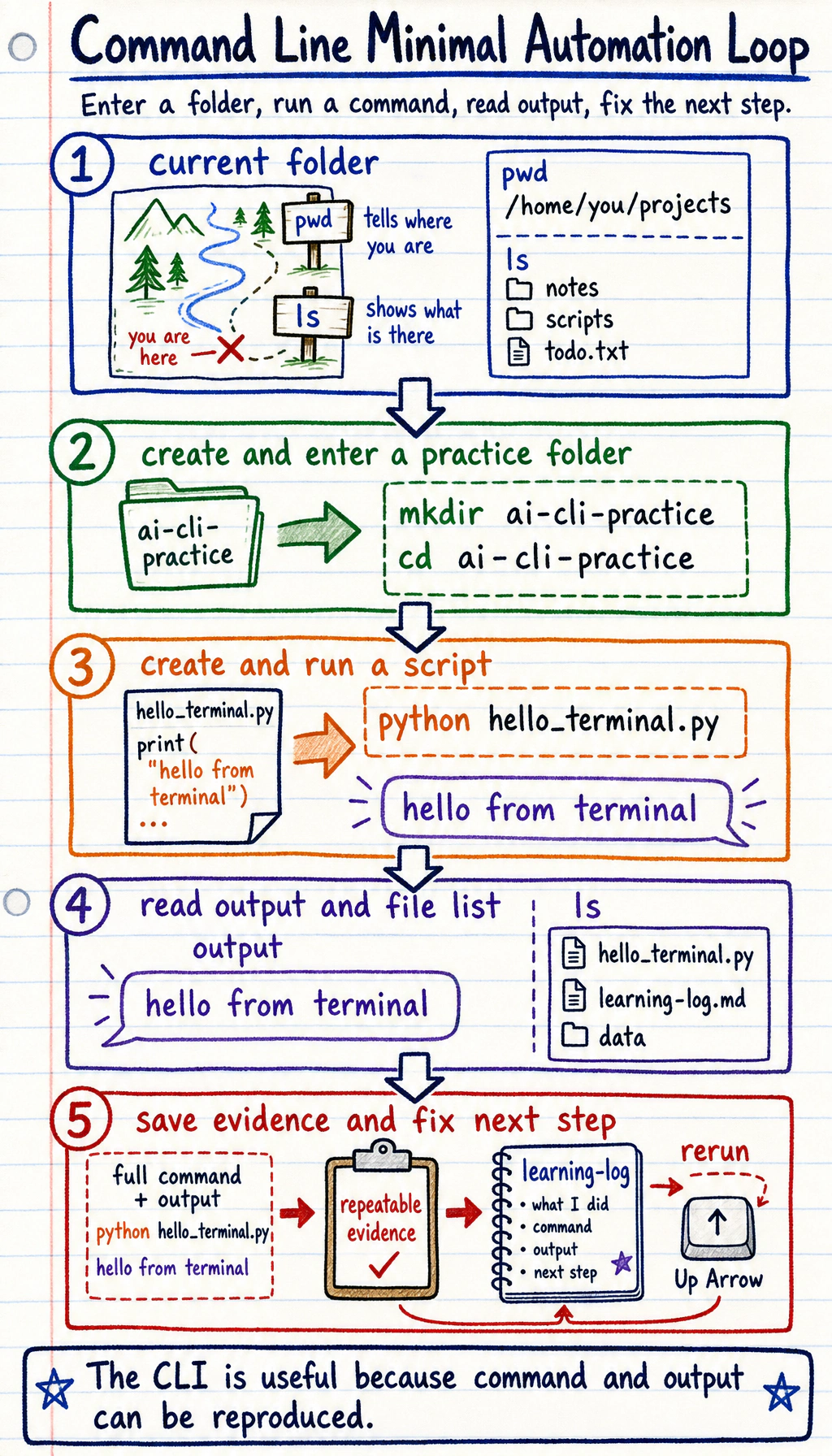
The command line is where you give the computer precise text instructions. In AI projects, you will use it to enter a project folder, run Python, install packages, save Git commits, connect to servers, and start services.
Do not memorize commands first. First make one small loop work:
Command Line vs Graphical Interface
Section titled “Command Line vs Graphical Interface”| Need | GUI | CLI |
|---|---|---|
| One-time action | Easy to click | Also possible |
| Repeat the same action | Easy to forget a click | Copy and rerun the same command |
| Batch work | Slow | Fast |
| Server work | Often unavailable | Standard method |
| Debugging evidence | Hard to record | Command and output can be saved |
The key idea is not that the terminal looks professional. The key idea is that commands are repeatable evidence.
Run This First
Section titled “Run This First”Open a terminal in a practice folder and run:
pwdmkdir ai-cli-practicecd ai-cli-practicepython -c "from pathlib import Path; Path('hello_terminal.py').write_text('print(\"hello from terminal\")\\n', encoding='utf-8')"python hello_terminal.pylsExpected signal:
hello from terminalhello_terminal.pyIf python does not work on Windows, try:
py hello_terminal.pyYou have now completed the smallest terminal loop: see the current folder, create a folder, create a script, run it, and inspect the result.
Where AI Projects Use It
Section titled “Where AI Projects Use It”| AI task | Example command |
|---|---|
| Install packages | python -m pip install pandas |
| Run a script | python train.py |
| Save code | git add . and git commit -m "message" |
| Start an API | uvicorn main:app --reload |
| Connect to a server | ssh user@server |
| Build a deployable app | docker build -t my-ai-app . |
You do not need all of these today. Just recognize that many later AI workflows start from the terminal.
Ten Commands to Recognize First
Section titled “Ten Commands to Recognize First”| Command | Meaning |
|---|---|
pwd | Show the current folder |
ls | List files |
cd | Change folder |
mkdir | Create a folder |
cp | Copy |
mv | Move or rename |
rm | Remove |
python | Run Python |
git | Save and inspect code history |
pip / conda | Install packages and manage environments |
If It Fails
Section titled “If It Fails”| Symptom | First check |
|---|---|
command not found | Is the tool installed? Did you reopen the terminal after installing it? |
python opens the wrong version | Run python --version and check the active environment |
| File not found | Run pwd and ls; you may be in the wrong folder |
| Permission denied | Check whether the file or folder belongs to another user |
| Command is too long to retype | Press the Up Arrow to bring back command history |
Pass this page when you can explain what pwd, cd, ls, and python hello_terminal.py did in your own folder. The next page teaches the basic file operations more slowly.
Check reasoning and explanation
The pass condition is not “I copied the commands.” It is: you can name the current folder, explain where hello_terminal.py was created, rerun the script, and keep the exact command/output pair as evidence.
If something failed, do not jump to reinstalling tools. First compare pwd, ls, and python --version; most beginner terminal failures are path or environment mismatches.
Evidence to Keep
Section titled “Evidence to Keep”Keep this page’s proof of learning as a small evidence card:
- Command
- exact terminal command you ran
- Working Dir
- pwd/current folder and important files listed
- Output
- copied command output or screenshot of the result
- Failure Check
- wrong path, missing command, permission issue, or shell mismatch
- Expected Output
- reproducible terminal action with the command and result side by side