
1.4.1 Follow-Along Workshop: Build a Reproducible AI Learning Lab
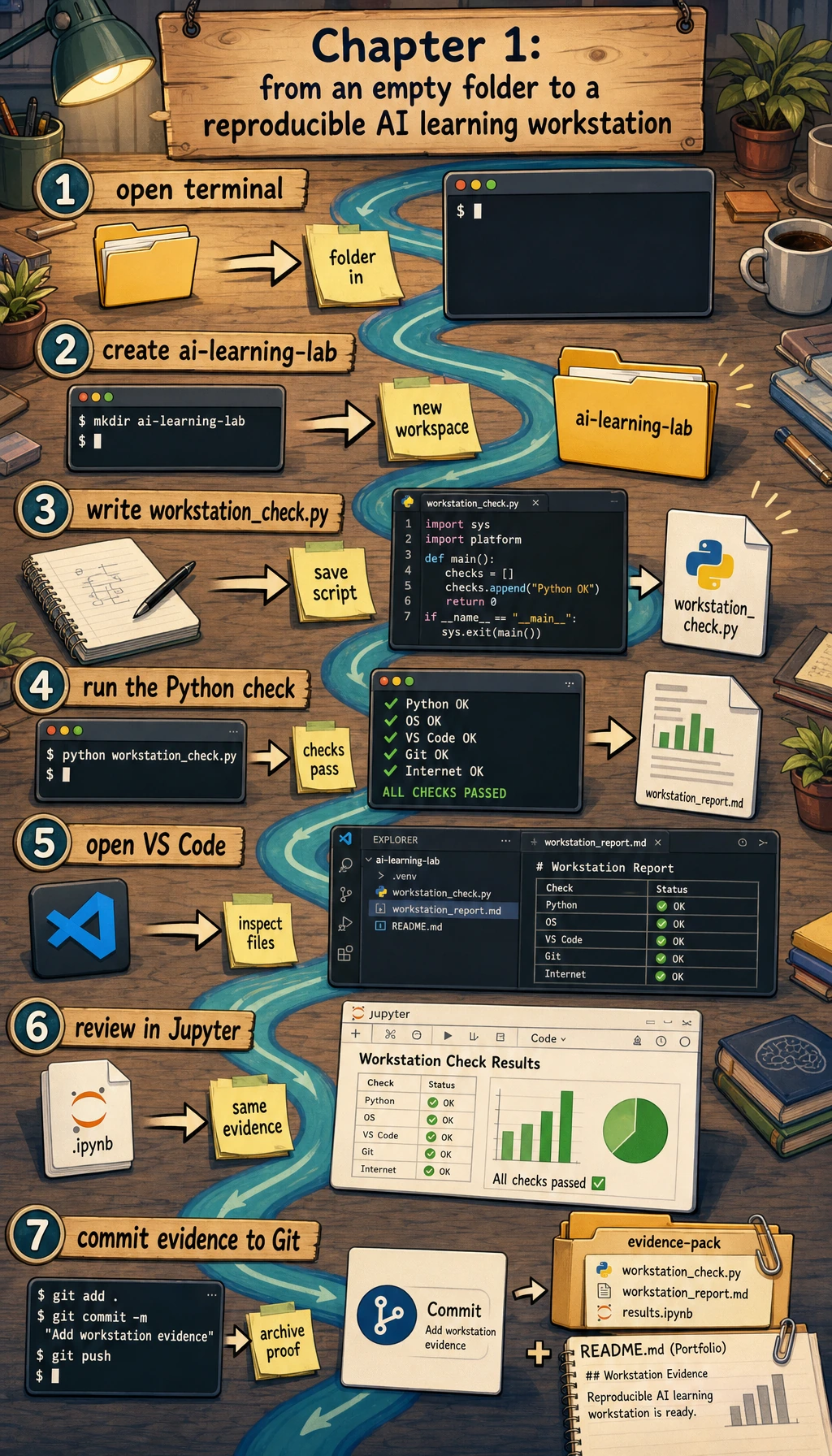
What you will build
Section titled “What you will build”You will create a local project that answers one simple but important question: “Can I create, run, inspect, save, and explain a project on this computer?”
The final project will contain:
| File or folder | Purpose |
|---|---|
README.md | Explains the project goal, run command, and expected output |
src/workstation_check.py | Runnable Python script that checks the current toolchain |
notes/learning-log.md | Your daily command and troubleshooting notes |
reports/workstation-check.json | Machine-readable environment report |
reports/workstation-report.md | Human-readable portfolio evidence |
.gitignore | Prevents cache, secrets, and local environments from being committed |
This workshop uses only the Python standard library. You do not need a third-party SDK, a cloud account, or a paid service.
Step 0: Create a clean practice folder
Section titled “Step 0: Create a clean practice folder”Open a terminal and run:
mkdir ai-learning-labcd ai-learning-labpwdpython3 --versionExpected output will be similar to this:
/Users/zhangsan/ai-learning-labPython 3.12.3The exact path and Python version can be different. For this workshop, Python 3.10 or newer is enough.
Step 1: Understand the complete route first
Section titled “Step 1: Understand the complete route first”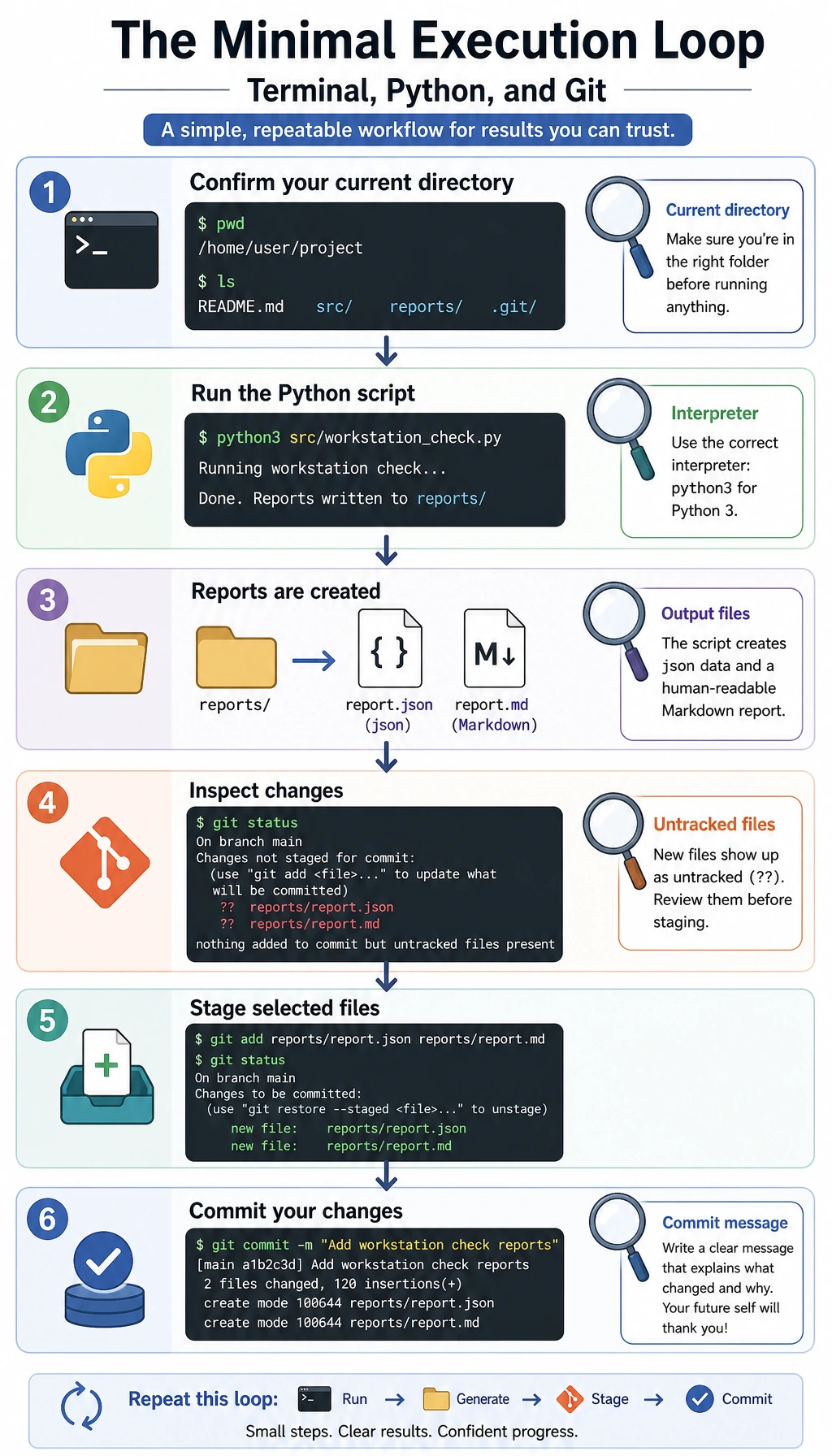
Do not treat the tools as separate topics. In real work, they form one loop:
| Step | Tool | What you do |
|---|---|---|
| 1 | Terminal | Move into the project folder and run commands |
| 2 | Python | Run the check script and generate evidence |
| 3 | Editor | Read and improve the files |
| 4 | Git | Save the stable state as a commit |
| 5 | Report | Keep output that proves the project can be rerun |
When something fails later, you will usually debug one of these links: current folder, Python interpreter, dependency location, file path, or Git state.
Step 2: Create the project skeleton
Section titled “Step 2: Create the project skeleton”Run these commands inside ai-learning-lab:
mkdir -p src notes reports notebooks screenshotstouch requirements.txtCreate a .gitignore file:
cat > .gitignore << 'EOF'__pycache__/*.pyc.venv/venv/.env.env.local.ipynb_checkpoints/.DS_StoreEOFCreate the first README:
cat > README.md << 'EOF'# AI Learning Lab
This repository is my reproducible learning workspace for the AI full-stack course.
## Run
```bashpython3 src/workstation_check.py```
## Expected output
The script prints the current project root, Python executable, Git branch, and report file paths.EOF
Create the first learning log:
cat > notes/learning-log.md << 'EOF'# Learning Log
| Time | Command or action | Result | Note ||---|---|---|---|EOF
Expected structure:
| Path | Purpose |
|---|---|
README.md | Rerun instructions |
requirements.txt | Python dependencies |
src/ | Reusable Python scripts |
notes/ | Learning log and decisions |
reports/ | Outputs worth reviewing |
notebooks/ | Exploratory notebooks |
screenshots/ | Visual proof of setup |
If you installed tree, you can check it with tree -a -L 2. If not, find . -maxdepth 2 -type f is enough.
Step 3: Add the runnable environment check script
Section titled “Step 3: Add the runnable environment check script”Create src/workstation_check.py and paste the complete code below.
from __future__ import annotations
import jsonimport platformimport subprocessimport sysfrom datetime import datetime, timezonefrom pathlib import Pathfrom typing import Any
PROJECT_ROOT = Path(__file__).resolve().parents[1]REPORTS_DIR = PROJECT_ROOT / "reports"NOTES_DIR = PROJECT_ROOT / "notes"JSON_REPORT = REPORTS_DIR / "workstation-check.json"MARKDOWN_REPORT = REPORTS_DIR / "workstation-report.md"LEARNING_LOG = NOTES_DIR / "learning-log.md"

def utc_now() -> str:    return datetime.now(timezone.utc).replace(microsecond=0).isoformat()

def run_command(command: list[str]) -> dict[str, Any]:    try:        completed = subprocess.run(            command,            cwd=PROJECT_ROOT,            text=True,            capture_output=True,            check=False,        )    except FileNotFoundError:        return {            "command": " ".join(command),            "returncode": 127,            "stdout": "",            "stderr": f"{command[0]} was not found",        }    return {        "command": " ".join(command),        "returncode": completed.returncode,        "stdout": completed.stdout.strip(),        "stderr": completed.stderr.strip(),    }

def visible_project_files() -> list[str]:    files: list[str] = []    for path in sorted(PROJECT_ROOT.rglob("*")):        if ".git" in path.parts or path.is_dir():            continue        files.append(str(path.relative_to(PROJECT_ROOT)))    return files

def ensure_workspace_files() -> None:    REPORTS_DIR.mkdir(exist_ok=True)    NOTES_DIR.mkdir(exist_ok=True)    if not LEARNING_LOG.exists():        LEARNING_LOG.write_text(            "# Learning Log\n\n| Time | Command or action | Result | Note |\n|---|---|---|---|\n",            encoding="utf-8",        )

def build_report() -> dict[str, Any]:    return {        "generated_at": utc_now(),        "project_root": str(PROJECT_ROOT),        "python_version": sys.version.split()[0],        "python_executable": sys.executable,        "platform": platform.platform(),        "git_branch": run_command(["git", "branch", "--show-current"]),        "git_status": run_command(["git", "status", "--short"]),        "project_files": visible_project_files(),    }

def write_reports(report: dict[str, Any]) -> None:    JSON_REPORT.write_text(json.dumps(report, ensure_ascii=False, indent=2), encoding="utf-8")
    branch = report["git_branch"]["stdout"] or "(no branch yet)"    status = report["git_status"]["stdout"] or "working tree clean"    lines = [        "# Workstation Report",        "",        f"- Generated at: {report['generated_at']}",        f"- Project root: `{report['project_root']}`",        f"- Python version: `{report['python_version']}`",        f"- Python executable: `{report['python_executable']}`",        f"- Git branch: `{branch}`",        "",        "## Git status",        "",        "```text",        status,        "```",        "",        "## Project files",        "",    ]    lines.extend(f"- `{file}`" for file in report["project_files"])    MARKDOWN_REPORT.write_text("\n".join(lines) + "\n", encoding="utf-8")

def append_learning_log(report: dict[str, Any]) -> None:    branch = report["git_branch"]["stdout"] or "no branch"    LEARNING_LOG.write_text(        LEARNING_LOG.read_text(encoding="utf-8")        + f"| {report['generated_at']} | python3 src/workstation_check.py | ok | branch: {branch} |\n",        encoding="utf-8",    )

def main() -> None:    ensure_workspace_files()    report = build_report()    write_reports(report)    append_learning_log(report)
    branch = report["git_branch"]["stdout"] or "(no branch yet)"    print(f"[ok] project root: {PROJECT_ROOT}")    print(f"[ok] python: {report['python_version']} at {report['python_executable']}")    print(f"[ok] git branch: {branch}")    print(f"[ok] wrote {JSON_REPORT.relative_to(PROJECT_ROOT)}")    print(f"[ok] wrote {MARKDOWN_REPORT.relative_to(PROJECT_ROOT)}")    print("[next] run git status, then commit the files when the output looks right")

if __name__ == "__main__":    main()
Important beginner detail: the script uses Path(__file__).resolve().parents[1] to find the project root. That means it still works even if you run it from the project folder with python3 src/workstation_check.py.
Step 4: Initialize Git and run the script
Section titled “Step 4: Initialize Git and run the script”Run the commands below:
git initgit branch -M maingit config user.name "AI Learner"python3 src/workstation_check.pyExpected output:
[ok] project root: /Users/zhangsan/ai-learning-lab[ok] python: 3.12.3 at /usr/local/bin/python3[ok] git branch: main[ok] wrote reports/workstation-check.json[ok] wrote reports/workstation-report.md[next] run git status, then commit the files when the output looks rightYour Python path can be different. What matters is that the script runs, and both report files are created.
Check the generated evidence:
cat reports/workstation-report.mdgit status --shortExpected git status --short output will look similar to this:
?? .gitignore?? README.md?? notes/?? reports/?? requirements.txt?? src/?? means Git can see the files, but it has not started tracking them yet.
Step 5: Make your first clean commit
Section titled “Step 5: Make your first clean commit”git add .gitignore README.md requirements.txt src notes reportsgit status --shortgit commit -m "Initialize AI learning lab workstation"git log --onelineExpected output:
abc1234 Initialize AI learning lab workstationYou have now created the first stable checkpoint of your workstation.
Step 6: Practice a branch without breaking main
Section titled “Step 6: Practice a branch without breaking main”Create a small branch, add one learning note, rerun the script, then merge it back.
git checkout -b practice/add-daily-noteprintf "\n- Practiced terminal, Python, and Git together.\n" >> notes/learning-log.mdpython3 src/workstation_check.pygit diff -- notes/learning-log.mdgit add notes/learning-log.md reports/workstation-check.json reports/workstation-report.mdgit commit -m "Add daily tool practice note"git checkout maingit merge practice/add-daily-notegit log --oneline --graph --allPowerShell users can replace the printf line with:
Add-Content notes/learning-log.md "- Practiced terminal, Python, and Git together."This exercise is small on purpose. The goal is not to learn a complex branching model yet; it is to feel that main is the stable line, and a practice branch is a safe place to try changes.
Step 7: Use VS Code and Jupyter as two work panels
Section titled “Step 7: Use VS Code and Jupyter as two work panels”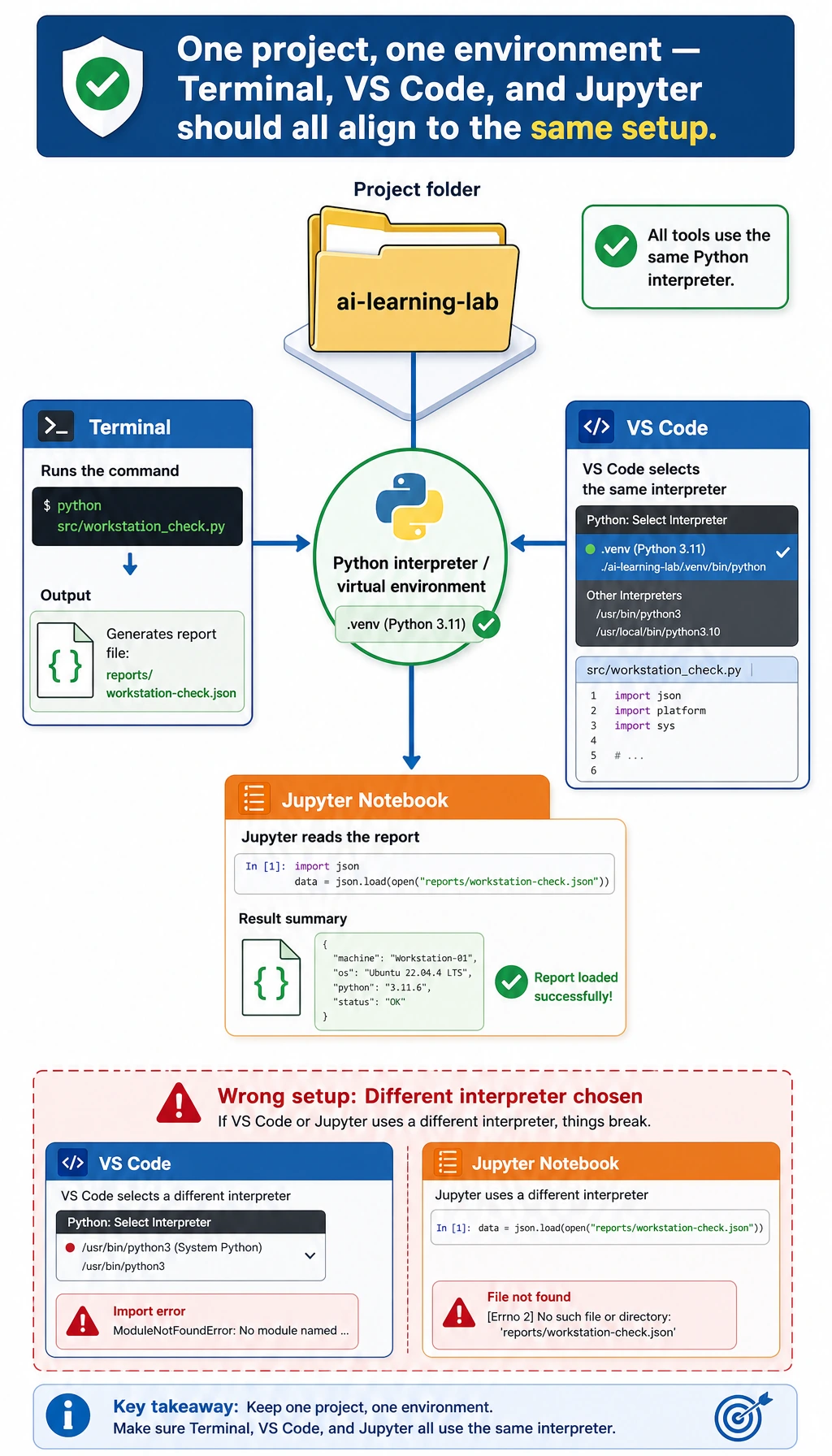
Open the project in VS Code:
code .Then check these items:
| Check | Where to look |
|---|---|
The folder name is ai-learning-lab | VS Code Explorer |
| The selected interpreter is the one you expect | Command Palette -> Python: Select Interpreter |
| The script runs | VS Code terminal: python3 src/workstation_check.py |
| Git changes are visible | Source Control panel |
If you use Jupyter, create notebooks/01-workstation-review.ipynb and run a cell like this:
import jsonfrom pathlib import Path
report = json.loads(Path("../reports/workstation-check.json").read_text(encoding="utf-8"))print(report["python_version"])print(report["git_branch"]["stdout"])print(len(report["project_files"]))
Expected output:
3.12.3main7The file count can be different. The important point is that the Notebook reads the same report generated by your script. This connects exploration (notebooks/) with project evidence (reports/).
Step 8: Troubleshoot by locating the broken link
Section titled “Step 8: Troubleshoot by locating the broken link”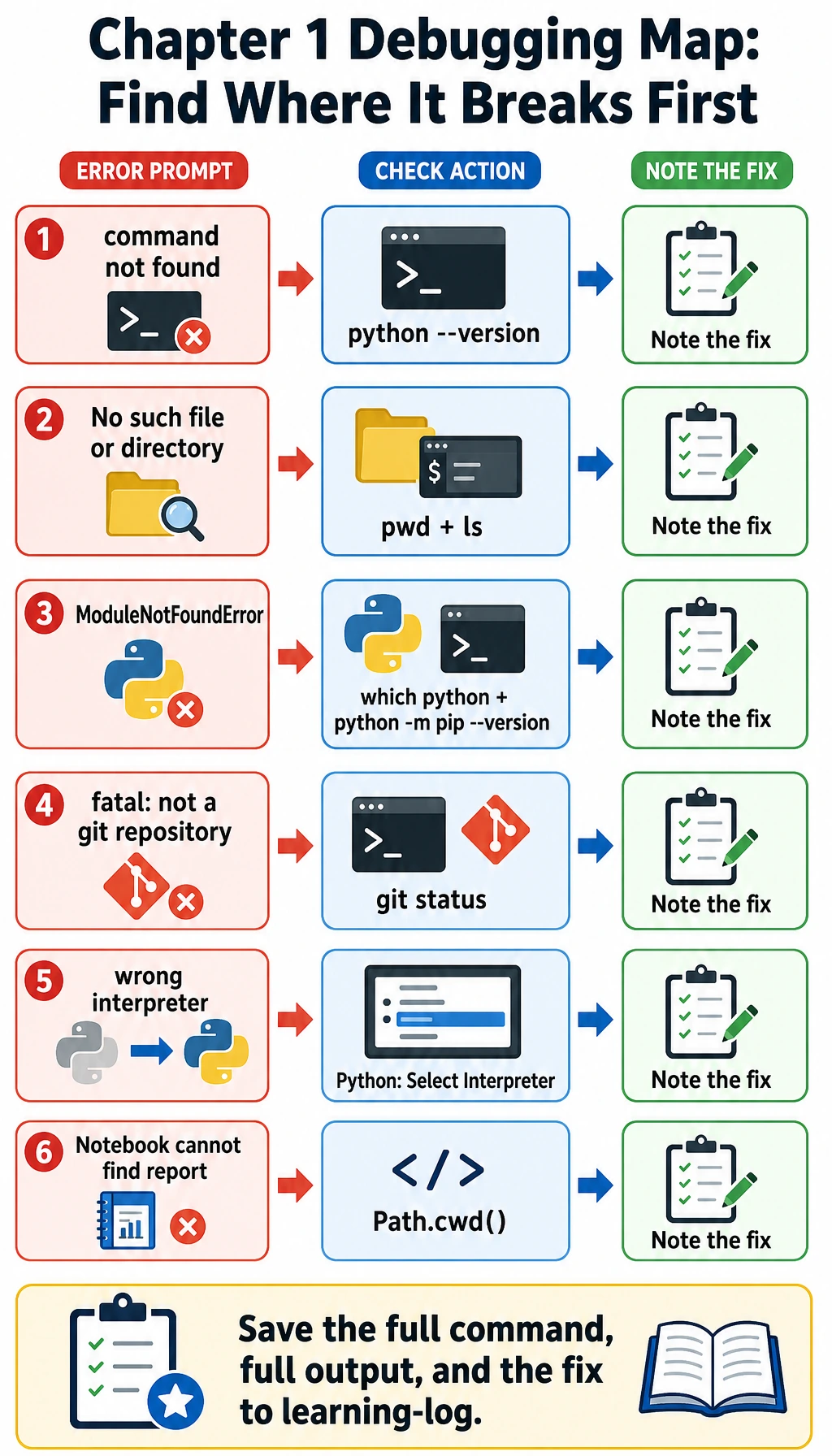
When an error appears, slow down and locate which link is broken:
| Symptom | First command to run | Likely cause | Fix |
|---|---|---|---|
python3: command not found | python --version | Your system uses python instead of python3 | Use python consistently, or configure PATH |
No such file or directory | pwd and ls | You are in the wrong folder | cd into ai-learning-lab |
ModuleNotFoundError | which python and python -m pip --version | The package was installed into another environment | Activate the intended environment, then install with python -m pip install ... |
fatal: not a git repository | git status | You are outside the repository or forgot git init | Move into the project folder or run git init |
| VS Code runs a different Python | python3 -c "import sys; print(sys.executable)" | VS Code interpreter and terminal interpreter differ | Use Python: Select Interpreter |
| Jupyter cannot find the report | Path.cwd() in a Notebook cell | Notebook path is different from the project root | Use ../reports/... or move the Notebook |
Do not only copy the last error line. Save the full command, the full output, and what you tried next in notes/learning-log.md.
Step 9: Package the portfolio evidence
Section titled “Step 9: Package the portfolio evidence”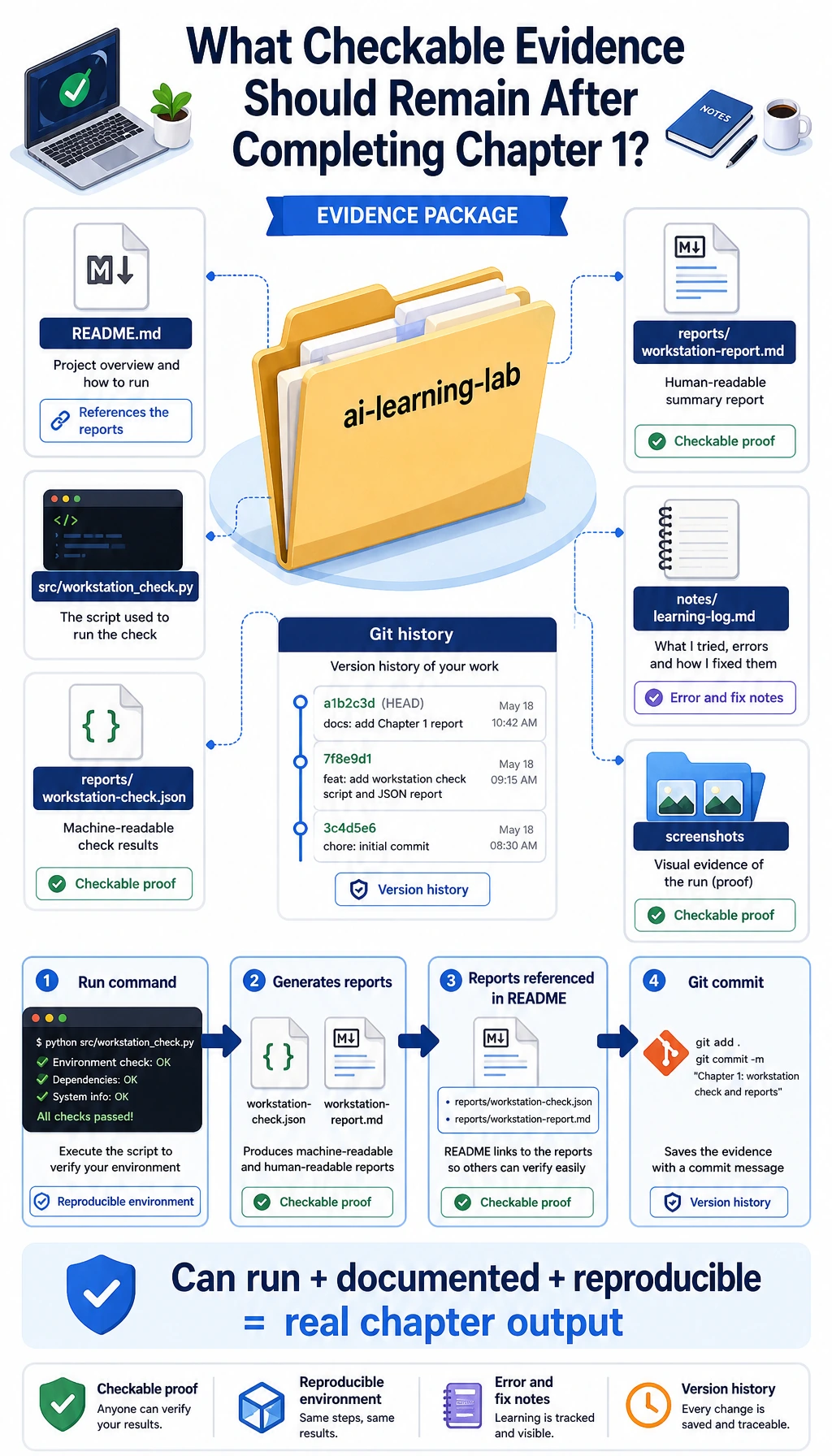
Before leaving Chapter 1, your evidence pack should show both result and process:
| Evidence | Minimum acceptable version | Stronger portfolio version |
|---|---|---|
| Run command | python3 src/workstation_check.py | README includes command, output, and troubleshooting note |
| Environment proof | Python version in terminal output | reports/workstation-check.json records executable and platform |
| Git proof | One commit | Multiple small commits with meaningful messages |
| Editor proof | Project opens in VS Code | Interpreter selected and run output recorded |
| Notebook proof | Optional | Notebook reads the generated report and explains it |
| Debug proof | One error note | A short “symptom -> cause -> fix” table |
Mini exercises
Section titled “Mini exercises”- Add a
docs/commands.mdfile that records 10 commands you used in this chapter. Commit it withgit commit -m "Add command practice notes". - Add a
reports/terminal-transcript.txtfile and paste the output of one successful run plus one mistake you fixed. - Add a second script named
src/path_check.pythat printsPath.cwd()andPath(__file__).resolve(). - Create a branch named
practice/readme-update, improve the README, then merge it back intomain.
Final self-check
Section titled “Final self-check”- I can explain the difference between current folder, project root, and Python file path.
- I can run the same script from the terminal and from VS Code.
- I can inspect Git state with
git status --short. - I can make a small branch, commit, and merge it back.
- I have a report file that proves my workstation can run code.
Check reasoning and explanation
docs/commands.mdshould contain commands you actually ran plus a short note on what each command did.reports/terminal-transcript.txtshould include one successful run and one mistake you fixed, not only perfect output.src/path_check.pyshould help you see the difference between the launch folder and the script file location.- The branch exercise passes when
maincontains the README improvement andgit status --shortis clean. - The final evidence pack should rerun from a fresh terminal. If it works only in an old session, update the README or environment notes.
Once these are checked, Chapter 1 is no longer just a list of tools. It has become a working foundation you can reuse in every later chapter.
Evidence to Keep
Section titled “Evidence to Keep”Keep this page’s proof of learning as a small evidence card:
- Workspace
- terminal, Git repo, editor, Python environment, and notebook all verified
- Artifact
- small command log, commit history, script output, or notebook cell result
- Debug Note
- one setup problem and how you diagnosed it
- Failure Check
- path confusion, environment mismatch, Git state, or missing dependency
- Expected Output
- a ready-to-learn workstation evidence pack