
1.1.2 Basic Terminal Operations
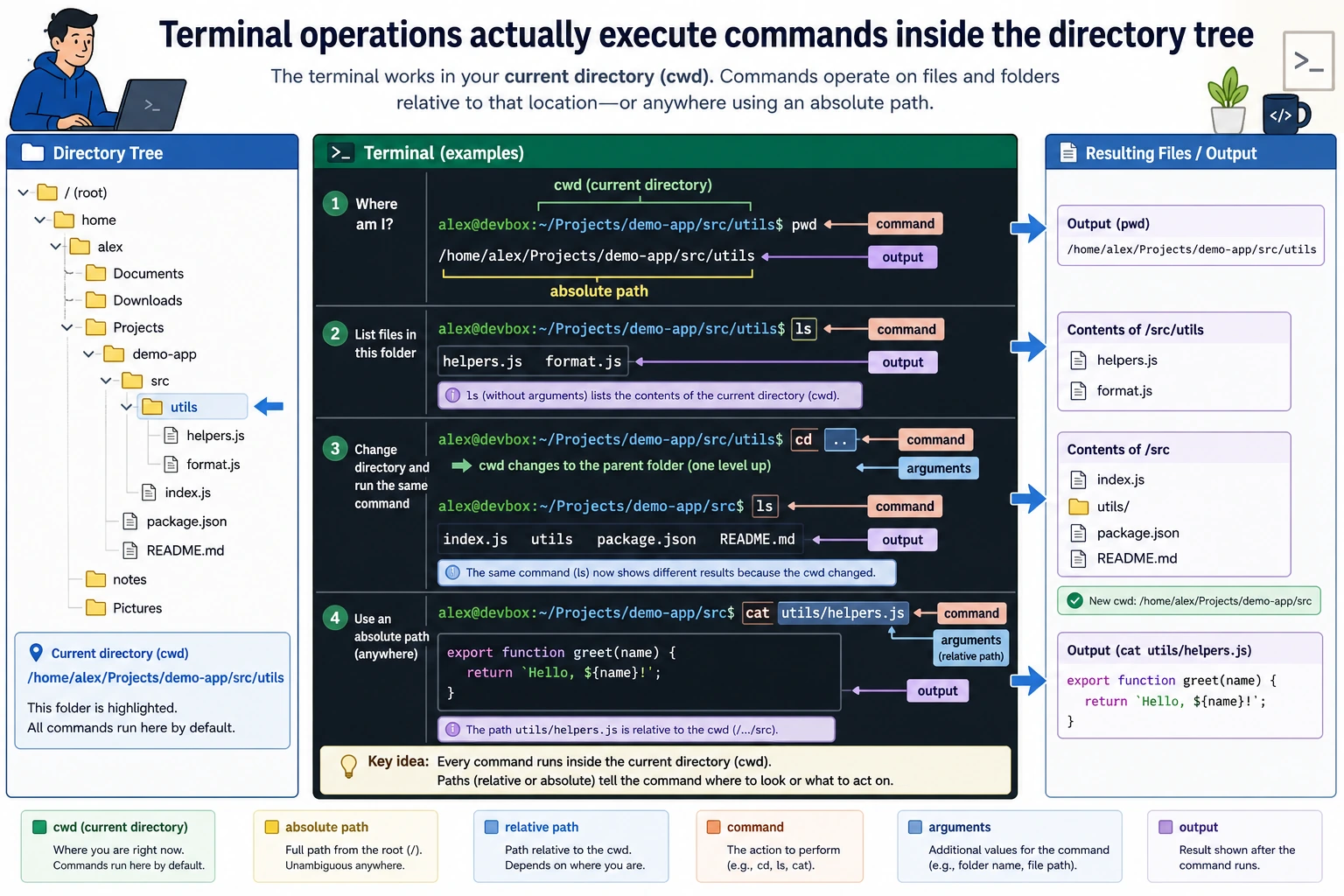
Where this section fits
Section titled “Where this section fits”This is the section where you start using the terminal in a hands-on way. First, you’ll learn how to tell “which directory am I in right now?”, then you’ll master the most common operations for files, directories, paths, pipes, and environment variables. This will prepare you for running Python, managing dependencies, and using Git later on.
Learning objectives
Section titled “Learning objectives”- Master 10+ core commands, covering 90% of everyday tasks
- Understand absolute paths and relative paths
- Learn how to use pipes and redirection
- Understand the concept of environment variables
Open the terminal
Section titled “Open the terminal”First, find and open your terminal:
| Operating system | How to open |
|---|---|
| Windows | Search for “PowerShell” or “Windows Terminal” and click to open |
| macOS | Press Command + Space, search for “Terminal”, and press Enter |
| Linux | Ctrl + Alt + T |
You’ll see a window with a blinking cursor waiting for your command. That is the terminal.
Part 1: Paths — where are you?
Section titled “Part 1: Paths — where are you?”The command line has no graphical interface, so you need to tell the computer in text which folder you want to work in. That is called a path.
Where are you now?
Section titled “Where are you now?”pwdpwd = Print Working Directory
The output might look like this:
/Users/zhangsan # macOS/home/zhangsan # LinuxC:\Users\zhangsan # Windows PowerShellThis is the folder you are currently in, called the working directory.
Absolute path vs. relative path
Section titled “Absolute path vs. relative path”/Users/zhangsan/projects/ai-course/data/train.csvThis is an absolute path — it starts from the root directory / and fully describes the file’s location. It’s like a complete street address in real life.
data/train.csvThis is a relative path — it depends on the folder you are currently in. If you are in /Users/zhangsan/projects/ai-course/, then data/train.csv refers to the same file as the absolute path above. It’s like saying “the second floor of the building next door.”
Special symbols in paths
Section titled “Special symbols in paths”| Symbol | Meaning | Example |
|---|---|---|
/ | Root directory (the starting point of all files) | cd / |
~ | The current user’s home directory | cd ~ is the same as cd /Users/zhangsan |
. | Current directory | ./run.py means run.py in the current directory |
.. | Parent directory | cd .. goes up one level |
Here’s a small exercise to help you understand:
# Suppose you are in /Users/zhangsan/projects/ai-course
pwd                    # Output: /Users/zhangsan/projects/ai-coursecd ..                  # Go up one levelpwd                    # Output: /Users/zhangsan/projectscd ~                   # Return to the Home directorypwd                    # Output: /Users/zhangsancd ~/projects/ai-course  # Go back using an absolute pathpwd                    # Output: /Users/zhangsan/projects/ai-course
Part 2: Core commands
Section titled “Part 2: Core commands”These are commands you will use every day. Type them along with the tutorial first—you don’t need to memorize them. The more you use them, the more natural they’ll become.
Navigation commands
Section titled “Navigation commands”cd — change directory
Section titled “cd — change directory”cd projects # Enter the projects foldercd .. # Go back to the parent directorycd ~ # Return to the Home directorycd ~/Desktop # Go to the Desktopcd - # Go back to the previous directory (very useful!)ls — list files
Section titled “ls — list files”ls # List files and folders in the current directoryls -l # Detailed list (shows size, date, permissions)ls -a # Show hidden files (files starting with .)ls -la # Combine bothls projects/ # List the contents of the projects folderFile and folder operations
Section titled “File and folder operations”mkdir — create a folder
Section titled “mkdir — create a folder”mkdir my-project # Create a foldermkdir -p a/b/c # Create nested folders in one gotouch — create an empty file
Section titled “touch — create an empty file”touch hello.py # Create an empty Python filetouch README.md # Create an empty Markdown filecp — copy
Section titled “cp — copy”cp file.txt file_backup.txt # Copy a filecp file.txt ~/Desktop/ # Copy to the Desktopcp -r my-folder/ my-folder-backup/ # Copy an entire folder (`-r` means recursive)mv — move / rename
Section titled “mv — move / rename”mv old_name.py new_name.py # Rename a filemv file.txt ~/Desktop/ # Move to the Desktopmv project/ ~/projects/ # Move a folderrm — delete
Section titled “rm — delete”rm file.txt # Delete a filerm -r my-folder/ # Delete a folder and everything inside itView file contents
Section titled “View file contents”cat file.txt # Display the entire file contents (good for small files)head file.txt # Show the first 10 lineshead -20 file.txt # Show the first 20 linestail file.txt # Show the last 10 linestail -f log.txt # Follow file updates in real time (very useful for logs)Search
Section titled “Search”grep "error" log.txt # Search for lines containing "error" in a filegrep -r "import torch" ./ # Search all files in the current directorygrep -n "def train" model.py # Search and show line numbersgrep will become a great debugging helper in the future — it helps you quickly find where a function or variable is used across dozens of files.
Other useful commands
Section titled “Other useful commands”clear # Clear the screen (or press Ctrl + L)history # View all the commands you’ve run beforewhich python # Show the path of the python command (often used to diagnose environment issues)echo "hello" # Print some textPart 3: Pipes and redirection
Section titled “Part 3: Pipes and redirection”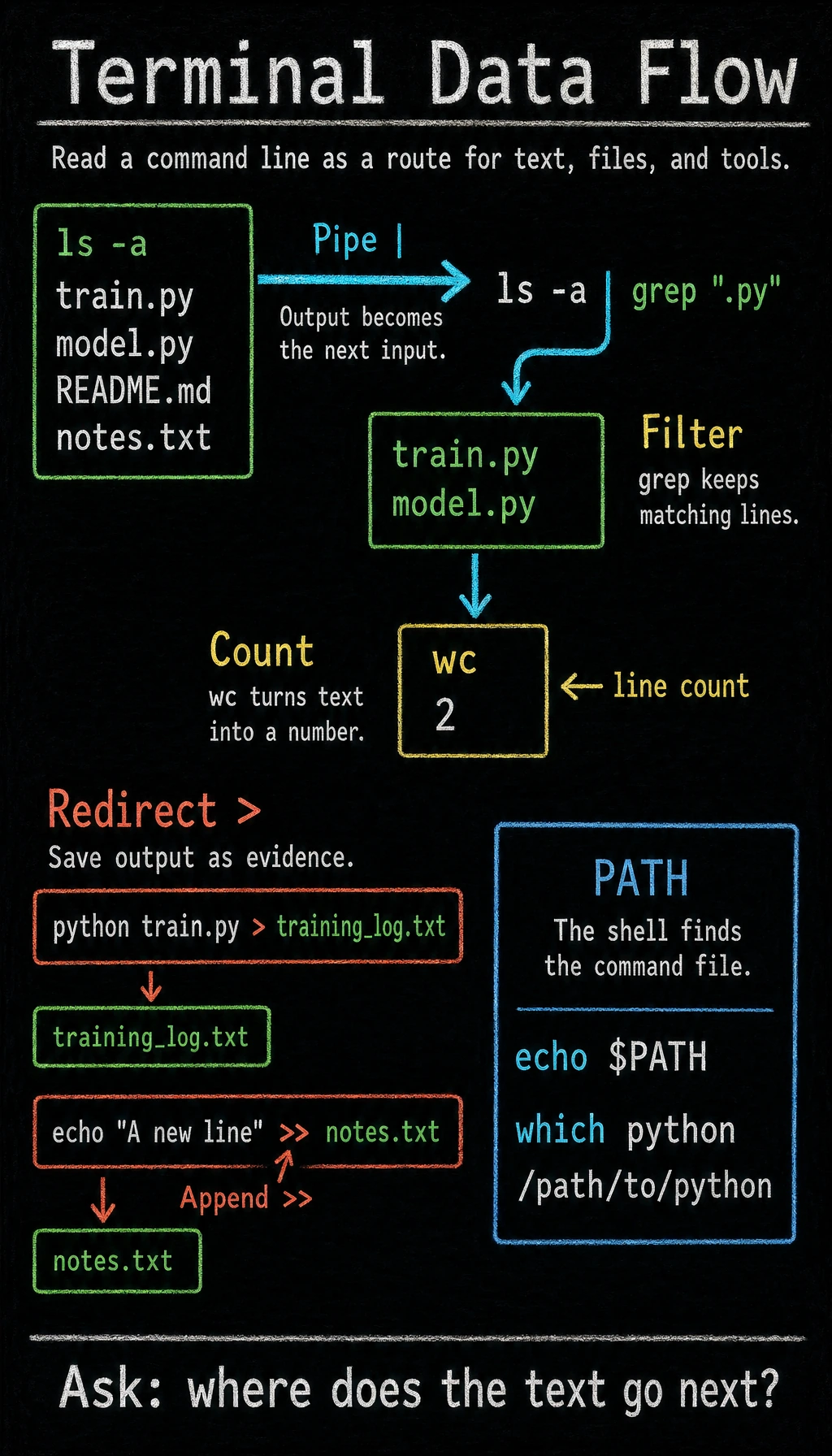
These two concepts are where the command line becomes truly powerful.
Pipe |
Section titled “Pipe |”A pipe means: take the output of the previous command and use it as the input of the next command.
# List all files, then find .py files among themls -la | grep ".py"
# Check the command history for git commandshistory | grep "git"
# Count how many Python files are in the current directoryls *.py | wc -l
You can think of a pipe as an assembly line in a factory: the output of one step becomes the input to the next.
Redirection > and >>
Section titled “Redirection > and >>”Save a command’s output to a file instead of showing it on the screen:
# Save the output of ls to filelist.txt (overwrite)ls -la > filelist.txt
# Append output to the end of a file (do not overwrite)echo "A new line" >> notes.txt
# Save the output of a Python script to a filepython train.py > training_log.txt
> overwrites, while >> appends. In practice, these are often used to save training logs.
Using them together
Section titled “Using them together”# Run a script and save both normal output and error output to a log filepython train.py > log.txt 2>&1
# Count how many lines of code are in a Python filecat model.py | wc -l
# Find all files containing "TODO" and count themgrep -r "TODO" ./ | wc -lPart 4: Environment variables
Section titled “Part 4: Environment variables”Environment variables are some “global settings” stored in the system. Many programs read them to decide how to behave.
View environment variables
Section titled “View environment variables”# View all environment variablesenv
# View the value of a specific environment variableecho $PATHecho $HOMEThe most important environment variable: PATH
Section titled “The most important environment variable: PATH”PATH determines which directories the system searches when you type a command in the terminal.
echo $PATHThese paths are separated by :. When you type python, the system looks for a file named python in each of these directories in order, and runs the first one it finds.
If you get command not found, it usually means the program is not in any directory listed in PATH.
Set environment variables
Section titled “Set environment variables”# Set temporarily (only valid in the current terminal window)export MY_API_KEY="your_api_key_here"echo $MY_API_KEY # Output: your_api_key_here
# Verify: close the terminal and reopen it, and MY_API_KEY will be gone# Set permanently (write to a configuration file)# For macOS/Linux with zsh:echo 'export MY_API_KEY="your_api_key_here"' >> ~/.zshrcsource ~/.zshrc # Take effect immediately
# If you use bash:echo 'export MY_API_KEY="your_api_key_here"' >> ~/.bashrcsource ~/.bashrcHands-on practice
Section titled “Hands-on practice”Open your terminal and complete the following steps in order:
# 1. Confirm where you arepwd
# 2. Go to the Home directorycd ~
# 3. Create a study project foldermkdir -p ai-study/ch01-tools/terminal-practice
# 4. Enter this foldercd ai-study/ch01-tools/terminal-practice
# 5. Create a few filestouch hello.py notes.txt data.csv
# 6. Check the files you createdls -la
# 7. Write some content into the filesecho "print('Hello, AI!')" > hello.pyecho "Day 1 study notes" > notes.txt
# 8. View the file contentscat hello.pycat notes.txt
# 9. Copy notes.txt to make a backupcp notes.txt notes_backup.txt
# 10. Confirm the backup was created successfullyls
# 11. Append more content to notes.txtecho "Learned the cd, ls, mkdir, touch, cp, and cat commands" >> notes.txtcat notes.txt
# 12. Search for files containing "AI"grep -r "AI" ./
# 13. Go back to the parent directorycd ..pwd
If everything worked, congratulations — you’ve already mastered the most essential command-line operations.
Operation guide and checkpoints
- After step 4,
pwdshould end withai-study/ch01-tools/terminal-practice. ls -lashould showhello.py,notes.txt, anddata.csv; after the backup step, it should also shownotes_backup.txt.cat hello.pyshould print the code text. It does not run the program; running it requirespython hello.py.>>should keep the first note and append a second line. If the original text disappeared, you probably used>by mistake.grep -r "AI" ./should findhello.pybecause the string appears in the code. If it finds nothing, check your current directory and capitalization.
Quick reference for common commands
Section titled “Quick reference for common commands”| Command | Purpose | Common options |
|---|---|---|
pwd | Show current directory | |
cd | Change directory | .. parent, ~ Home, - previous |
ls | List files | -l detailed, -a hidden files |
mkdir | Create a folder | -p create multiple levels |
touch | Create an empty file | |
cp | Copy | -r copy folders |
mv | Move / rename | |
rm | Delete | -r delete folders |
cat | View file contents | |
head / tail | View the beginning / end | -n number specify line count |
grep | Search text | -r recursive, -n line numbers |
echo | Print text | |
clear | Clear the screen | |
history | Command history | |
which | Show command path |
Evidence to Keep
Section titled “Evidence to Keep”Keep this page’s proof of learning as a small evidence card:
- Command
- exact terminal command you ran
- Working Dir
- pwd/current folder and important files listed
- Output
- copied command output or screenshot of the result
- Failure Check
- wrong path, missing command, permission issue, or shell mismatch
- Expected Output
- reproducible terminal action with the command and result side by side