
3.3.3 Data Read and Write
Learning Objectives
Section titled “Learning Objectives”- Master reading and writing CSV files
- Understand reading and writing Excel, JSON, and other formats
- Learn commonly used parameter settings
- Understand chunked reading techniques for large files
First, Build a Map
Section titled “First, Build a Map”Data read/write is easier to understand as “first read it in, then confirm whether it was read correctly”:
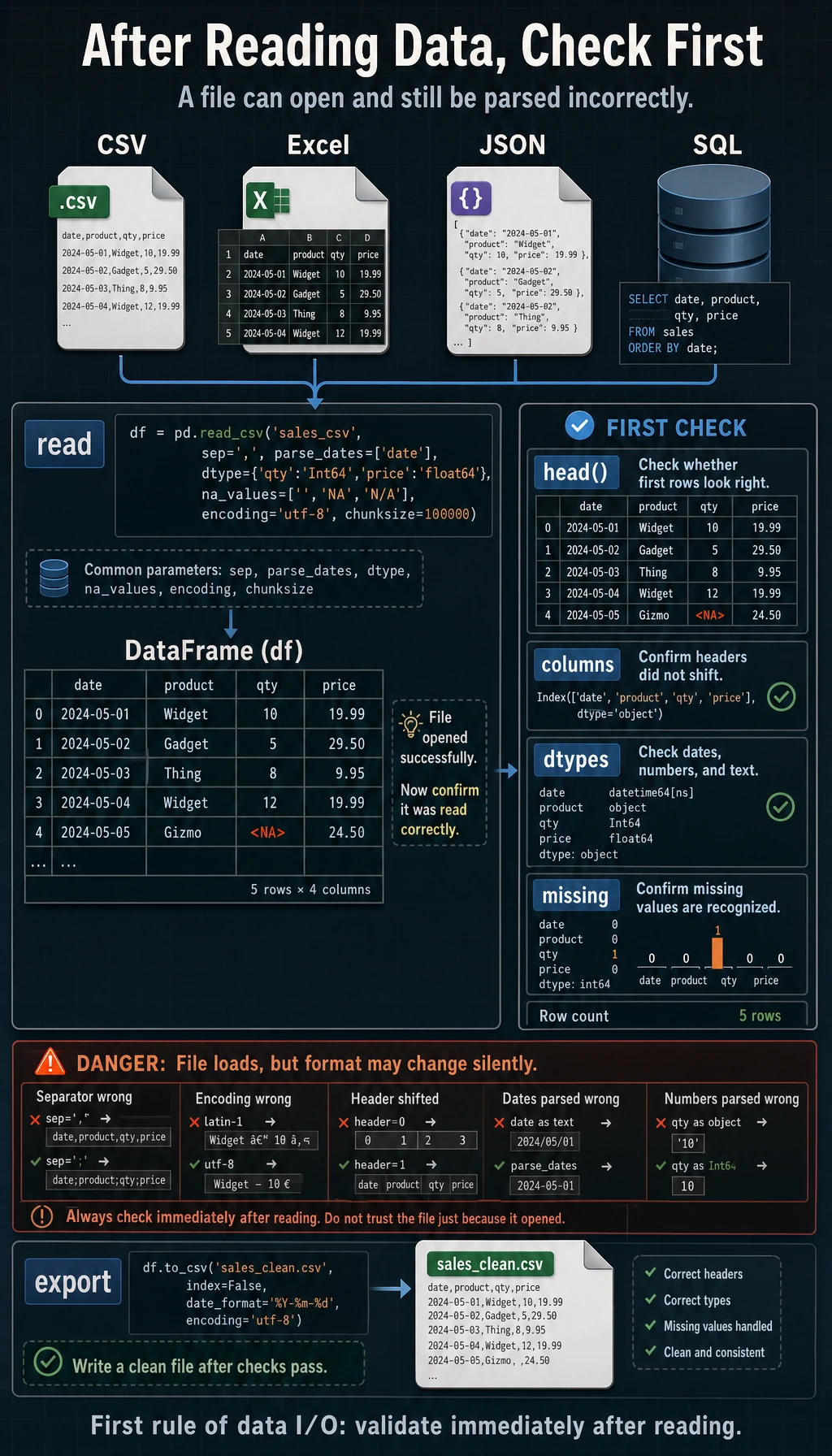
So what this section really aims to solve is:
- How data comes in
- What to check right away after reading it in
Reading CSV Files
Section titled “Reading CSV Files”CSV (Comma-Separated Values) is the most commonly used file format in data analysis.
A More Beginner-Friendly Analogy
Section titled “A More Beginner-Friendly Analogy”You can think of data read/write as:
- Moving an external file into your analysis workstation
What you should fear most is not “it won’t move in,” but:
- It moved in, but the format has already changed
For example:
- Dates are still just strings
- Chinese text becomes garbled
- The first row was not actually the header, but it was treated as the header
Basic Reading
Section titled “Basic Reading”import pandas as pd
# Read a CSV filedf = pd.read_csv("titanic_sample.csv")print(df.head()) # View the first 5 rowsprint(df.shape) # Number of rows and columnsprint(df.info()) # Column informationWith just this one line, Pandas automatically completes:
- Recognizing the header (the first row becomes the column names)
- Inferring the data type of each column
- Creating a row index (0, 1, 2, …)
Common Parameters
Section titled “Common Parameters”# Specify the delimiter (some files use tab or semicolon separators)df = pd.read_csv("data.tsv", sep="\t") # tab-separateddf = pd.read_csv("data.csv", sep=";") # semicolon-separated
# Specify encoding (a common issue for Chinese files)df = pd.read_csv("chinese_data.csv", encoding="utf-8")df = pd.read_csv("chinese_data.csv", encoding="gbk") # Files exported by some Windows tools
# Files without a headerdf = pd.read_csv("no_header.csv", header=None)df = pd.read_csv("no_header.csv", header=None, names=["col1", "col2", "col3"])
# Set a column as the indexdf = pd.read_csv("data.csv", index_col="id")df = pd.read_csv("data.csv", index_col=0) # Use the first column as the index
# Read only selected columnsdf = pd.read_csv("data.csv", usecols=["Name", "Age", "Fare"])
# Read only the first 100 rowsdf = pd.read_csv("data.csv", nrows=100)
# Specify missing-value markersdf = pd.read_csv("data.csv", na_values=["NA", "N/A", "missing", "-"])
# Specify data typesdf = pd.read_csv("data.csv", dtype={"Age": float, "Pclass": str})Parameter Quick Reference
Section titled “Parameter Quick Reference”| Parameter | Purpose | Example |
|---|---|---|
sep | Delimiter | sep="\t" |
encoding | Encoding | encoding="utf-8" |
header | Header row number | header=None |
names | Custom column names | names=["a","b"] |
index_col | Index column | index_col="id" |
usecols | Read selected columns | usecols=["Name","Age"] |
nrows | Number of rows to read | nrows=100 |
skiprows | Number of rows to skip | skiprows=5 |
na_values | Missing-value markers | na_values=["NA","-"] |
dtype | Specify data type | dtype={"Age": float} |
parse_dates | Parse date columns | parse_dates=["date"] |
The Safest Default Order When Reading a New File for the First Time
Section titled “The Safest Default Order When Reading a New File for the First Time”A more reliable sequence is usually:
- Read it in directly first
- Check
shapefirst - Then check
head() - Then check
info() - If something looks wrong, go back and add parameters
This makes it easier to spot problems than trying to write all parameters up front from the beginning.
Writing CSV Files
Section titled “Writing CSV Files”# Basic writingdf.to_csv("output.csv")
# Do not save the index (usually recommended)df.to_csv("output.csv", index=False)
# Specify encodingdf.to_csv("output.csv", index=False, encoding="utf-8-sig") # UTF-8 friendly for Excel
# Specify delimiterdf.to_csv("output.tsv", index=False, sep="\t")Reading and Writing Excel Files
Section titled “Reading and Writing Excel Files”# Read Excel (requires the openpyxl library: python -m pip install --upgrade openpyxl)df = pd.read_excel("data.xlsx")
# Read a specific worksheetdf = pd.read_excel("data.xlsx", sheet_name="Sheet2")df = pd.read_excel("data.xlsx", sheet_name=1) # By index
# Read all worksheets (returns a dictionary)all_sheets = pd.read_excel("data.xlsx", sheet_name=None)for name, sheet_df in all_sheets.items(): print(f"Worksheet {name}: {sheet_df.shape}")
# Write Exceldf.to_excel("output.xlsx", index=False)
# Write multiple worksheetswith pd.ExcelWriter("output.xlsx") as writer: df1.to_excel(writer, sheet_name="Sales Data", index=False) df2.to_excel(writer, sheet_name="User Data", index=False)Reading and Writing JSON Files
Section titled “Reading and Writing JSON Files”# Read JSONdf = pd.read_json("data.json")
# Different JSON formats# records format: [{"name": "Zhang San", "age": 22}, {...}]df = pd.read_json("data.json", orient="records")
# Write JSONdf.to_json("output.json", orient="records", force_ascii=False, indent=2)# force_ascii=False: keep Chinese characters unescaped# indent=2: pretty-print the outputHandling Large Files: Chunked Reading
Section titled “Handling Large Files: Chunked Reading”When a file is too large to load into memory all at once, you can read it in chunks:
# Chunked reading: read 1000 rows at a timechunks = pd.read_csv("huge_file.csv", chunksize=1000)
# Process chunk by chunkresults = []for chunk in chunks:    # Process each chunk    filtered = chunk[chunk["Age"] > 30]    results.append(filtered)
# Merge all chunksdf_final = pd.concat(results, ignore_index=True)print(f"Total records filtered: {len(df_final)}")
# Another common use case: count the total number of rows in a large filetotal_rows = sum(len(chunk) for chunk in pd.read_csv("huge_file.csv", chunksize=10000))print(f"Total rows: {total_rows}")A Beginner-Friendly Table to Remember First
Section titled “A Beginner-Friendly Table to Remember First”| Phenomenon | What to think of first |
|---|---|
| File opens with garbled text | encoding |
| One column is crammed together | sep |
| Dates cannot be used directly for time analysis | parse_dates |
| Memory is not enough | chunksize |
| The first row was read incorrectly | header / names |
This table is helpful for beginners because it breaks “file read errors or distorted reads” into several of the most common entry points.
Other Formats
Section titled “Other Formats”# Read HTML tables (requires lxml or html5lib)# tables = pd.read_html("https://example.com/data.html")
# Read clipboard (after copying from Excel)# df = pd.read_clipboard()
# Read Parquet (an efficient columnar storage format, commonly used for big data)# df = pd.read_parquet("data.parquet")
# Read from an SQL database (covered in detail in Chapter 4)# import sqlite3# conn = sqlite3.connect("database.db")# df = pd.read_sql("SELECT * FROM users", conn)Practice: Read and Preview Data
Section titled “Practice: Read and Preview Data”import pandas as pd
# Suppose we have a sales dataset# If you don't have a file, create a sample dataset firstdata = { "Date": ["2024-01-15", "2024-01-16", "2024-01-17", "2024-01-18", "2024-01-19"], "Product": ["Apple", "Milk", "Bread", "Apple", "Milk"], "Quantity": [50, 30, 45, 60, 25], "Unit Price": [5.5, 8.0, 3.5, 5.5, 8.0], "Sales": [275.0, 240.0, 157.5, 330.0, 200.0]}df = pd.DataFrame(data)
# Save as CSVdf.to_csv("sales.csv", index=False)
# Read it againdf = pd.read_csv("sales.csv")
# Standard "first look" workflowprint("=== Data Shape ===")print(df.shape)
print("\n=== First Few Rows ===")print(df.head())
print("\n=== Data Info ===")print(df.info())
print("\n=== Statistical Summary ===")print(df.describe())What Is the Most Worthwhile Thing to Learn from This Small Practice?
Section titled “What Is the Most Worthwhile Thing to Learn from This Small Practice?”The most important thing is not a specific read_* function name,
but the most reliable three steps when you receive new data:
- Check
shape - Check
head() - Check
info()
If these three steps go smoothly, you will be much more confident when reading CSV, Excel, and JSON files later.
Evidence to Keep
Section titled “Evidence to Keep”Keep this page’s proof of learning as a small evidence card:
- Dataframe State
- columns, dtypes, row count, missing values, and sample rows
- Operation
- read/write, select/filter, clean, transform, groupby, merge, or time-series step
- Output
- resulting table, saved file, aggregation, join result, or time index view
- Failure Check
- dtype mismatch, missing data, duplicated keys, chained assignment, or wrong time frequency
- Expected Output
- before/after table sample with the transformation reason
Summary
Section titled “Summary”| Operation | Read | Write |
|---|---|---|
| CSV | pd.read_csv() | df.to_csv() |
| Excel | pd.read_excel() | df.to_excel() |
| JSON | pd.read_json() | df.to_json() |
| SQL | pd.read_sql() | df.to_sql() |
| Parquet | pd.read_parquet() | df.to_parquet() |
What Should You Take Away from This Section?
Section titled “What Should You Take Away from This Section?”- Data read/write is not just “importing a file,” but confirming whether the data was read in correctly
- When you first get a file, check
shape / head / infofirst - Many file-reading problems are essentially parameter issues involving
encoding / sep / header / parse_dates / chunksize
Hands-on Exercises
Section titled “Hands-on Exercises”Exercise 1: Create and Read/Write CSV
Section titled “Exercise 1: Create and Read/Write CSV”# 1. Create a DataFrame containing information for 10 students (name, age, score)# 2. Save it as a CSV file (without the index)# 3. Read the CSV file again# 4. Verify that the data is the same before and after readingExercise 2: Read Real Data
Section titled “Exercise 2: Read Real Data”Go to Kaggle and download a small dataset you are interested in (CSV format). Use pd.read_csv() to read it and complete the “first look” workflow.
Exercise 3: Handle Encoding Issues
Section titled “Exercise 3: Handle Encoding Issues”# Create a dataset containing Chinese text, save it separately using utf-8 and gbk encodings# Then try reading it with different encodings and observe the garbled textReference implementation and walkthrough
- When writing and reading a CSV, use
to_csv(index=False)if the index is not meaningful, then read it back and compare shape, columns, dtypes, and a few rows. - For the first-look workflow, record
shape,head,info,describe, missing-value counts, and duplicate counts before making cleaning decisions. - Encoding problems are solved by naming the real encoding, such as
encoding="utf-8"orencoding="gbk". Do not fix garbled text by manually retyping a few cells.