
0.2 Environment Setup
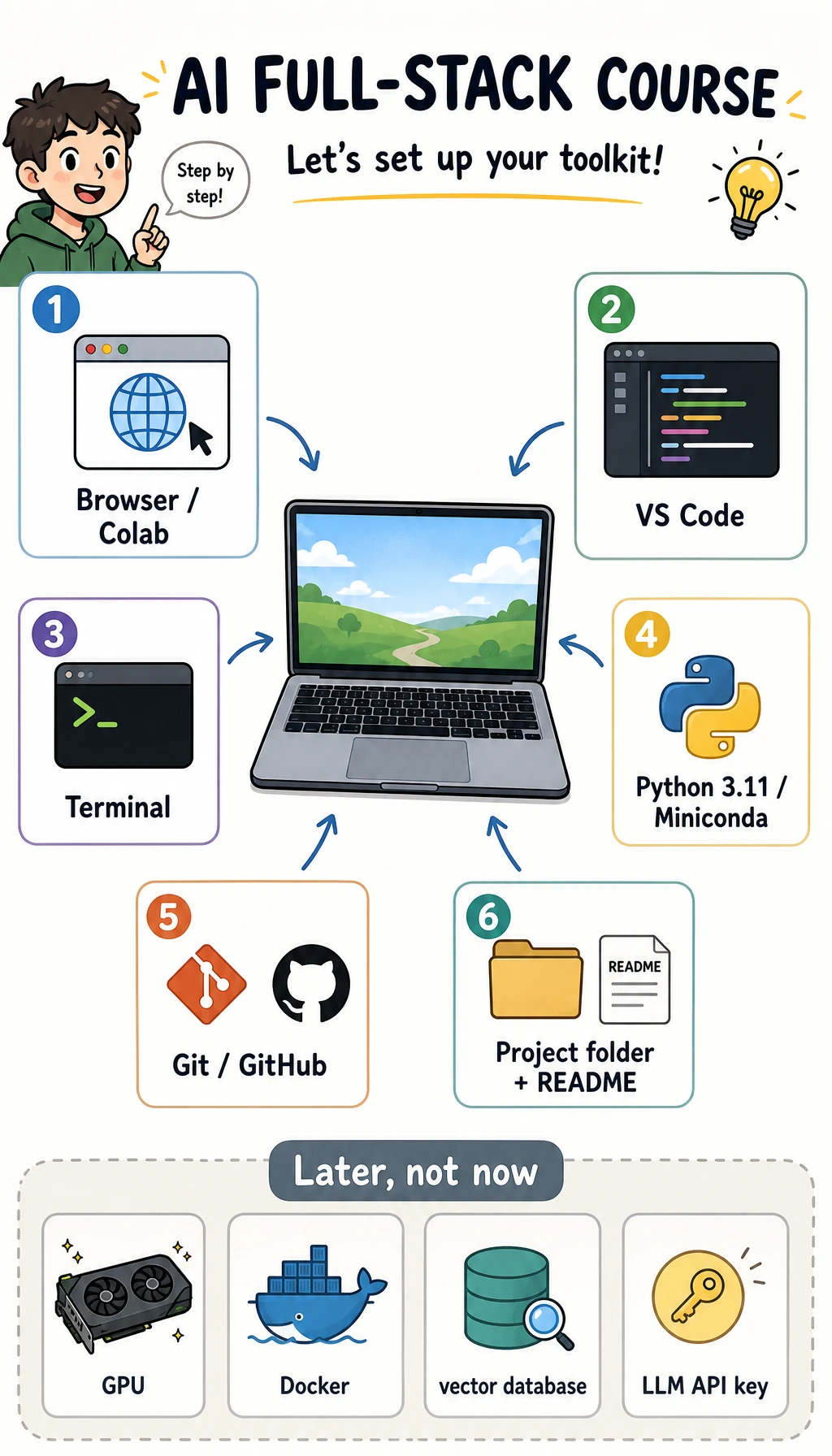
Install less first. The goal is only: enter one folder, run Python, save code with Git, and keep enough evidence that another person can rerun your work.
In job-facing AI work, environment setup is not a side chore. It is the first proof that your project can move from your laptop to another reviewer, teammate, or deployment target.
Install Now
Section titled “Install Now”| Tool | Use |
|---|---|
| Browser | Course, Colab, GitHub, AI tools |
| VS Code | Edit files |
| Python 3.11 | Run examples |
| Git | Save checkpoints |
Install Docker, CUDA, vector databases, and large frameworks later. Installing too much too early makes beginner errors harder to locate.
Choose One Python Command
Section titled “Choose One Python Command”Different machines use different Python launchers. Pick the first command that works and keep using it in your notes.
| System | Try first | If that fails |
|---|---|---|
| macOS / Linux | python3 --version | python --version |
| Windows PowerShell | py -3.11 --version | python --version |
| Colab | no install needed | use the notebook runtime |
When a later command says python, replace it with the command that worked on your machine.
Five-Minute Check
Section titled “Five-Minute Check”python3 --versiongit --versionmkdir ai-learning-labcd ai-learning-labpython3 -m venv .venvsource .venv/bin/activatepython -c "print('AI course environment is ready')"git initgit statusWindows PowerShell activation:
py -3.11 -m venv .venv.\.venv\Scripts\Activate.ps1Expected signal:
AI course environment is readyInitialized empty Git repository ...git status should show that you are inside a repository. You do not need to commit yet; the point is to confirm that the folder is ready to track work.
If The Check Fails
Section titled “If The Check Fails”| Symptom | Do this first | Keep as evidence |
|---|---|---|
python3 not found | Try the command table above, then install Python 3.11 | The command and full error |
| virtual environment activation fails | Check your shell: zsh/bash uses source, PowerShell uses Activate.ps1 | Shell name and activation command |
git not found | Install Git, reopen the terminal, retry git --version | Version output or error |
| permission error | Move the project under your user folder, not a protected system folder | Current directory from pwd |
If this still fails, use Colab for now and return after Chapter 1. The pass line is simple: enter a folder, run Python, initialize Git.
What Experienced Learners Should Check
Section titled “What Experienced Learners Should Check”If you already have a setup, do not skip the page completely. Confirm that you can explain:
- Which interpreter runs this course project.
- Where dependencies will be installed.
- How you will recreate the environment on another machine.
- Which files should be committed and which should stay local.
The environment is part of the course output. A project that only works on your laptop is not finished yet. A stronger project has a short setup section, a known Python version, a dependency plan, and one command that proves the basic runtime works.
Evidence to Keep
Section titled “Evidence to Keep”Keep this page’s proof of learning as a small evidence card:
- Machine State
- OS, Python/Node versions, editor, terminal, and package manager
- Verification
- commands run, versions printed, and first script output
- Debug Note
- install error, path issue, permission issue, or environment mismatch
- Recovery Plan
- exact command or doc page to retry before moving on
- Expected Output
- reproducible project folder with successful command output and one known fallback
Pass Check
Section titled “Pass Check”You pass this setup page when the same folder can run Python, show Git status, and explain which interpreter owns the project.